Today's Friday Fun comes out of a short exchange I had yesterday with Hal Rottenberg on Google Plus. We were playing around with piping a PowerShell command to Clip.exe which dumps the output to the Windows Clipboard. I got to thinking about taking this a step further based on my needs as a writer. Often I'd like to see the results of a command and then copy and paste the results into whatever I'm working on. In other words, I need to TEE the output to two places.
PowerShell has a cmdlet called Tee-Object that follows this principal. The default behavior is to write output to the pipeline AND send it to a text file.
PS C:\> get-service | tee c:\work\svc.txt
I'll see the results and save them to a text file. I can also use this cmdlet to save results to a variable.
PS C:\> get-service | tee c:\work\svc.txt
Status Name DisplayName
------ ---- -----------
Running AeLookupSvc Application Experience
Stopped ALG Application Layer Gateway Service
Stopped AppIDSvc Application Identity
Stopped Appinfo Application Information
...
Running wudfsvc Windows Driver Foundation - User-mo...
Stopped WwanSvc WWAN AutoConfig
PS C:\> $svc.count
196
PS C:\>
One approach I came up with to incorporate with Clip.exe was this:
PS C:\> get-service | tee -Variable svc | clip
I don't get the results immediately to the screen; they are saved to the variable. But at the same time output has been directed to the Windows Clipboard. That could be useful. But you know me, I always have to tinker a bit more and I ended up with a function called Out-Tee.
Function Out-Tee {
[cmdletbinding()]
Param (
[Parameter(Position=0,Mandatory=$True,ValueFromPipeline=$True)]
[object[]]$InputObject,
[alias("foregroundcolor","fg")]
[string]$TextColor=$host.ui.rawui.ForegroundColor
)
Begin {
#define an empty array to hold piped in objects
$a=@()
}
Process {
#add each piped in object to the array
$a+=$inputobject
}
End {
#write the array to the pipeline as a string then pass to Write-Host
$a | out-string | write-host -fore $textColor
#write the array again to Clip.exe
$a | clip
}
} #end function
This simple function takes a PowerShell expression and writes the results to the console using Write-Host and also to the clipboard. The default output will use the current console foreground color. But you can specify any other color that you would use with Write-Host. I even added some alias properties so you can use -foregroundcolor or -fg.
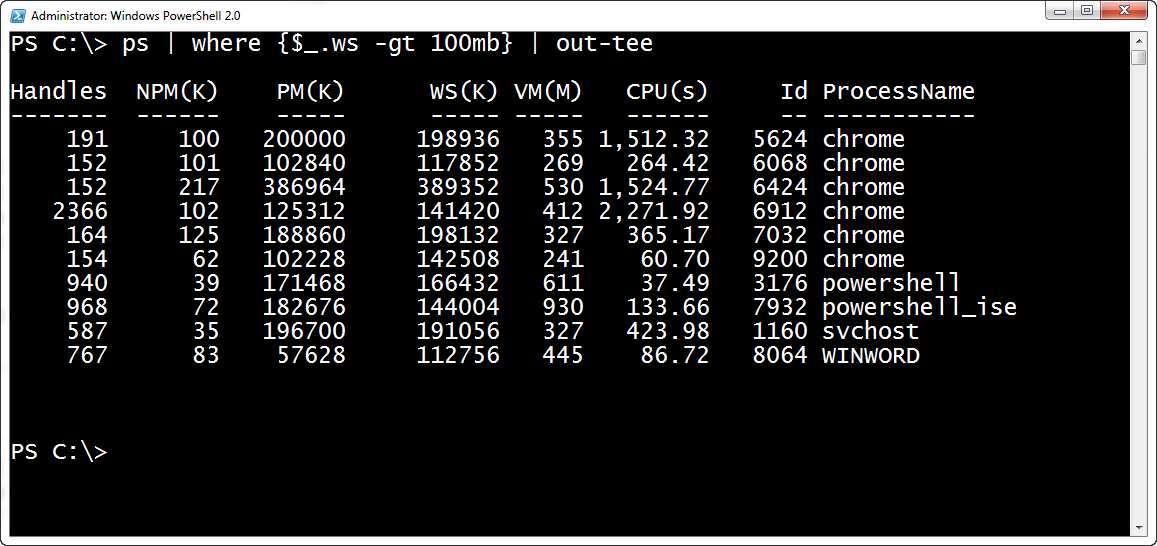
With this function I can see the result and have it dumped to the clipboard. Because the default text color is the same as my session, I don't see any difference when using Out-Tee.
PS C:\> ps | where {$_.ws -gt 100mb} | out-tee
Or if I want to pretty it up, I can add a little color.
PS C:\> ps | where {$_.ws -gt 100mb} | out-tee -TextColor green
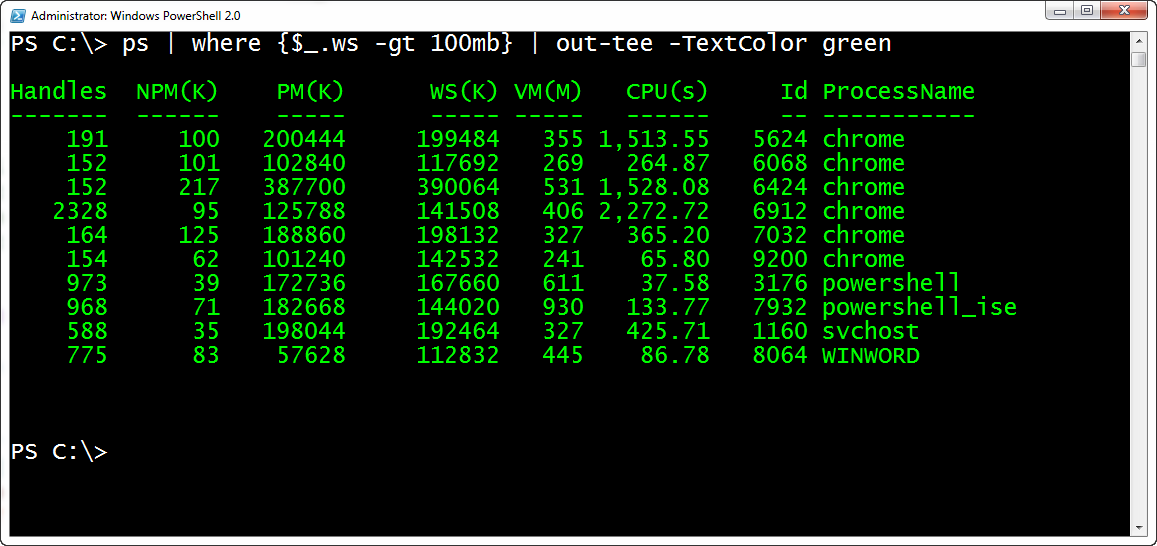
Of course, the clipboard is just text. But now I have something easier to use to save output to the clipboard so I can paste it into my documents, assuming I like the output I see on the screen. The one caveat is that this function only works with successful commands. Errors, warnings, or verbose statements won't get dumped to the clipboard. I can think of some ways around that which I might try in a future version. But for my immediate needs this works just fine.
Download Out-Tee and give it a try.