 Over the last few years I've written and presented a bit on the idea of turning command line tools into PowerShell tools. We have a lot of great CLI based tools that are still worth using. What I've done is come up with tools and techniques for turning their output into an object that can be used in the PowerShell pipeline. Often all I need to do is parse and clean up command line output. But one thing that has always nagged me is what to use for property names.
ManageEngine ADManager Plus - Download Free Trial
Exclusive offer on ADManager Plus for US and UK regions. Claim now!
For example, I can pretty easily turn output from the ARP.EXE command into objects. Here's what I start with.
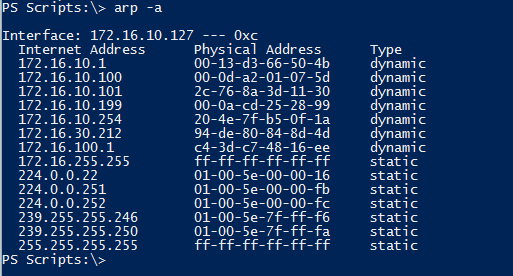
What I want to do is take the column headings and turn them into properties. The problem is I don't like spaces in property names. Plus, I would need to know in advance the command line heading so I could use something like a custom hashtable to rename. I was after something a bit more convenient and something that would work with almost any command line output, although I think tabular output works best. Thus I came up with a short function I call Convert-StringProperty.
Function Convert-StringProperty {

<#
.Synopsis
Convert strings to proper case property names.
.Description
This function will take strings like principal_id and convert it into a form
more suitable for a property name, ie PrincipalID. If the text doesn't contain
the delimiter, which by default is a single space, then the first character will
be set to upper case. Otherwise, the string is is split on the delimiter, each
first character is set to upper case and then everything joined back together.

.Example
PS C:\> Convert-StringProperty principal_id
PrincipalId
.Example
PS C:\> $raw = arp -g | select -Skip 2

This command will get ARP data. It can then be processed using this function:

PS C:\> [regex]$rx="\s{2,}"
PS C:\> $properties = $rx.Split($raw[0].trim()) | Convert-StringProperty
PS C:\> for ($i=1;$i -lt $raw.count; $i++) {
  $splitData = $rx.split($raw[$i].Trim())
  #create an object for each entry
  $hash = [ordered]@{}
  for ($j=0;$j -lt $properties.count;$j++) {
    $hash.Add($properties[$j],$splitData[$j])
  }
  [pscustomobject]$hash
}

InternetAddress                     PhysicalAddress                        Type
---------------                     ---------------                        ----
172.16.10.1                         00-13-d3-66-50-4b                      dynamic
172.16.10.100                       00-0d-a2-01-07-5d                      dynamic
172.16.10.101                       2c-76-8a-3d-11-30                      dynamic
172.16.10.199                       00-0a-cd-25-28-99                      dynamic
172.16.10.254                       20-4e-7f-b5-0f-1a                      dynamic
172.16.100.1                        c4-3d-c7-48-16-ee                      dynamic
172.16.255.255                      ff-ff-ff-ff-ff-ff                      static
224.0.0.22                          01-00-5e-00-00-16                      static
224.0.0.251                         01-00-5e-00-00-fb                      static
224.0.0.252                         01-00-5e-00-00-fc                      static
239.255.255.250                     01-00-5e-7f-ff-fa                      static
255.255.255.255                     ff-ff-ff-ff-ff-ff                      static
.Notes
Last Updated: 3/27/2014
Version     : 0.9.6

Learn more:
 PowerShell in Depth: An Administrator's Guide
 PowerShell Deep Dives
 Learn PowerShell 3 in a Month of Lunches
 Learn PowerShell Toolmaking in a Month of Lunches

   ****************************************************************
   * DO NOT USE IN A PRODUCTION ENVIRONMENT UNTIL YOU HAVE TESTED *
   * THOROUGHLY IN A LAB ENVIRONMENT. USE AT YOUR OWN RISK.  IF   *
   * YOU DO NOT UNDERSTAND WHAT THIS SCRIPT DOES OR HOW IT WORKS, *
   * DO NOT USE IT OUTSIDE OF A SECURE, TEST SETTING.             *
   ****************************************************************

.Link
https://jdhitsolutions.com/blog/2014/03/convert-a-string-to-a-powershell-property-name
#>

[cmdletbinding()]
Param(
[Parameter(Position=0,Mandatory=$True,
HelpMessage="Enter a string to convert",
ValueFromPipeline=$True,
ValueFromPipelineByPropertyName=$True)]
[ValidateNotNullorEmpty()]
[Alias("name")]
[string]$Text,

[ValidateNotNullorEmpty()]
[string]$Delimiter = " "

)

Begin {
    Write-Verbose -Message "Starting $($MyInvocation.Mycommand)"
    Write-Verbose "Using delimiter: $Delimiter"

    #define a regular expression pattern
    [regex]$rx = "[^$Delimiter]+"

} #begin

Process {
    Write-Verbose "Converting $Text"
    #initialize the output string for the new property name
    [string]$Output=""

    #find each word
    $rx.Matches($text) | foreach {

      #capitalize the first letter of each word
      $value = "{0}{1}" -f $_.value[0].tostring().ToUpper(),$_.value.tostring().substring(1).ToLower()

      #and add to output stipping off any extra non word characters
      $output+=  $Value -replace "\W+",""

    } #foreach

    #send the new string to the pipeline
    $Output
    $counter++
} # process

End {
    Write-Verbose -Message "Ending $($MyInvocation.Mycommand)"
} #end

} #end function
Here's how it works. I'll take the raw ARP output and skip the first couple of lines.
$raw = arp -g | select -Skip 2
The $raw variable has the data I want to turn into objects.
Internet Address      Physical Address      Type
  172.16.10.1           00-13-d3-66-50-4b     dynamic
  172.16.10.100         00-0d-a2-01-07-5d     dynamic
  172.16.10.101         2c-76-8a-3d-11-30     dynamic
  172.16.10.199         00-0a-cd-25-28-99     dynamic
  172.16.10.254         20-4e-7f-b5-0f-1a     dynamic
  172.16.30.212         94-de-80-84-8d-4d     dynamic
  172.16.100.1          c4-3d-c7-48-16-ee     dynamic
  172.16.255.255        ff-ff-ff-ff-ff-ff     static
  224.0.0.22            01-00-5e-00-00-16     static
  224.0.0.251           01-00-5e-00-00-fb     static
  224.0.0.252           01-00-5e-00-00-fc     static
  239.255.255.246       01-00-5e-7f-ff-f6     static
  239.255.255.250       01-00-5e-7f-ff-fa     static
  255.255.255.255       ff-ff-ff-ff-ff-ff     static
The first line contains the property names but I want them without the spaces. As a separate step, outside of the function, I need to split the first line. I'm going to do that with a regular expression pattern that matches 2 or more white spaces.
[regex]$rx="\s{2,}"
$properties = $rx.Split($raw[0].trim()) | Convert-StringProperty
I can take the first line, item [0], remove leading and trailing spaces and split it. This will give me three strings: Internet Address, Physical Address, and Type. Each of these is then piped to my Convert-StringProperty.
The function will look at each string and split it again based on a delimiter, which by default is a space. But you can specify something different if you run into CLI names like INTERNET_ADDRESS. Each word is then processed with a capital first letter. The end result is camel case so "Internet Address" becomes "InternetAddress".
Once I know what my property names will be, I can continue parsing the command line output and create a custom object.
for ($i=1;$i -lt $raw.count; $i++) {
  $splitData = $rx.split($raw[$i].Trim())
  #create an object for each entry
  $hash = [ordered]@{}
  for ($j=0;$j -lt $properties.count;$j++) {
    $hash.Add($properties[$j],$splitData[$j])
  }
  [pscustomobject]$hash
}
You still need to come up with code to process your command line tool, but you can use this function to define proper PowerShell properties. Here's one more example.
$raw = qprocess
$properties = $raw[0] -split "\s{2,}" | Convert-StringProperty
$raw | select -Skip 1 | foreach {
 #split each line
 $data = $_ -split "\s{2,}"
 $hash=[ordered]@{}
 for ($i=0;$i -lt $properties.count;$i++) {
   #strip off any non word characters
   $hash.Add($properties[$i],($data[$i] -replace '\W+',''))
 }
 [pscustomobject]$hash
}
This takes command output like this:
 USERNAME              SESSIONNAME         ID    PID  IMAGE
 jeff                  services             0   1920  sqlservr.exe
>jeff                  console              1   3312  taskhostex.exe
>jeff                  console              1   3320  ipoint.exe
>jeff                  console              1   3328  itype.exe
And turns it into PowerShell output like this:
Username    : jeff
Sessionname : services
Id          : 0
Pid         : 1920
Image       : sqlservrexe

Username    : jeff
Sessionname : console
Id          : 1
Pid         : 3312
Image       : taskhostexexe

Username    : jeff
Sessionname : console
Id          : 1
Pid         : 3320
Image       : ipointexe
In another article I'll share with you another tool that takes advantage of this function. Enjoy.

In case you have more than one NIC, you’ll have to filter out NIC specific lines :
arp -g | select-string -Pattern “Interface”,”Internet Address”,^$ -NotMatch | ForEach-Object {$_.tostring()} | foreach {$_.Trim()} | convertfrom-text $arp
Sure. My focus was on taking the CLI output and turning into something to use in the PowerShell pipeline. It is up to you to figure out what text you need to process.