Last week I posted a Friday Fun article on parsing results from Invoke-Webrequest and displaying matching strings in color so that the book titles I'm interested in stand out. But the more I thought about it I realized I should take this a step further. The problem with Write-Host is that it doesn't write anything to the pipeline which is why we typically frown upon its use. Although being able to use color to highlight something is very cool. I wanted color and pipelined output. Here's my result.
#requires -version 3.0

Function Out-ConditionalColor {
<#
.Synopsis
Display colorized pipelined output.
.Description
This command is designed to take pipeline input and display it in a colorized
format, based on a set of conditions. Unlike Write-Host which doesn't write to
the pipeline, this command will write to the pipeline. You can get colorized
data and save the output to a variable at the same time, although you'll need
to use the common OutVariable parameter (see examples).

The default behavior is to use a hash table with a property name and color.
The color must be one of the standard console colors used with Write-Host.

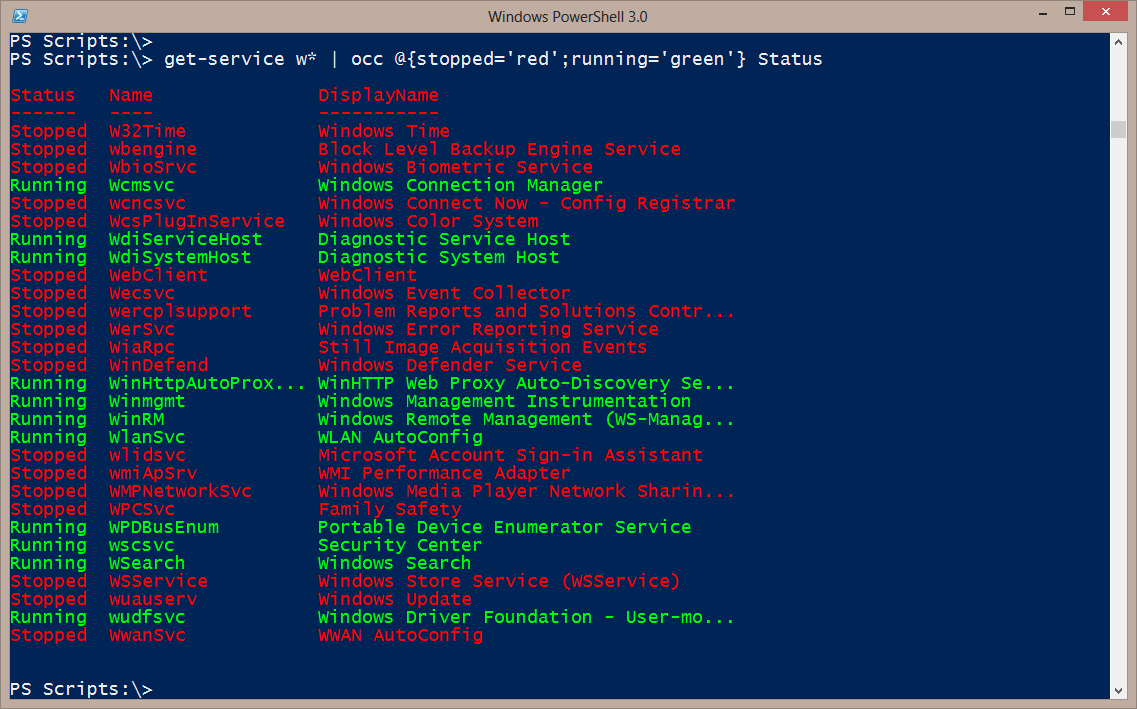
$c = @{Stopped='Red';Running='Green'}

You can then pipe an expression to this command, specifying a property name and
the hash table. If the property matches the key name, the output for that object
will be colored using the corresponding hash table value.

get-service -diplayname windows* | out-conditionalcolor $c status

Or you can do more complex processing with an ordered hash table constructed
using this format:

[ordered]@{ <comparison scriptblock> = <color>}

The comparison scriptblock can use $PSitem.

$h=[ordered]@{
{$psitem.ws -gt 200mb}='yellow'
{$psitem.vm -gt 500mb}='red'
{$psitem.cpu -gt 300}='cyan'
}

When doing a complex comparison you must use an [ordered] hashtable as each key
will be processed in order using an If/ElseIf statement.

This command should be the last part of any pipelined expression. If you pipe
to anything else, such as Sort-Object, you will lose your color formatting. Do
any other sorting or filtering before piping to this command.

This command requires PowerShell 3.0 and works best in the PowerShell console.
.Parameter Conditions
Use a simple hashtable for basic processing or an ordered hash table for complex.
.Parameter Property
When using a simple hash table, specify the property to compare using the -eq
operator. If you don't specify a property you will be prompted.
.Example
PS C:\> get-service -displayname windows* | out-conditionalcolor -conditions @{Stopped='Red'} -property Status

Get all services where the displayname starts with windows and display stopped services in red.
.Example
PS C:\> get-service -displayname windows* | out-conditionalcolor @{Stopped='Red'} status -ov winstop

Repeat the previous example, but save the output to the variable winstop. When
you look at $Winstop you'll see the services, but they won't be colored. This
example uses the parameters positionally.
.Example
PS C:\> get-eventlog system -newest 50 | out-conditionalcolor @{error='red';warning='yellow'}
Enter a property name: entrytype

Get the newest 50 entries from the System event log. Display errors in red and warnings in yellow.
If you don't specify a property you will be prompted.
.Example
PS C:\> $c =[ordered]@{{$psitem.length -ge 1mb}='red';{$psitem.length -ge 500KB}='yellow';{$psitem.length -ge 100KB}='cyan'}
PS C:\> dir c:\scripts\*.doc,c:\scripts\*.pdf,c:\scripts\*.xml | Select Name,LastWriteTime,Length | out-conditionalcolor $c

The first command creates an ordered hashtable based on the Length property.
The second command uses it to et certain file types in the scripts folder and
display the selected properties in color depending on the file size.
.Notes
Last Updated: 9/17/2013
Version     : 0.9

Learn more about PowerShell:
Essential PowerShell Learning Resources

  ****************************************************************
  * DO NOT USE IN A PRODUCTION ENVIRONMENT UNTIL YOU HAVE TESTED *
  * THOROUGHLY IN A LAB ENVIRONMENT. USE AT YOUR OWN RISK.  IF   *
  * YOU DO NOT UNDERSTAND WHAT THIS SCRIPT DOES OR HOW IT WORKS, *
  * DO NOT USE IT OUTSIDE OF A SECURE, TEST SETTING.             *
  ****************************************************************

.Link
Friday Fun: Out-ConditionalColor
.Link
About_Hash_Tables
#>

[cmdletbinding()]
Param(
[Parameter(Position=0,Mandatory=$True,HelpMessage="Enter an ordered hashtable of conditional properties and colors.")]
[ValidateScript({
$_ -IS [System.Collections.Specialized.OrderedDictionary] -OR ($_ -IS [hashtable])})]
[psobject]$Conditions,
[Parameter(Position=1,HelpMessage="Enter a property name.")]
[string]$Property,
[Parameter(Position=2,Mandatory=$True,ValueFromPipeline=$True)]
[PSObject[]]$Inputobject

)

Begin {
    Write-Verbose "Starting $($MyInvocation.MyCommand)"
    #save original color
    $saved = $Host.UI.RawUI.ForegroundColor
    Write-Verbose "Original foreground color is $saved"

    #validate colors
    $allowed = [enum]::GetNames([system.consolecolor])
    $bad = $Conditions.Values | where {$allowed -notcontains $_}
    if ($bad) {
        Write-Warning "You are using one or more invalid colors: $($bad -join ',')"
        Break
    }

    if ($Conditions -is [System.Collections.Specialized.OrderedDictionary]) {
        $Complex = $True
        #we'll need this later in the Process script block
        #if doing complex processing
        Write-Verbose "Getting hash table enumerator and names"
        $compare = $conditions.GetEnumerator().name
        Write-Verbose $($compare | out-string)
        #build an If/ElseIf construct on the fly
#the Here strings must be left justified
$If=@"
 if ($($compare[0])) {
  `$host.ui.RawUI.ForegroundColor = '$($conditions.item($($compare[0])))'
 }
"@

        #now add the remaining comparisons as ElseIf
        for ($i=1;$i -lt $conditions.count;$i++) {
         $If+="elseif ($($compare[$i])) {
         `$host.ui.RawUI.ForegroundColor = '$($conditions.item($($compare[$i])))'
         }
         "
        } #for

#add the final else
$if+=@"
Else {
`$host.ui.RawUI.ForegroundColor = `$saved
}
"@

        Write-Verbose "Complex comparison:"
        Write-Verbose $If
    } #if complex parameter set
    Else {
        #validate a property was specified
        if (-NOT $Property) {
            [string]$property = Read-Host "Enter a property name"
            if (-Not $property) {
                Write-Verbose "Blank property so quitting"
                Break
            }
        }
        Write-Verbose "Conditional property is $Property"
    }

} #Begin

Process {

    If ($Complex) {
        #Use complex processing
        Invoke-Expression $if
  } #end complex
  else {
        #get property value as a string
        $value = $Inputobject.$Property.ToString()
        Write-Debug "Testing property value $value"
        if ($Conditions.containsKey($value)) {
         Write-Debug "Property match"
         $host.ui.RawUI.ForegroundColor= $Conditions.item($value)
        }
        else {
         #use orginal color
         Write-Debug "No matches found"
         $host.ui.RawUI.ForegroundColor= $saved
        }
  } #simple

    #write the object to the pipeline
    Write-Debug "Write the object to the pipeline"
    $_
} #Process

End {
    Write-Verbose "Restoring original foreground color"
    #set color back
    $Host.UI.RawUI.ForegroundColor=$saved
} #end

} #close function

#create an optional alias
Set-Alias -Name occ -Value Out-ConditionalColor
This function only really works in the PowerShell console. It is designed to accept any PowerShell input. The function also takes parameters that help it write matching objects in the specified color. The easy way to use the function is to specify a property and a hashtable. The hashtable key is the value you want to match in the input and the key is the color you want to use. The function processes each object as it comes in and if the property matches the value it sets the foreground color of the console to the specified value.
$value = $Inputobject.$Property.ToString()
        Write-Debug "Testing property value $value"
        if ($Conditions.containsKey($value)) {
         Write-Debug "Property match"
         $host.ui.RawUI.ForegroundColor= $Conditions.item($value)
        }
If it doesn't match then the foreground color essentially remains the same. This means I can run a command like this:
get-process | sort WS -descending | Out-ConditionalColor @{chrome='yellow'} -Property Name
And get a result like this:
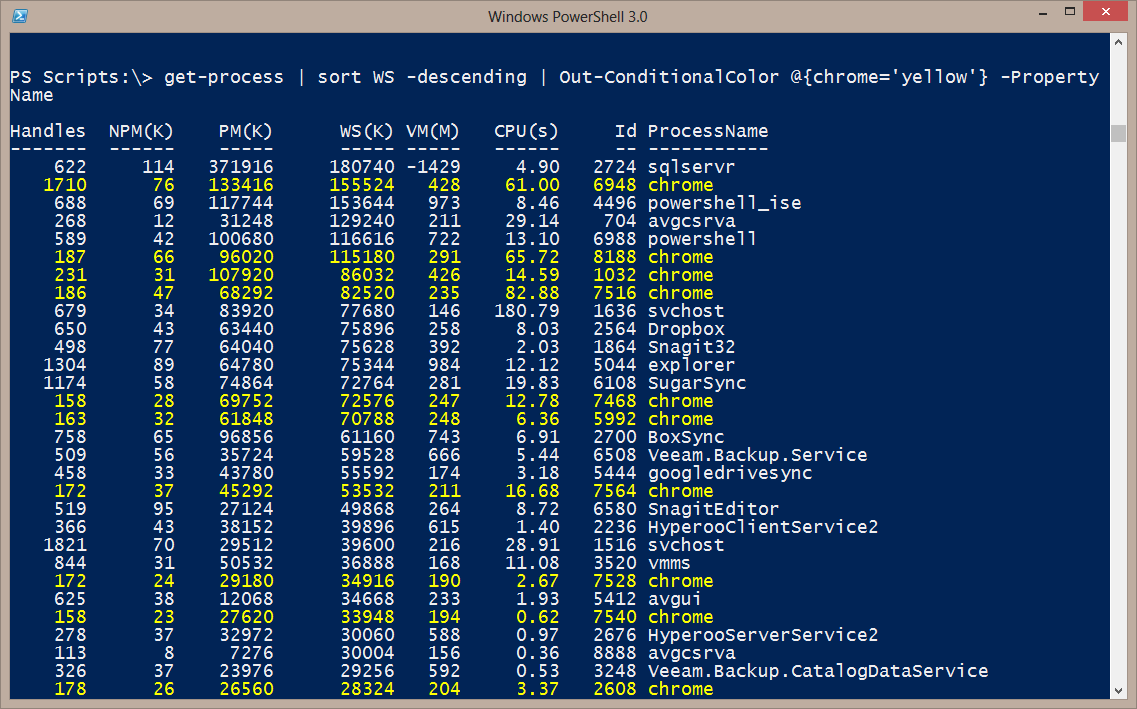
Any time the process name is equal to 'chrome' I display that object in yellow. You can also have multiple entries.
get-eventlog system -newest 50 | out-conditionalcolor @{error='red';warning='yellow'}
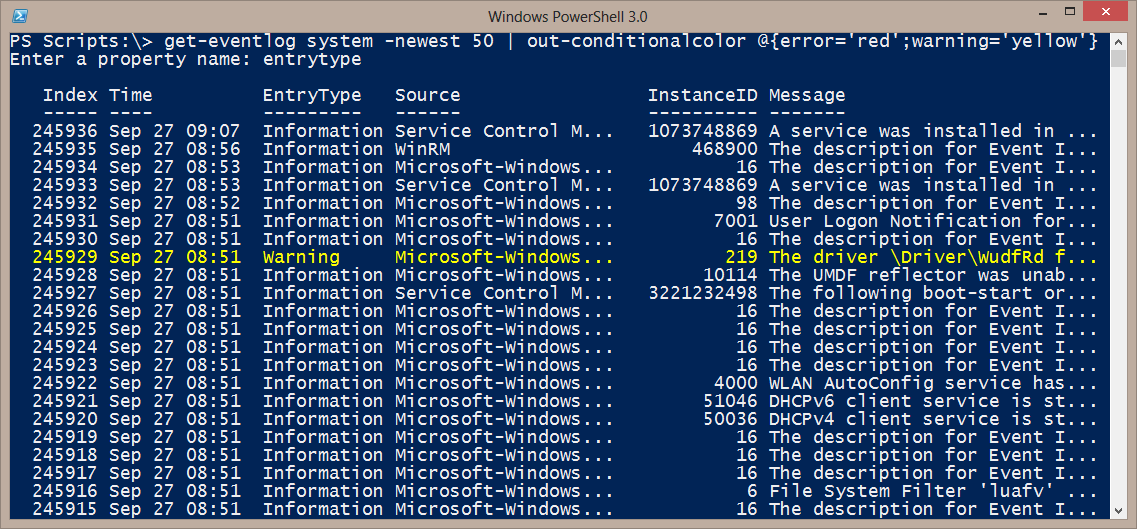
I mentioned match earlier but it is really a simple equality test. However, I also added code so that you could be even more granular.
You can also create what I refer to as a complex hashtable. This must be an ordered hashtable, which means you must be running PowerShell 3.0. Define a hashtable like this:
$h=[ordered]@{
{$psitem.ws -gt 200mb}='yellow'
{$psitem.vm -gt 500mb}='red'
{$psitem.cpu -gt 300}='cyan'
}
This is a little tricky. The hashtable key is a scriptblock of the object property you want to watch and some operator comparison. The value is the console color you want to use for the match. Use $psitem to represent the current object in the pipeline. The reason for the ordered hashtable is because the keys are processed in an If/ElseIf fashion so make sure you get things in the right order.
The function breaks apart the hashtable and builds a here string of the If/ElseIf structure in the Begin scriptblock.
    if ($Conditions -is [System.Collections.Specialized.OrderedDictionary]) {
        $Complex = $True
        #we'll need this later in the Process script block
        #if doing complex processing
        Write-Verbose "Getting hash table enumerator and names"
        $compare = $conditions.GetEnumerator().name
        Write-Verbose $($compare | out-string)
        #build an If/ElseIf construct on the fly
#the Here strings must be left justified
$If=@"
 if ($($compare[0])) {
  `$host.ui.RawUI.ForegroundColor = '$($conditions.item($($compare[0])))'
 }
"@

        #now add the remaining comparisons as ElseIf
        for ($i=1;$i -lt $conditions.count;$i++) {
         $If+="elseif ($($compare[$i])) {
         `$host.ui.RawUI.ForegroundColor = '$($conditions.item($($compare[$i])))'
         }
         "
        } #for

#add the final else
$if+=@"
Else {
`$host.ui.RawUI.ForegroundColor = `$saved
}
"@

        Write-Verbose "Complex comparison:"
        Write-Verbose $If
    } #if complex parameter set
The here string includes the commands to set the host foreground color. Then in the Process scriptblock I use Invoke-Expression to execute it.
   If ($Complex) {
        #Use complex processing
        Invoke-Expression $if
  } #end complex
But now I can do this.
get-process | out-conditionalcolor -Conditions $h
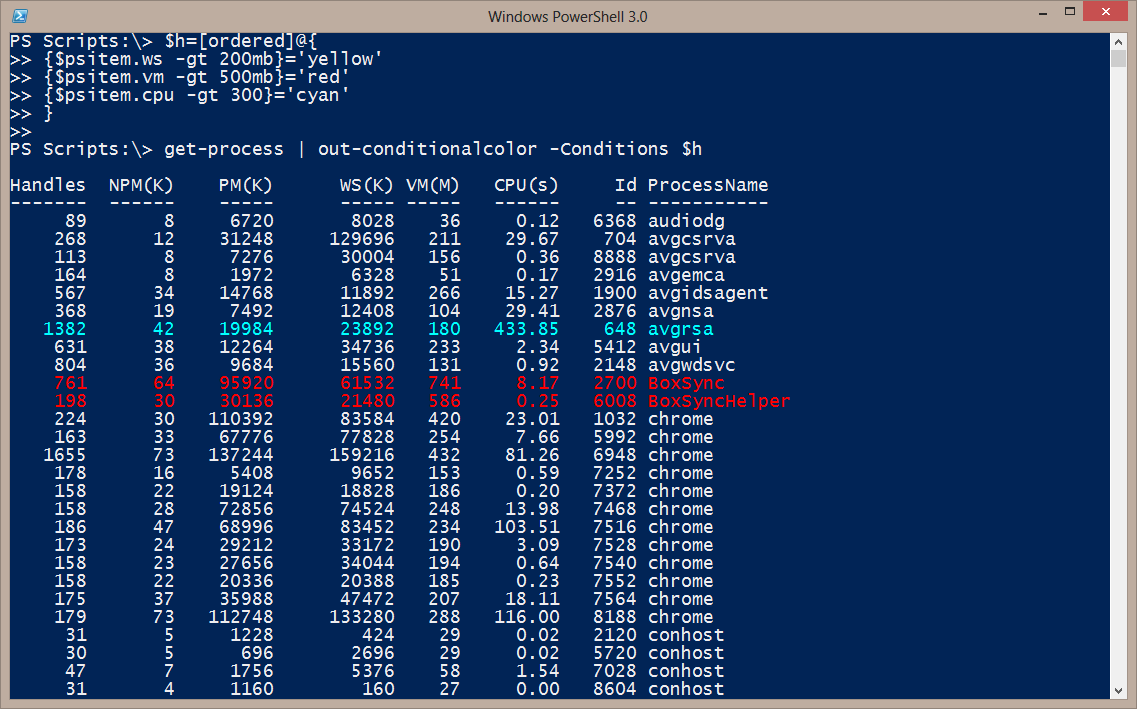
When using a complex hashtable, there's no need to specify a property. What's great about all of this is that if you want to see the color output and still save the results, use the common -Outvariable parameter with Out-Conditionalcolor.
get-process | out-conditionalcolor -Conditions $h -OutVariable p
$P won't be colorized (unless I run it through the function again), but I still have the data.
There are some limitations. Like any Out cmdlet, this must be the last command in your pipelined expression. Technically you could sort or filter after my function, but it will lose the conditional coloring. Unlike the other Out cmdlets, you cannot piped any formatted data to it.
The whole point of the function is to provide a means of adding some visual references to your PowerShell data.
 I sincerely hope you'll try this out and let me know what you think.