 I received a lot of interest in my Invoke-Flasher script. One comment I received on Twitter was for a way to use it interactively in a script. In essence, he wanted a flashing Read-Host so I took my original concept and tweaked it until I came up with a Read-Host alternative I simply call Read-Host2. This function will only work in the PowerShell console, NOT the PowerShell ISE.
#requires -version 3.0

Function Read-Host2 {

<#
.Synopsis
An alternative to Read-Host
.Description
This is an alternative to Read-Host which works almost the same as the original cmdlet. You can use this to prompt the user for input. They can either enter text or have the text converted to a secure string. The only difference is that the prompt will display in a flashing colors until you start typing.

This command will NOT work properly in the PowerShell ISE.
.Parameter Prompt
The text to be displayed. A colon will be appended.
.Parameter AsSecureString
The entered text will be treated as a secure string. This parameter has an alias of 'ss'.
.Parameter UseForeground
Flash the text color instead of the background. This parameter has aliases of 'fg' and 'foreground'.
.Example
PS C:\> $user = Read-Host2 "Enter a username" -color DarkGreen

Prompt for user name using a dark green background
.Example
PS C:\> $pass = Read-Host2 "Enter a password" -color darkred -foreground -asSecureString
Prompt for a password using DarkRed as the foreground color.
.Example
PS C:\> $s={ $l = get-eventlog -list ; Read-host2 "Press enter to continue" ; $l}
PS C:\> &$s
Press enter to continue :


  Max(K) Retain OverflowAction        Entries Log
  ------ ------ --------------        ------- ---
  20,480      0 OverwriteAsNeeded      30,829 Application
  20,480      0 OverwriteAsNeeded           0 HardwareEvents
     512      7 OverwriteOlder              0 Internet Explorer
  20,480      0 OverwriteAsNeeded           0 Key Management Service
  20,480      0 OverwriteAsNeeded          12 Lenovo-Customer Feedback
     128      0 OverwriteAsNeeded         455 OAlerts
     512      7 OverwriteOlder              0 PreEmptive
  20,480      0 OverwriteAsNeeded      32,013 Security
  20,480      0 OverwriteAsNeeded      26,475 System
  15,360      0 OverwriteAsNeeded      17,715 Windows PowerShell

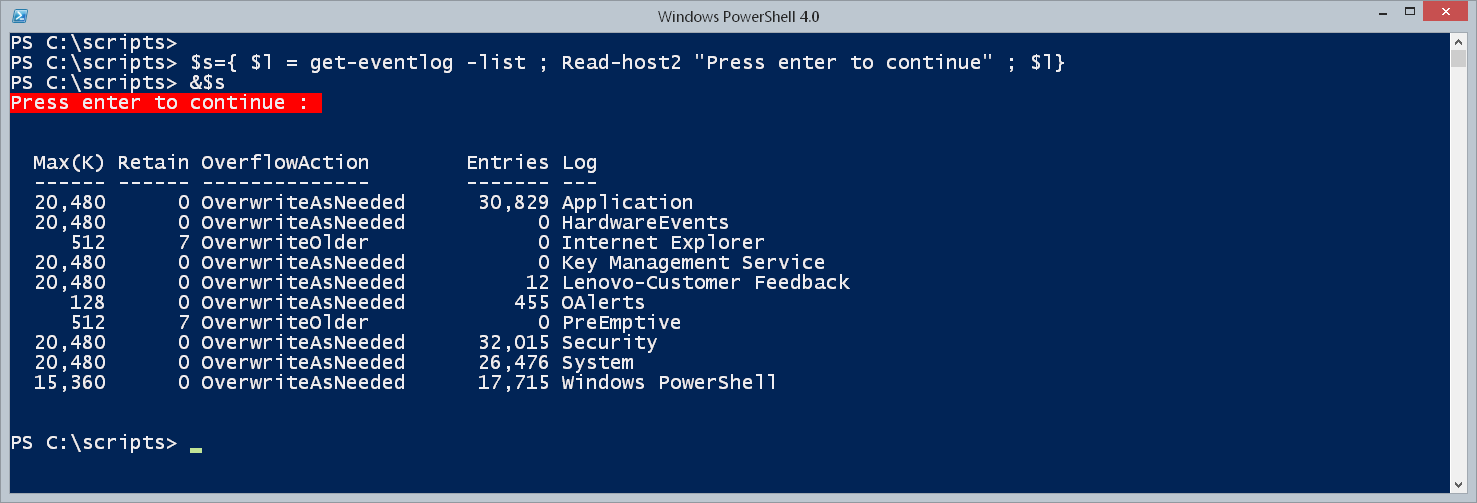
 This is an example of how you might use the command in a script. The prompt will keep flashing until you press Enter.
.Notes
Last Updated: August 18, 2014
Version     : 0.9
Learn more:
 PowerShell in Depth: An Administrator's Guide (http://www.manning.com/jones2/)
 PowerShell Deep Dives (http://manning.com/hicks/)
 Learn PowerShell in a Month of Lunches (http://manning.com/jones3/)
 Learn PowerShell Toolmaking in a Month of Lunches (http://manning.com/jones4/)

  ****************************************************************
  * DO NOT USE IN A PRODUCTION ENVIRONMENT UNTIL YOU HAVE TESTED *
  * THOROUGHLY IN A LAB ENVIRONMENT. USE AT YOUR OWN RISK.  IF   *
  * YOU DO NOT UNDERSTAND WHAT THIS SCRIPT DOES OR HOW IT WORKS, *
  * DO NOT USE IT OUTSIDE OF A SECURE, TEST SETTING.             *
  ****************************************************************

.Link
https://jdhitsolutions.com/blog/2014/08/more-flashing-fun

.Link
Read-Host
ConvertTo-SecureString
#>

[cmdletbinding()]
Param(
[Parameter(Position=0,Mandatory,HelpMessage="Enter a prompt message without a colon (:)")]
[string]$Prompt,
[Alias('ss')]
[switch]$AsSecureString,
[System.ConsoleColor]$Color = "Red",
[Alias("fg","Foreground")]
[switch]$UseForeground
)

#this will be the array of entered characters
$text = @()

#save current background and foreground colors
$bg = $host.ui.RawUI.BackgroundColor
$fg = $host.ui.RawUI.ForegroundColor

#set a variable to be used in a While loop
$Running = $True

#set a variable to determine if the user is typing something
$Typing = $False

#get current cursor position
$Coordinate = $host.ui.RawUI.CursorPosition

$msg = "`r$Prompt : "

While ($Running) {

 if (-Not $Typing) {
    #don't toggle or pause if the user is typing
    if ($UseForeground) {
        if ($host.ui.RawUI.ForegroundColor -eq $fg) {
            $host.ui.RawUI.ForegroundColor = $color

        }
        else {
            $host.ui.RawUI.ForegroundColor = $fg
        }
    }
    else {
        if ($host.ui.RawUI.BackgroundColor -eq $bg) {
            $host.ui.RawUI.BackgroundColor = $color

        }
        else {
            $host.ui.RawUI.BackgroundColor = $bg
        }
    }
      Start-Sleep -Milliseconds 350
    } #if not typing

    #set the cursor position
    $host.ui.rawui.CursorPosition=$Coordinate

    #write the message on a new line

    Write-Host $msg

    #see if a key has been pushed
    if ($host.ui.RawUi.KeyAvailable) {
        #user is typing
        $Typing = $True

        #filter out shift key
        $key = $host.ui.RawUI.ReadKey("NoEcho,IncludeKeyDown")

        Switch ($key.virtualKeyCode) {

            13 { $Running = $False ; Break}
            16 { #Shift key so don't do anything
                 Break
               }
            Default{
                #add the key to the array
                $text+=$key

                #display the entered text
                if ($AsSecureString) {
                  #mask the character if asking for a secure string
                  $out = "*"
                }
                else {
                  $out = $key.character
                }
                #append the character to the prompt
                $msg+= $out
            }
      } #switch

    } #if key available

} #while

#reset the original background color
$host.ui.RawUI.BackgroundColor = $bg
$host.ui.RawUI.ForegroundColor = $fg

#write the input to the pipeline
#removing any leading or trailing spaces
$data = (-join $text.Character).Trim()

#convert to SecureString if specified
if ($AsSecureString) {
 ConvertTo-SecureString -String $data -AsPlainText -Force
}
else {
    #write the read data to the pipeline
    $data
}

} #end function
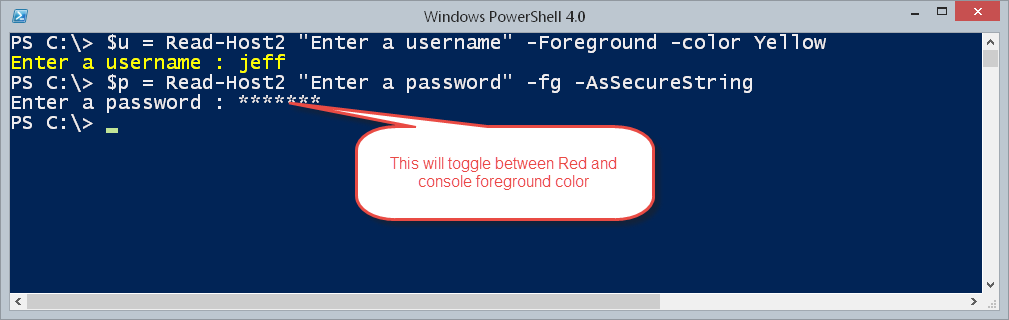
The main tweak I made was to collect all the typed keys until Enter is pressed. I have a Switch construct to also eliminate the Shift key. The assumption is that you are writing text so this should be the only non alphanumeric key you would use. The message prompt will keep flashing until you start typing. I also emulated echoing text to the screen, including password masking if you use AsSecureString. The last change is a new parameter to allow you to flash the foreground color instead of the background color. There are several examples in the comment-based help.
Here are some screen shots.
I hope you'll let me know what you think.
Works great! You really adds some Spark’s to your console scripts