I've been having some fun this week sharing a few tools for getting weather information and forecasts using PowerShell. To complete the story, today I have one more technique. Using PowerShell, you can query a web service for weather information. In simple terms a web service is like an application you can "run" via a web connection and sometimes even in a browser. The web service has "methods" you can invoke to do something. In the past if you wanted to interact with a web service in PowerShell you most likely needed to get down and dirty with the .NET Framework. Then PowerShell 3.0 brought us a new cmdlet, New-WebServiceProxy. With this cmdlet you can create an object that in essence becomes a wrapper to the web service. The web service methods become the object's methods. Let me show you.
First, I'll create my proxy object.
$proxy = New-WebServiceProxy -uri http://www.webservicex.com/globalweather.asmx?WSDL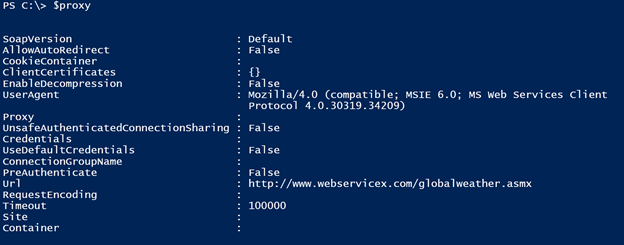
This object also has methods:
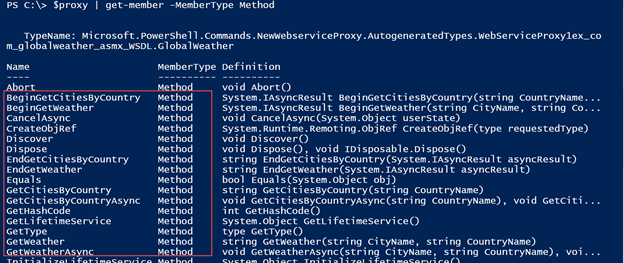
So how do I use the GetWeather method?

Seems straight forward. Let's try. Wonder what it is like someplace warm?
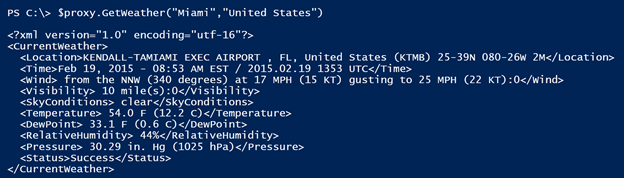
Interesting. I can read it, but this sure looks like XML. If so, I should be able to retrieve the weather as an XML document.
[xml]$current = $proxy.GetWeather("Miami","United States")Now I can explore it.
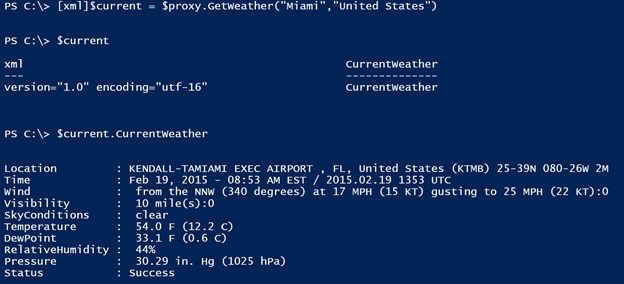
Wow. This seems simple. All I need is the CurrentWeather property and I have an easy to read result. I could probably run this as a one-liner.
([xml]((New-WebServiceProxy -uri http://www.webservicex.com/globalweather.asmx?WSDL).GetWeather("Fairbanks","United States"))).CurrentWeatherNot necessarily easy to read but it works.
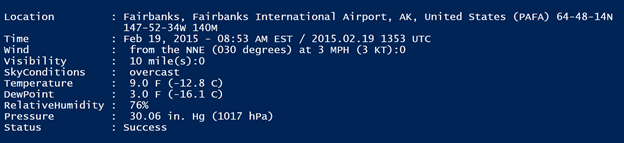
What about another city? Perhaps Charlotte, North Carolina, the site of the upcoming PowerShell Summit.
([xml]((New-WebServiceProxy -uri http://www.webservicex.com/globalweather.asmx?WSDL).GetWeather("Charlotte","United States"))).CurrentWeather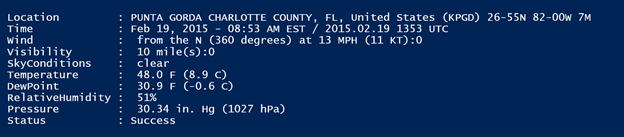
Well that worked, but that isn't the city I had in mind. Going back to the web service methods, I remember seeing something to get cities by country. Let's try that.
$proxy.GetCitiesByCountry("Nepal")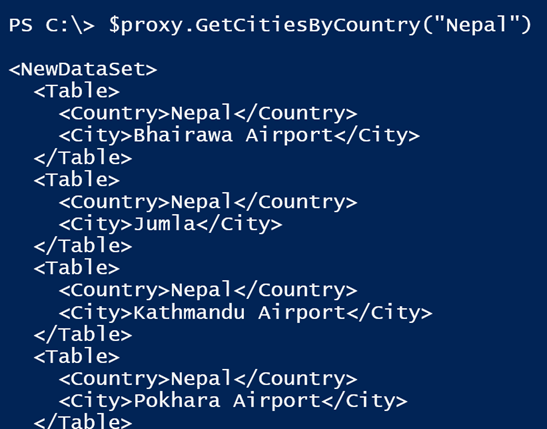
More XML. That's find. I can use Select-XML to parse out the City node.
$proxy.GetCitiesByCountry("Nepal") | select-xml "//City"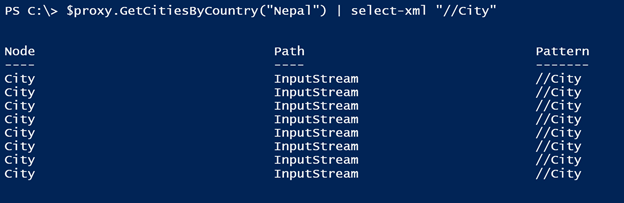
Now, expand each node.
$proxy.GetCitiesByCountry("Nepal") | select-xml "//City" | select -expand node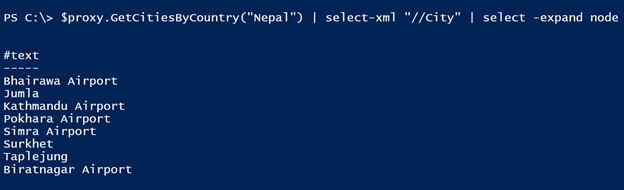
Let's try with the US now and find cities with Charlotte in the name.
$proxy.GetCitiesByCountry("United States") | select-xml "//City" | select -expand node | Where {$_.'#text' -match "Charlotte"}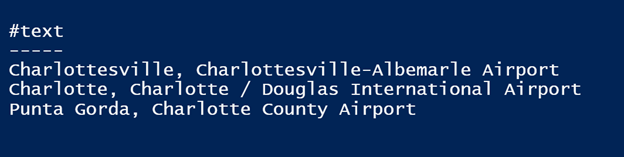
It seems to me that the weather service data comes primarily from locations with airports. So if you live in a town without an airport, the best you can probably do is find a location near you with an airport. But now that I see what I need for Charlotte, North Carolina, I can revise my command.
([xml]((New-WebServiceProxy -uri http://www.webservicex.com/globalweather.asmx?WSDL).GetWeather("Charlotte / Douglas","United States"))).CurrentWeather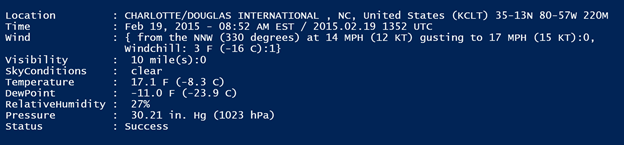
Much better. But I don't want to have to do that much typing for all of this so I put together a few functions to simplify the entire process. First, is a function to get a location.
Function Get-WeatherLocation {

<#
.SYNOPSIS
Get weather locations via web service proxy
.DESCRIPTION
This command will get all cities for a given country using a web service proxy designed to retrieve weather conditions.
.PARAMETER Country
The name of the country in English.
.PARAMETER City
Some portion of the name of a city or area. The command will match on the pattern so regular expressions are permitted.
.EXAMPLE
PS C:\> Get-WeatherLocation Albania

City                                         Country
----                                         -------
Tirana                                       Albania

.EXAMPLE
PS C:\> Get-Weatherlocation -city "chicago"


City                                         Country
----                                         -------
Chicago / Meigs                              United States
Chicago / West Chicago, Dupage Airport       United States
Chicago, Chicago Midway Airport              United States
Chicago, Chicago-O'Hare International Air... United States
Chicago / Wheeling, Pal-Waukee Airport       United States
Chicago / Waukegan                           United States

Find all US locations that have "Chicago" in the name.

.NOTES
NAME        :  Get-WeatherLocation
VERSION     :  1.0
LAST UPDATED:  2/19/2015
AUTHOR      :  Jeff Hicks

Learn more about PowerShell:
Essential PowerShell Learning Resources

  ****************************************************************
  * DO NOT USE IN A PRODUCTION ENVIRONMENT UNTIL YOU HAVE TESTED *
  * THOROUGHLY IN A LAB ENVIRONMENT. USE AT YOUR OWN RISK.  IF   *
  * YOU DO NOT UNDERSTAND WHAT THIS SCRIPT DOES OR HOW IT WORKS, *
  * DO NOT USE IT OUTSIDE OF A SECURE, TEST SETTING.             *
  ****************************************************************
.LINK
New-WebServiceProxy
.INPUTS
None
.OUTPUTS
Custom object
#>
[cmdletbinding()]
Param(
[Parameter(Position=0,ValueFromPipeline)]
[ValidateNotNullorEmpty()]
[string]$Country="United States",
[string]$City

)
Begin {
    Write-Verbose -Message "Starting $($MyInvocation.Mycommand)"
    Try {
        #hashtable of parameters to splat to New-WebServiceProxy
        $paramHash = @{
         uri = 'http://www.webservicex.com/globalweather.asmx?WSDL'
         ErrorAction = 'Stop'
        }
        Write-Verbose "Creating web proxy to $($paramHash.uri)"
        $webproxy = New-WebServiceProxy @paramHash
    }
    Catch {
        Throw $_
    }
} #begin

Process {
    If ($webproxy) {
        [xml]$cities = $webproxy.GetCitiesbyCountry($Country)
        #only continue if there is data to process
        if ($cities.NewDataset) {
            #this will write a new object to the pipeline with 2 properties
            $data = $cities.NewDataSet.table | select City,Country
        }
        Else {
            Write-Warning "Failed to retrieve cities for $country"
        }

        if ($City) {
            $data | where {$_.city -match $City}
        }
        else {
           #write all data to the pipeline
           $data
        }
    } #if webproxy
} #process
End {
    Write-Verbose -Message "Ending $($MyInvocation.Mycommand)"
} #end

} #end function

Set-Alias -Name gwl -Value Get-WeatherLocation
The function does all the work of creating the web service proxy and retrieving cities by country. You can change the default to your country. I also added a parameter that will match on a city name.
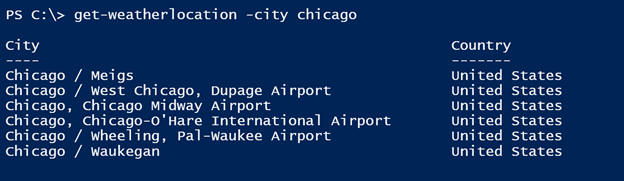
I then wrote a function to make it easier to get weather information.
Function Get-WeatherByProxy {
<#
.SYNOPSIS
Get weather conditions via a web service proxy
.DESCRIPTION
This command uses the New-WebServiceProxy cmdlet to retrieve weather information from a web service.
.PARAMETER City
The name of the city or location. This works best if the city has an airport. You can also use part of the airport name.
.PARAMETER Country
The name of the country in English.

.EXAMPLE
PS C:\> Get-Weatherbyproxy Seattle

Location         : SEATTLE-TACOMA INTERNATIONAL  AIRPORT , WA, United States (KSEA)
                   47-27N 122-19W 136M
Time             : Feb 18, 2015 - 08:53 AM EST / 2015.02.18 1353 UTC
Wind             : from the SE (130 degrees) at 8 MPH (7 KT):0
Visibility       : 10 mile(s):0
SkyConditions    : partly cloudy
Temperature      : 43.0 F (6.1 C)
DewPoint         : 39.0 F (3.9 C)
RelativeHumidity : 85%
Pressure         : 30.18 in. Hg (1022 hPa)
Status           : Success

Get the weather in Seattle.
.EXAMPLE
PS C:\> Get-WeatherbyProxy "O'Hare" | Select Time,Sky*,Temperature

Time                          SkyConditions                 Temperature
----                          -------------                 -----------
Feb 18, 2015 - 09:51 AM ES... partly cloudy                 5.0 F (-15.0 C)

Get the weather in Chicago using O'Hare airport as the source.
.EXAMPLE
PS C:\> Get-Weatherbyproxy Oslo Norway

Location         : Oslo / Gardermoen, Norway (ENGM) 60-12N 011-05E 204M
Time             : Feb 18, 2015 - 09:50 AM EST / 2015.02.18 1450 UTC
Wind             : from the S (190 degrees) at 12 MPH (10 KT):0
Visibility       : greater than 7 mile(s):0
SkyConditions    : mostly cloudy
Temperature      : 39 F (4 C)
DewPoint         : 33 F (1 C)
RelativeHumidity : 80%
Pressure         : 29.94 in. Hg (1014 hPa)
Status           : Success
.Example
PS C:\> Get-WeatherLocation "united states" -city "Charlotte" | get-weatherbyproxy | out-gridview -title Weather

This command uses a related function called Get-WeatherLocation to find all US locations that have Charlotte in the name and retrieves the weather for each location. Results are displayed using Out-Gridview.
.NOTES
NAME        :  Get-WeatherByProxy
VERSION     :  1.0
LAST UPDATED:  2/18/2015
AUTHOR      :  Jeff Hicks

Learn more about PowerShell:
Essential PowerShell Learning Resources

  ****************************************************************
  * DO NOT USE IN A PRODUCTION ENVIRONMENT UNTIL YOU HAVE TESTED *
  * THOROUGHLY IN A LAB ENVIRONMENT. USE AT YOUR OWN RISK.  IF   *
  * YOU DO NOT UNDERSTAND WHAT THIS SCRIPT DOES OR HOW IT WORKS, *
  * DO NOT USE IT OUTSIDE OF A SECURE, TEST SETTING.             *
  ****************************************************************
.LINK
New-WebServiceProxy
.INPUTS
Strings
.OUTPUTS
Custom object
#>
[cmdletbinding()]
Param(
[Parameter(Position=0,Mandatory,
HelpMessage="Enter the name of a city. Preferably one with an airport",
ValueFromPipeline,ValueFromPipelineByPropertyname)]
[ValidateNotNullorEmpty()]
[string[]]$City,
[Parameter(Position=1,ValueFromPipelineByPropertyname)]
[ValidateNotNullorEmpty()]
[string]$Country = "United States"

)

Begin {
    Write-Verbose -Message "Starting $($MyInvocation.Mycommand)"
    Try {
        #hashtable of parameters to splat to New-WebServiceProxy
        $paramHash = @{
         uri = 'http://www.webservicex.com/globalweather.asmx?WSDL'
         ErrorAction = 'Stop'
        }
        Write-Verbose "Creating web proxy to $($paramHash.uri)"
        $webproxy = New-WebServiceProxy @paramHash
    }
    Catch {
        Throw $_
    }
} #begin

Process {
    #only process if there is a proxy object
    if ($webproxy) {
      foreach ($location in $city) {
        Write-Verbose "Getting weather for $location, $country"
        Try {
            #result is XML so let's make it an object
            [xml]$doc = $webproxy.GetWeather($location,$country)

            Write-Debug ($doc.CurrentWeather | out-string)

            #get the child nodes which will be the properites
            #but omit Status since we don't need it.
            $properties = $doc.CurrentWeather.ChildNodes.name |
            Where {$_ -ne 'Status'} | Select -Unique

            #create a custom object and add each property value trimmed
            #of extra spaces
            $propHash = [ordered]@{}
            #there are duplicate node names so we'll join them
            #into a single property
            foreach ($property in $properties) {
                Write-Debug $property
                $value = ($doc.currentWeather | select-xml "//$property" | select -expand Node).'#text'.trim() -join " "
                $propHash.Add($property,$value)
            }
            Write-Debug ($propHash | out-string)
            #Write the result
            [pscustomobject]$propHash
        } #try xml
        Catch {
            Write-Warning "Failed to find weather information for $location, $country"
            Write-Warning $_.exception.message
        } #catch
      } #foreach location
    } #if $weather
} # process

End {
    Write-Verbose -Message "Ending $($MyInvocation.Mycommand)"
} #end

} #end function


Set-Alias -Name gwp -Value Get-WeatherByProxy
In looking at the XML, there were a few minor issues. One, the Wind node was repeated so I decided to combine the two into a single property. I also noticed that some of the node values had extra spaces. So I trimmed up the values as a I built an ordered hashtable which I then turned into a custom object. The end result is an easy to use tool.
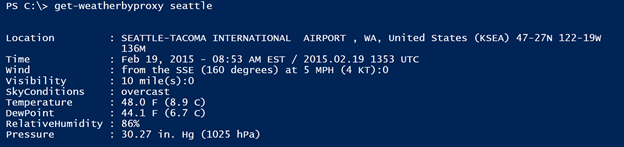
You can even pipe between commands.
get-weatherlocation -city chicago | get-weatherbyproxy | Out-GridView -title "Chicago"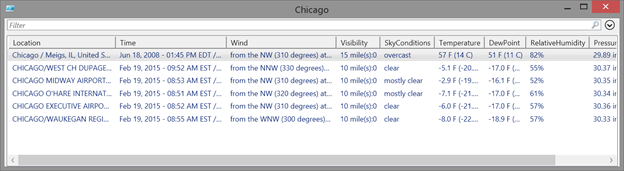
The object properties are all strings which means sorting or filtering is troublesome, but there is some good data here so I guess it is a trade-off.
Now you have several ways to check the weather, assuming you can't simply look out a window. And hopefully you've learned a few new things about PowerShell along the way.