Today's Friday Fun is a little different in that it showcases two things I use almost every day: Microsoft Word and PowerShell. I am writing new articles and material almost daily and of course very often the content is PowerShell related. Usually I use the blog post template in Word to make it easier to upload. This works great because I can insert links in the Word document and they will be maintained when copied to WordPress. One of the steps I've started taking in my writing is to include a link to online help for a cmdlet.
For example, if I am writing about Get-WinEvent I'll include a link on the cmdlet name. Of course I'm not going to manually get the link, copy it and create the hyperlink in Word. So I created a Word macro that calls a PowerShell script to get the online link and insert it as a hyperlink. Here's how this all works.
There are a few ways to get the online help link for a given cmdlet. You could retrieve the HelpUri with Get-Command.
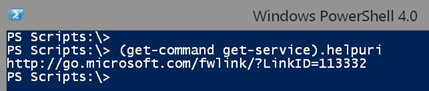
Or you can retrieve it using Get-Help.

As you can see the links are different, even though the online content is very similar. But since the latter is what you would get if you ran Get-Help Get-Service –online, I decided to go with that. I put together a simple script.
#requires -version 3.0

#Get-HelpOnlineUri.ps1

[cmdletbinding()]

Param(
[Parameter(Position=0,Mandatory=$True,HelpMessage="Enter a command name")]
[string]$Name
)

Try {
 $help = get-help $name -ErrorAction Stop
 if ($help.RelatedLinks) {
 [string]$uri = $help | select -expand relatedlinks | select -expand Navigationlink | select -first 1 -expand uri
 #trim it just in case there are spaces
 $uri.trim()
 #send to clipboard as well
 $uri.trim() | clip
 }
 else {
    Write-Warning "No online help links detected for $name"
    #write null to the pipeline
    $null
 }

} #try
Catch {
    #write null to the pipeline
    $null
    Throw

} #catch
The function writes the link to the pipeline if found, otherwise it writes $Null. I'll explain why in a moment.
With this script, I now turn to Word and created this macro.
Sub InsertHelpLink()

Dim r, c, file
Dim cmd As String
Dim link As String
Dim tip As String
Dim iFile As Integer

'get the %temp% path
tempdir = CStr(Environ("temp"))
'define a temporary file
file = tempdir + "\uri.txt"

'selected text
c = ActiveDocument.ActiveWindow.Selection.Text

Debug.Print "Testing for " + c
'the command to run
'YOU MIGHT NEED TO EDIT SCRIPT PATH
cmd = "powershell -nologo -noprofile -command " + Chr(34) + "&{C:\scripts\Get-HelpOnlineUri.ps1 " + c + " | out-file " + file + " -force -encoding Ascii}" + Chr(34)
Debug.Print cmd

'invoke the command
r = shell(cmd, vbHide)

'wait a few seconds for process to complete and file to close
wait = Now() + TimeValue("00:00:02")
Do While Now < wait
Loop

'open the file and read its contents
iFile = FreeFile()

Open file For Input As #iFile

Do While Not EOF(iFile)
  Line Input #iFile, link
Loop

Close #iFile
Debug.Print link

'define the screentip
tip = "Read online help for " + c
Debug.Print tip

'insert the link
If Len(link) > 0 Then
    ActiveDocument.ActiveWindow.Selection.Hyperlinks.Add Anchor:=Selection.Range, Address:=link, SubAddress:="", _
        ScreenTip:=tip, TextToDisplay:=c, Target:="_blank"
Else
Debug.Print "no link found"
End If

End Sub
I couldn't find a way to capture the output of the PowerShell command so I ended up creating a temporary file that contains the link. If nothing was found then the file will have a 0 length. I found this easier because the macro reads the file and saves the contents to a variable, link. If the length of link is > 0 then Word inserts the hyperlink, complete with a constructed screen tip.
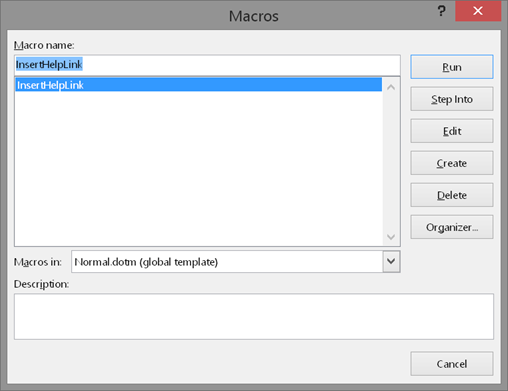
I stored the macro in Normal.dot so I always have it available.
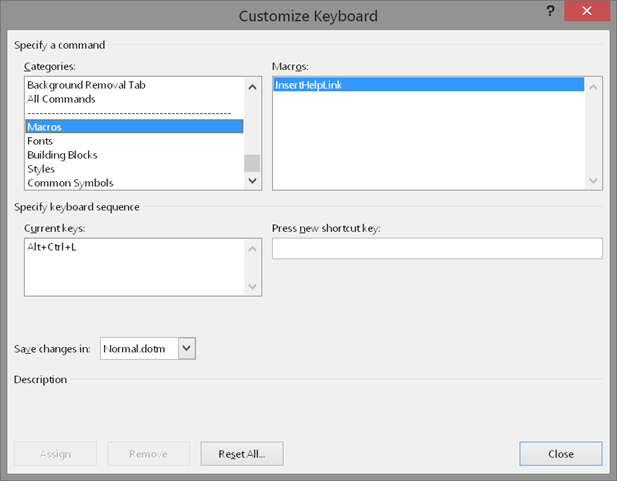
I even gave it a keyboard shortcut under File - Options –Customize Ribbon
Finding ways to automate the dreary tasks from my day is very rewarding, plus I almost always learn something new. Hopefully you did to.
Just an FYI, I was having a bit of an issue with this, turned out that Word was auto-selecting the newline after the cmdlet name. Fixed it by adding this line:
c = Replace(c, vbCr, “”, , , vbTextCompare)
Thanks for this. I was thinking I needed to add something in case Word grabbed the newline character. My code assumes you have carefully selected text only.