I’ve been helping out on some WMI and PowerShell issues in the forums at ScriptingAnswers.com. As I was working on a problem I ended up taking a slight detour to address an issue that has always bugged me. When I run a command like this:
get-wmiobject -query "Select Name,Description,Disabled from Win32_UserAccount"
PowerShell wants to return system classes as well.
PS C:\> get-wmiobject -query "Select Name,Description,Disabled from Win32_UserAccount"


__GENUS          : 2
__CLASS          : Win32_UserAccount
__SUPERCLASS     :
__DYNASTY        :
__RELPATH        :
__PROPERTY_COUNT : 3
__DERIVATION     : {}
__SERVER         :
__NAMESPACE      :
__PATH           :
Description      : Built-in account for administering the computer/domain
Disabled         : False
Name             : Administrator
PSComputerName   :

...
The work around has been to pipe the original expression to Select-Object and re-selecting the properties I want. This seems like an unnecessary step. Now, depending on the class I could simple return all WMI objects and then use Select-Object. But I should be able to take advantage of early filtering and use Get-WmiObject as it was intended. So I wrote a function called Select-WMI that will take any WMI-looking object and return the non system properties.
#requires -version 2.0

Function Select-WMI {
<#
.Synopsis
Return non system properties from a WMI Object.
.Description
When using -query and Get-WmiObject, you get system properties included, like __CLASS
and __SERVER. This function will strip off these properties and only return class properties.
Use -Populated when you want to get all class properties but only if they have a value
defined. This is similar to piping a WMI object to Select * except in this function
you'll only get properties with a value.
.Parameter InputObject
A WMI object either from a Get-WMIObject expression.
.Parameter Populated
Only return properties that have a defined value.
.Example
PS C:\> Get-WMIObject -query "Select Model,Name,Manufacturer from win32_computersystem" | Select-WMI
Manufacturer               Model                      Name
------------               -----                      ----
TOSHIBA                    Qosmio X505                SERENITY

.Example
PS C:\> Get-WMIObject win32_operatingsystem | Select-WMI
BootDevice                                : \Device\HarddiskVolume1
BuildNumber                               : 7600
BuildType                                 : Multiprocessor Free
Caption                                   : Microsoft Windows 7 Ultimate
CodeSet                                   : 1252
CountryCode                               : 1
CreationClassName                         : Win32_OperatingSystem
CSCreationClassName                       : Win32_ComputerSystem
CSDVersion                                :
CSName                                    : SERENITY
CurrentTimeZone                           : -240
DataExecutionPrevention_32BitApplications : True
DataExecutionPrevention_Available         : True
DataExecutionPrevention_Drivers           : True
DataExecutionPrevention_SupportPolicy     : 2
Debug                                     : False
Description                               :
Distributed                               : False
EncryptionLevel                           : 256
ForegroundApplicationBoost                : 2
FreePhysicalMemory                        : 2346688
FreeSpaceInPagingFiles                    : 4182504
FreeVirtualMemory                         : 6091932
InstallDate                               : 20100120131825.000000-300
LargeSystemCache                          :
LastBootUpTime                            : 20100511175627.595198-240
LocalDateTime                             : 20100511180234.565000-240
Locale                                    : 0409
Manufacturer                              : Microsoft Corporation
MaxNumberOfProcesses                      : 4294967295
MaxProcessMemorySize                      : 8589934464
MUILanguages                              : {en-US}
Name                                      : Microsoft Windows 7 Ultimate |C:\Wi
                                            ndows|\Device\Harddisk0\Partition2
NumberOfLicensedUsers                     :
NumberOfProcesses                         : 80
NumberOfUsers                             : 5
OperatingSystemSKU                        : 1
Organization                              : JDH Information Technology Solution
                                            s
OSArchitecture                            : 64-bit
OSLanguage                                : 1033
OSProductSuite                            : 256
OSType                                    : 18
OtherTypeDescription                      :
PAEEnabled                                :
PlusProductID                             :
PlusVersionNumber                         :
Primary                                   : True
ProductType                               : 1
RegisteredUser                            : Jeff
SerialNumber                              : 00426-065-0389393-86732
ServicePackMajorVersion                   : 0
ServicePackMinorVersion                   : 0
SizeStoredInPagingFiles                   : 4182504
Status                                    : OK
SuiteMask                                 : 272
SystemDevice                              : \Device\HarddiskVolume2
SystemDirectory                           : C:\Windows\system32
SystemDrive                               : C:
TotalSwapSpaceSize                        :
TotalVirtualMemorySize                    : 8363108
TotalVisibleMemorySize                    : 4182504
Version                                   : 6.1.7600
WindowsDirectory                          : C:\Windows

.Example
PS C:\> Get-WMIObject win32_bios -computername SERVER01 | Select-WMI -Populated
BiosCharacteristics   : {4, 7, 8, 9...}
BIOSVersion           : {TOSQCI - 6040000, Ver 1.00PARTTBL}
Caption               : Ver 1.00PARTTBL
Description           : Ver 1.00PARTTBL
Manufacturer          : TOSHIBA
Name                  : Ver 1.00PARTTBL
PrimaryBIOS           : True
ReleaseDate           : 20100223000000.000000+000
SerialNumber          : Z9131790W
SMBIOSBIOSVersion     : V2.20
SMBIOSMajorVersion    : 2
SMBIOSMinorVersion    : 6
SMBIOSPresent         : True
SoftwareElementID     : Ver 1.00PARTTBL
SoftwareElementState  : 3
Status                : OK
TargetOperatingSystem : 0
Version               : TOSQCI - 6040000
.Example
PS C:\> Select-wmi (gwmi win32_useraccount) | select -first 1

AccountType        : 512
Caption            : SERENITY\Administrator
Description        : Built-in account for administering the computer/domain
Disabled           : False
Domain             : SERENITY
FullName           :
InstallDate        :
LocalAccount       : True
Lockout            : False
Name               : Administrator
PasswordChangeable : True
PasswordExpires    : False
PasswordRequired   : True
SID                : S-1-5-21-2858895768-3673612314-3109562570-500
SIDType            : 1
Status             : OK
.Inputs
Any WMI or [system.management.managementobject] object
.Outputs
A WMI or [system.management.managementobject] object
.Link
Get-WMIObject
Select-Object
.Link
http://bit.ly/ebmiio

.Notes
 NAME:      Select-WMI
 VERSION:   1.1
 AUTHOR:    Jeffery Hicks (@jeffhicks)
 LASTEDIT:  5/11/2010

      Learn more:
       PowerShell in Depth: An Administrator's Guide
       PowerShell Deep Dives
       Learn PowerShell 3 in a Month of Lunches
       Learn PowerShell Toolmaking in a Month of Lunches

     "Those who forget to script are doomed to repeat their work."

      ****************************************************************
      * DO NOT USE IN A PRODUCTION ENVIRONMENT UNTIL YOU HAVE TESTED *
      * THOROUGHLY IN A LAB ENVIRONMENT. USE AT YOUR OWN RISK.  IF   *
      * YOU DO NOT UNDERSTAND WHAT THIS SCRIPT DOES OR HOW IT WORKS, *
      * DO NOT USE IT OUTSIDE OF A SECURE, TEST SETTING.             *
      ****************************************************************
#>

[CmdletBinding()]
Param(
[Parameter(Position=0,ValueFromPipeline=$True)]
[object[]]$InputObject,
[switch]$Populated
)
Begin {
    write-verbose "Starting $($myinvocation.MyCommand)"
    if ($populated) {
        write-verbose "Populated specified"
    }
} #Begin

Process {
    write-verbose "Analyzing object"
    foreach ($item in $inputObject) {
    #only process objects that look like WMI objects
    if ($item.__CLASS) {
        write-verbose "Found $($item.psbase.properties.count) properties"
        #create an empty array to hold property names
        $properties=@()
        $populatedProperties=@()

        foreach ($property in $item.properties) {
          if ($Populated -AND  $item.($property.name) -ne $NULL) {
           #only add property name if it has a value
           write-verbose "Value confirmed. Adding $($property.name)"
           #the following line will display the property value as a string
           #so you might get funny looking output
           #write-verbose  ($item.($property.name) | out-string)
           $populatedProperties+=$property.name
           }
           else {
           write-verbose "Adding $($property.name)"
           $properties+=$property.name
           }
        }
           write-verbose "Returning WMI Object"
           if ($populated) {
              write-verbose "Returning $($populatedProperties.count) populated properties"
              $item | select $populatedProperties
           }
           else {
              $item | select $properties
           }
    }
      else {

        Write-warning "You did not pass a valid WMI Object"
      }
    } #ForEach
} #Process

End {
    write-verbose "Ending $($myinvocation.MyCommand)"
 } #end
} #end function
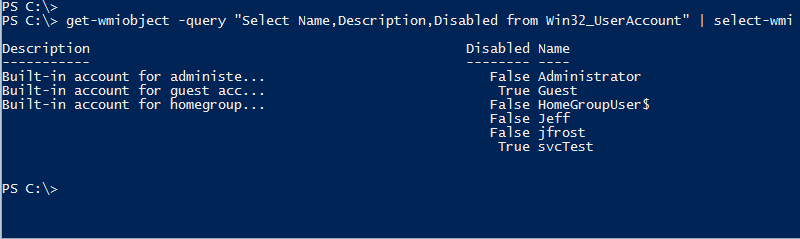
I assumed you would run it as part of a pipeline. Now, I can more easily get the information I’m after.
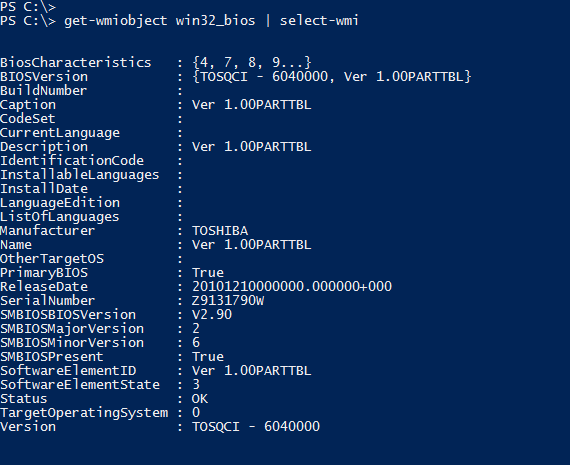
The function will also work to bypass PowerShell’s default formatting for WMI objects, making it easier to see all the properties.
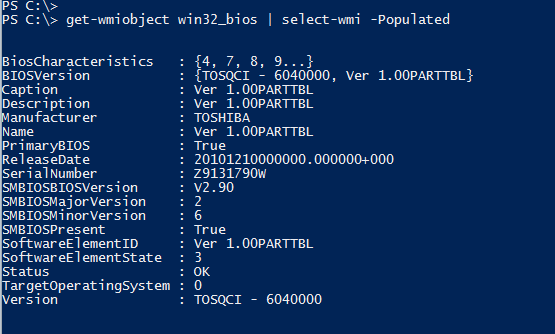
But I took this one step further. There are times when all I want are properties that have a value. So Select-WMI has a –Populated parameter so that only populated properties are displayed.
Now, you'll only really need this when using the WMI cmdlets. In PowerShell v3 and later you can use Get-CimInstance which by default does not display the system properties.
[updated March 15, 2014]