A few days ago I shared some experiences of working with Docker containers and PowerShell. As I continue to learn Docker, I am also learning how to manage it with PowerShell. The Docker command line tools are fine but I think they are even better when drizzled with a nice PowerShell glaze. Here's a bit more of what I have been working on.
Container ID
In my previous work, I needed the full container ID so I could use it with the PowerShell PSSession cmdlets. Thanks to people like Tim Pringle, who provided tips on better using the Docker CLI, specifically the filter option.
docker container ls -f Name=srv4
The -f could also be written as --filter.

Be careful. Container names are case-sensitive.
With this, I can combine it with a few other parameters to get the full configuration ID.
docker container ls --no-trunc -qf Name=srv4

Formatting Containers
It gets better. After a bit of research and experimentation, I figured out how to take advantage of the --format parameter in the Docker CLI. This is meant to show you what formatting options are available to you using the JSON format.
docker container ls --no-trunc --format "{{json .}}"

You can format using any heading preceded by a colon. In other words, you can tell Docker what properties to return from the JSON output.
docker container ls -a --no-trunc --format "{{json .Names}},{{json .ID}},{{json .Image}},{{json .Networks}},{{json .Mounts}},{{json .CreatedAt}}"

Hey! That is a CSV output. I can use PowerShell to turn that into objects.
docker container ls -a --no-trunc --format "{{json .Names}},{{json .ID}},{{json .Image}},{{json .Networks}},{{json .Mounts}},{{json .CreatedAt}}" |
ConvertFrom-CSV -Header "Name","ID","Image","Network","Mounts","Created"
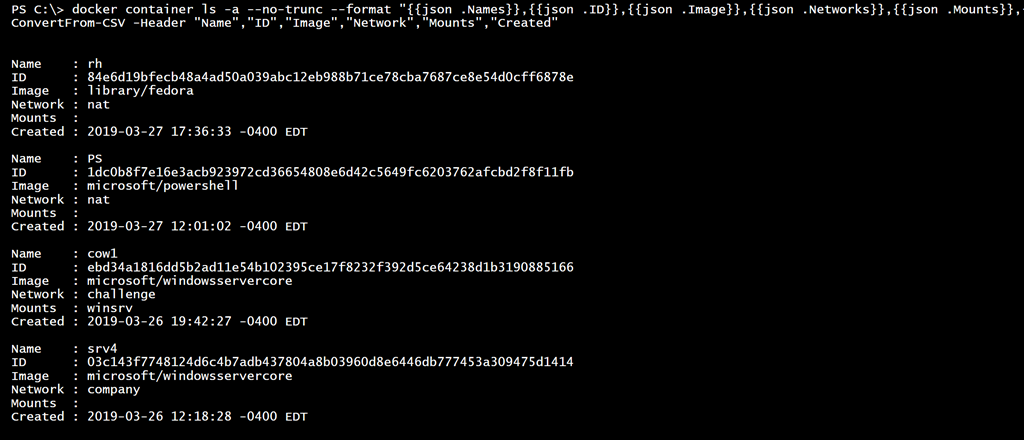
That is very useful, so why not take everything? I know Docker will provide JSON output which means I can convert it and then tweak a few properties to be the of the proper type.
docker container ls -a --no-trunc --format "{{json .}}" | convertfrom-json |
Select-Object ID,@{Name="Name";Expression = {$_.names}},Image,
@{Name="Created";Expression = {($_.createdat -split "\s[-+]\d{4}.*")[0] -as [datetime]}},
Networks,Mounts
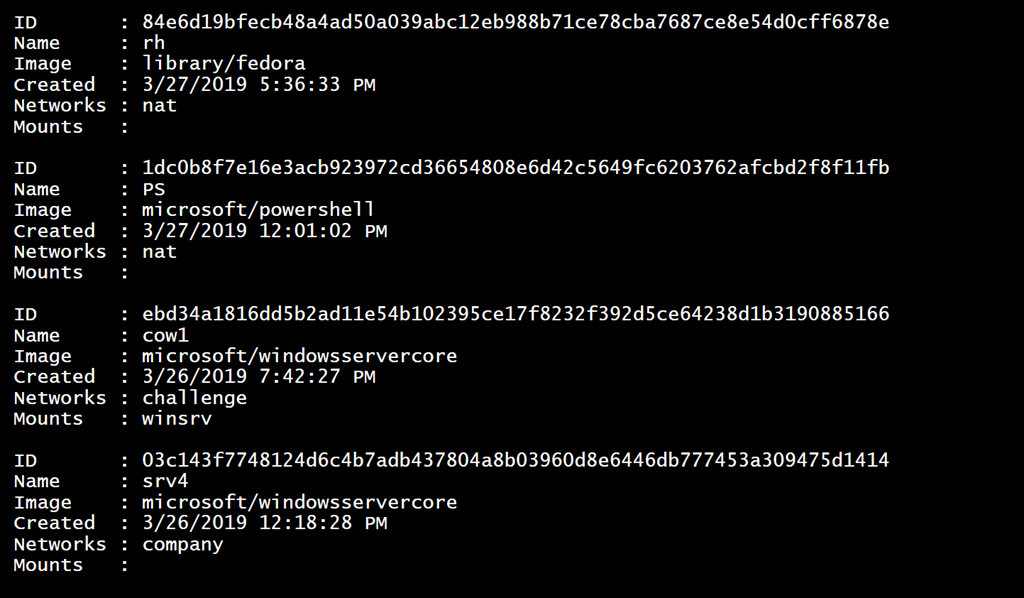
In case you're wondering I'm using a regular expression pattern to parse the CreatedAt value to that I can convert it to a proper DateTime object.
Digging Deeper
You know me. I always want to discover how far I can go. The Docker CLI has an option to inspect a container. This allows you to get all the information about a given container. The default output is a JSON document. This means I can get all container names and then inspect each one, converting the JSON output to objects in PowerShell.
$c = docker container ls -a --no-trunc --format "{{json .Names}}" |
foreach-object { docker container inspect $_ | ConvertFrom-Json }
I get output like this:
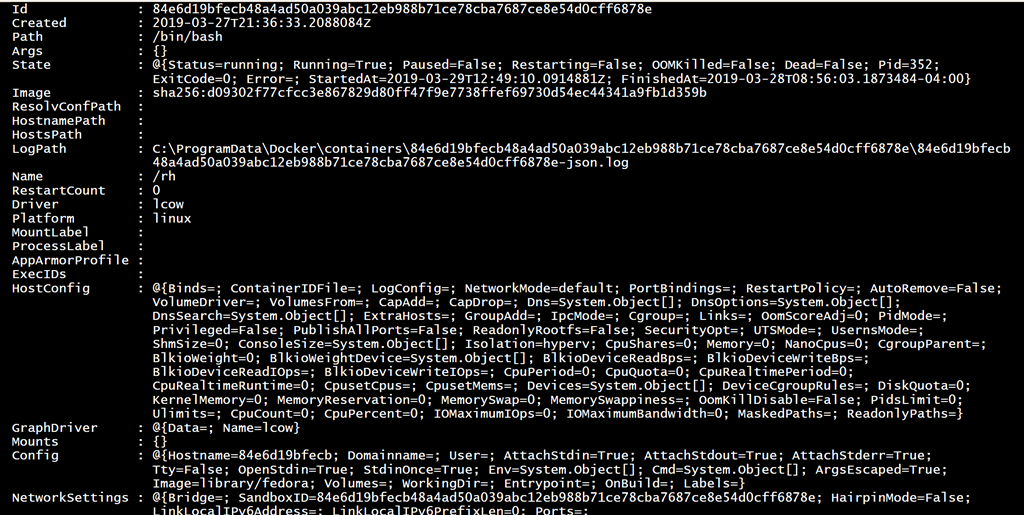
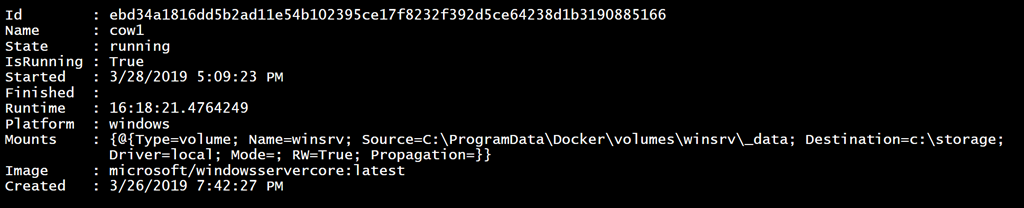
With a bit of scripting, I can turn this into something a bit more manageable.
foreach ($item in $c) {
    $item | Select-object Id,
    @{Name="Name";Expression = {$_.Name.substring(1)}},
    @{Name="State";Expression = {$_.state.status}},
    @{Name="IsRunning";Expression = {$_.state.Running}},
    @{Name="Started";Expression = {$_.state.startedat -as [datetime]}},
    @{Name="Finished";Expression = {
       #this value shows the last time it finished which won't be accurate if
       #the container is running
       if ($_.state.running) {
          $null
       }
       else {
     $_.state.finishedat -as [datetime]
     }
     }},
    @{Name="Runtime";Expression = {
    if ($_.state.running) {
     (Get-Date) - ($_.state.startedat -as [datetime])
    }
    else {
        ($_.state.finishedat -as [datetime]) - ($_.state.startedat -as [datetime])
    }
    }},
    Platform,Mounts,
    @{Name="Image";Expression = { (docker image inspect ($_.image -split ":")[1] --format "{{json .RepoTags}}") -replace '\[|\]|"',"" }},
    @{Name="Created";Expression ={$_.Created -as [datetime]}}
}
I can even add my own properties.
Toolmaking Time
Obviously, nobody wants to type that all the time. So I turned the code into a proper PowerShell function.
The function is using a nested PowerShell class to define my custom object.
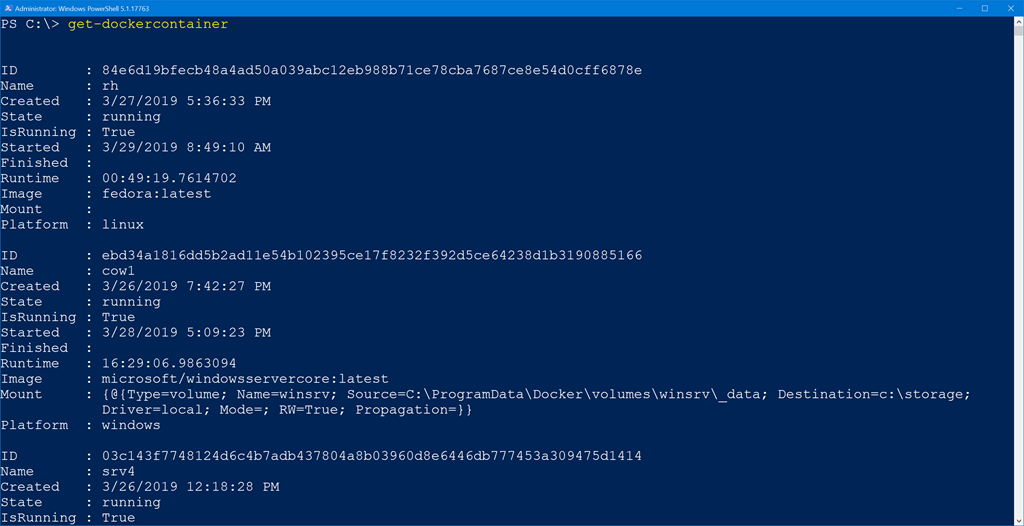
I'm glad I have all of this information available, but part of PowerShell toolmaking is to take how it will be used into account. I wanted a different default view of the objects. This meant I needed a custom format ps1xml file. Fortunately, that is is easy now using the New-PSFormatXML command in my PSScriptTools module.
Get-DockerContainer | Select -first 1 | New-PSFormatXML -Properties ID,Name,Image,State,IsRunning,Created,Started,Finished,Runtime -Path c:\scripts\mydockercontainer.format.ps1xml
I edited the file to get the desired output.
<?xml version="1.0" encoding="UTF-8"?>
<!--
format type data generated 03/27/2019 17:01:10
by BOVINE320\Jeff
-->
<Configuration>
  <ViewDefinitions>
    <View>
      <!--Created 03/27/2019 17:01:10 by BOVINE320\Jeff-->
      <Name>default</Name>
      <ViewSelectedBy>
        <TypeName>Get-DockerContainer.myDockerContainer</TypeName>
      </ViewSelectedBy>
            <GroupBy>
               <ScriptBlock>@"
$($_.ID)
   Image Tag   : $($_.image)
"@</ScriptBlock>
               <Label>Container ID</Label>
       </GroupBy>
      <TableControl>
        <TableHeaders>
          <TableColumnHeader>
            <Label>Name</Label>
            <Width>7</Width>
            <Alignment>left</Alignment>
          </TableColumnHeader>
          <TableColumnHeader>
            <Label>Created</Label>
            <Width>22</Width>
            <Alignment>left</Alignment>
          </TableColumnHeader>
          <TableColumnHeader>
            <Label>State</Label>
            <Width>8</Width>
            <Alignment>left</Alignment>
          </TableColumnHeader>
          <TableColumnHeader>
            <Label>IsRunning</Label>
            <Width>10</Width>
            <Alignment>left</Alignment>
          </TableColumnHeader>
          <TableColumnHeader>
            <Label>Started</Label>
            <Width>21</Width>
            <Alignment>left</Alignment>
          </TableColumnHeader>
          <TableColumnHeader>
            <Label>Finished</Label>
            <Width>21</Width>
            <Alignment>left</Alignment>
          </TableColumnHeader>
          <TableColumnHeader>
            <Label>Runtime</Label>
            <Width>20</Width>
            <Alignment>left</Alignment>
          </TableColumnHeader>
        </TableHeaders>
        <TableRowEntries>
          <TableRowEntry>
            <TableColumnItems>
               <TableColumnItem>
                <PropertyName>Name</PropertyName>
              </TableColumnItem>
              <TableColumnItem>
                <PropertyName>Created</PropertyName>
              </TableColumnItem>
              <TableColumnItem>
                <PropertyName>State</PropertyName>
              </TableColumnItem>
              <TableColumnItem>
                <PropertyName>IsRunning</PropertyName>
              </TableColumnItem>
              <TableColumnItem>
                <PropertyName>Started</PropertyName>
              </TableColumnItem>
              <TableColumnItem>
                <PropertyName>Finished</PropertyName>
              </TableColumnItem>
              <TableColumnItem>
                <PropertyName>Runtime</PropertyName>
              </TableColumnItem>
            </TableColumnItems>
          </TableRowEntry>
        </TableRowEntries>
      </TableControl>
    </View>
  </ViewDefinitions>
</Configuration>
Before it can be used, it needs to be imported into the PowerShell session.
Update-FormatData C:\scripts\mydockercontainer.format.ps1xml
Now I get a formatted output that is easier to digest.
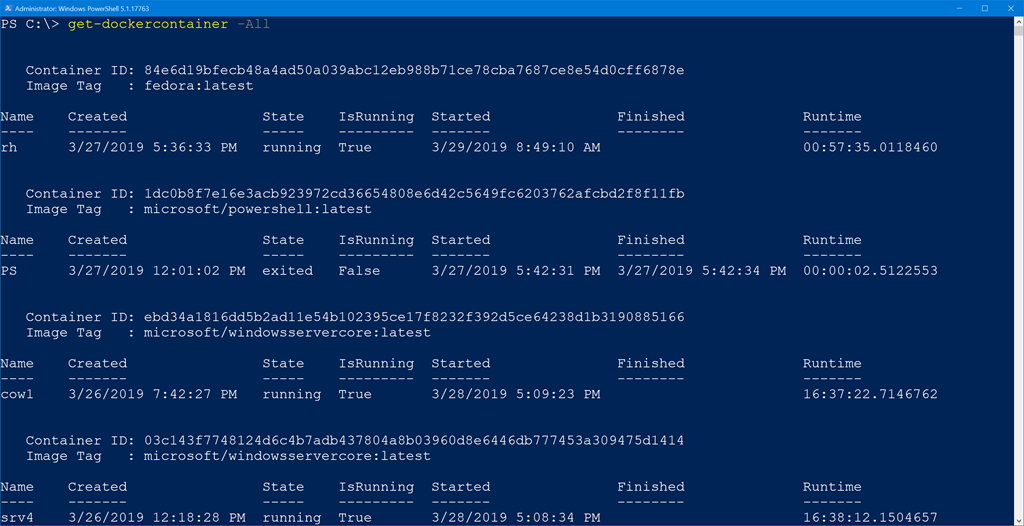
The other properties are still available if I need them.

I can already think of more that I want to do with this. Hopefully, you have some ideas as well. And now that I know how to get data from Docker using JSON, there is much, much more that I can do.
The possibilities… just replace docker cli with az cli 🙂 Never would have thought to put a class in begin {}. Thanks!