The other day I was helping a friend sort out some module-related questions. While helping him, I realized his questions and problems were not unique. Now that many of us are running Windows PowerShell 7 side-by-side, what are the implications when it comes to using PowerShell modules? What are the potential "gotchas"? And what can you do to reduce the likelihood of problems?
PowerShellGet
Both Windows PowerShell and PowerShell rely on module commands like Find-Module and Install-Module. However, if you need to support modules cross-version, you might need to satisfy a critical requirement. By the way, use Windows PowerShell to run all of these commands unless otherwise directed.
Open Windows PowerShell and run
Get-Module powershellget -ListAvailableIf the only version you see is 1.0.0.1, you need to update the module. The PowerShellGet module is where you get the module commands and in a cross-version world, you need a later version of the module.
However, you can't simply run
Update-Module PowerShellGetIf you do, you'll get an error. The 1.0.0.1 version is a system module that came with your version of Windows 10. It was not installed in the traditional sense. But no problem. You can still install it.
Install-Module PowerShellGet -Force -Repository PSGalleryI'm being very concise in the command to install the Microsoft version. Let's verify.
Remove-Module PowerShellGet -ErrorAction Ignore
Import-Module PowerShellGet
Get-Module PowerShellGet
You should see at least version 2.2.5. If so you are ready to continue. By the way, now that you've used Install-Module, if there is a later version update, you can use Update-Module to install it. Don't worry about the original system version. PowerShell will automatically use the latest version of the module by default.
PSModulePath
The next part of the puzzle is an environmental variable called %PSModulePath%. This variable contains all of the locations that PowerShell and Windows PowerShell looks for modules. This is what makes module autoloading possible. This is where it gets interesting.
Here's my variable on a clean Windows 10 installation.
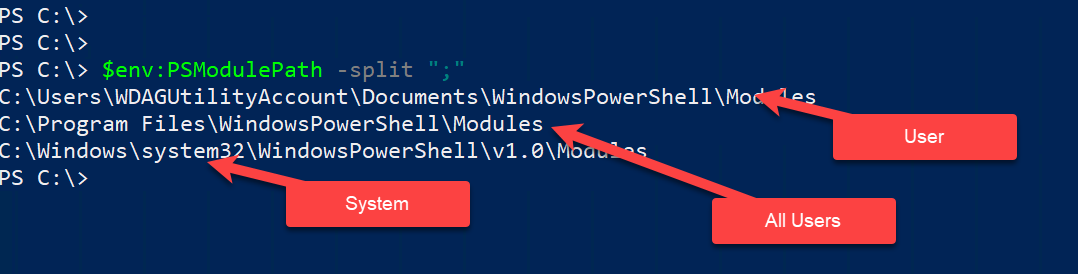
I split the path on the ";" delimiter to make it easier to read. There are 3 default locations. Once for the current user, one for all users and one for system modules. For the most part, we'll ignore anything in the system path. When you install a new module it will go in either the user and all users path. More on that in a bit.
Here is the same thing in PowerShell 7.1.
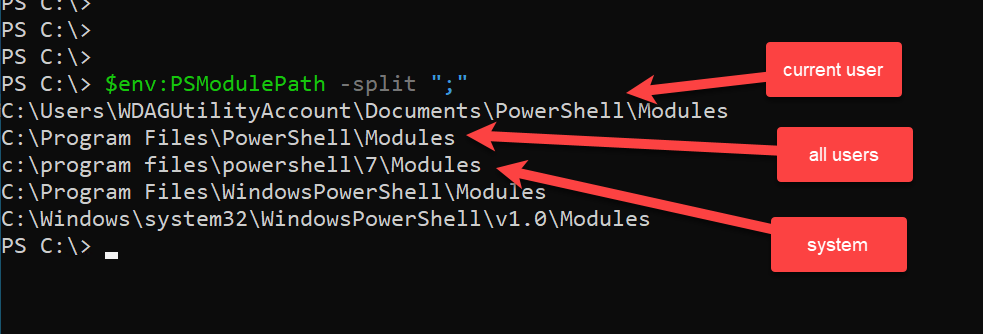
Another way to think of the system path is that is under $PSHome. Look closely. PowerShell 7 also knows about the Windows PowerShell system and all users locations! This means that PowerShell can "see" modules installed by Windows PowerShell. However, Windows PowerShell cannot "see" anything installed by PowerShell.
Install-Module
Now that this hopefully clear, let's install some modules. In PowerShell, I'll install a module that I know only works in PowerShell 7.x.
install-module Bluebirdps -Scope AllUsers -forceNotice the -Scope parameter. By default, installed modules are per user. But in this case I wanted to install the module for All Users. This means the account used to install the module needs admin rights to C:\Program Files. This is why the default is to the user's location -- to avoid the need of admin credentials. While I'm at it, I'll install another module in PowerShell 7.
Install-Module PSReleaseTools -forceIn Windows PowerShell, I'll install a module for all users and one using the default scope.
Install-Module PSScriptTools -Scope AllUsers -force
Install-Module WTToolbox -force
Get-InstalledModule
The next question should be, "How can I see what modules are available?". One command you can use, and one that I had not been aware of, is Get-InstalledModule. Here's what I get in PowerShell.
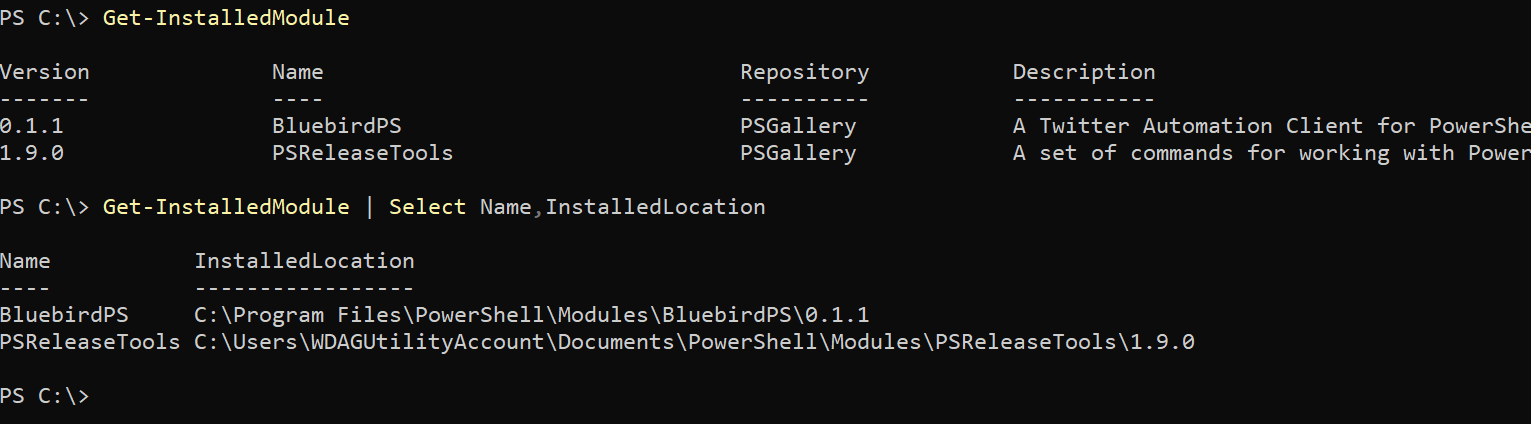
You can see by the location that one module is for the user and one is for all users. Notice there are no modules from Windows PowerShell.
Here's the same thing from the Windows PowerShell side.
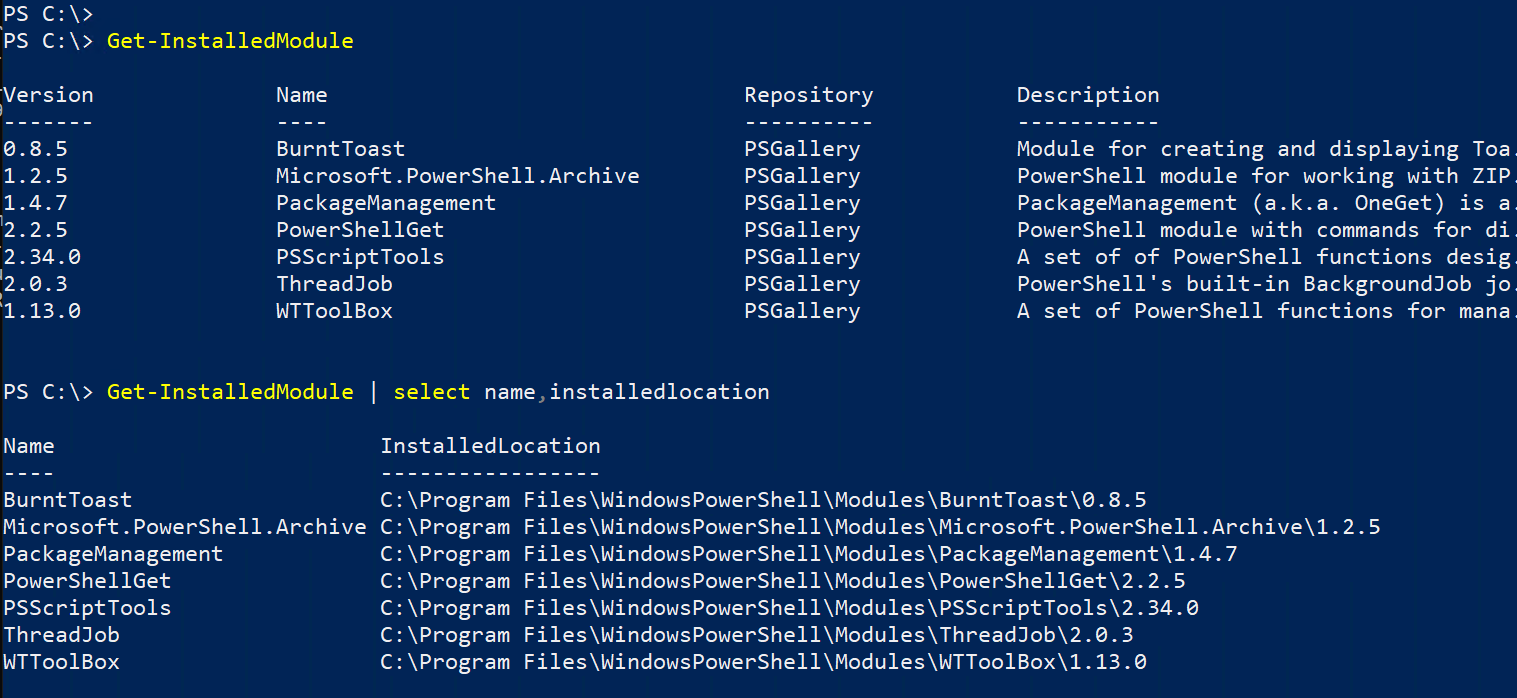
Nothing from PowerShell 7 shows up. But there is one important item I want to point out. Earlier I installed the WTToolBox module without specifying a scope. The default is the user scope yet look at the location. Here's what happened. I was running Windows PowerShell as Administrator, i.e. in an elevated session. In this context, the "user" is the same as "all users". In some ways that is a good thing because any Windows PowerShell modules installed for all users can be used in PowerShell 7.x, assuming compatibility.
Key TakeAway #1: Get-InstalledModule only shows modules installed per PowerShell version.
Key TakeAway #2: Installing a module as an elevated user always installs the module for all users.
Get-Module
So how can you "see" what modules are available? Use Get-Module. By default, the module only shows the currently loaded modules. The key parameter you need to remember is -ListAvailable.

Get-Module searches the PSModulePath locations which is why this works in PowerShell 7. To "see" everything run:
Get-Module -listavailable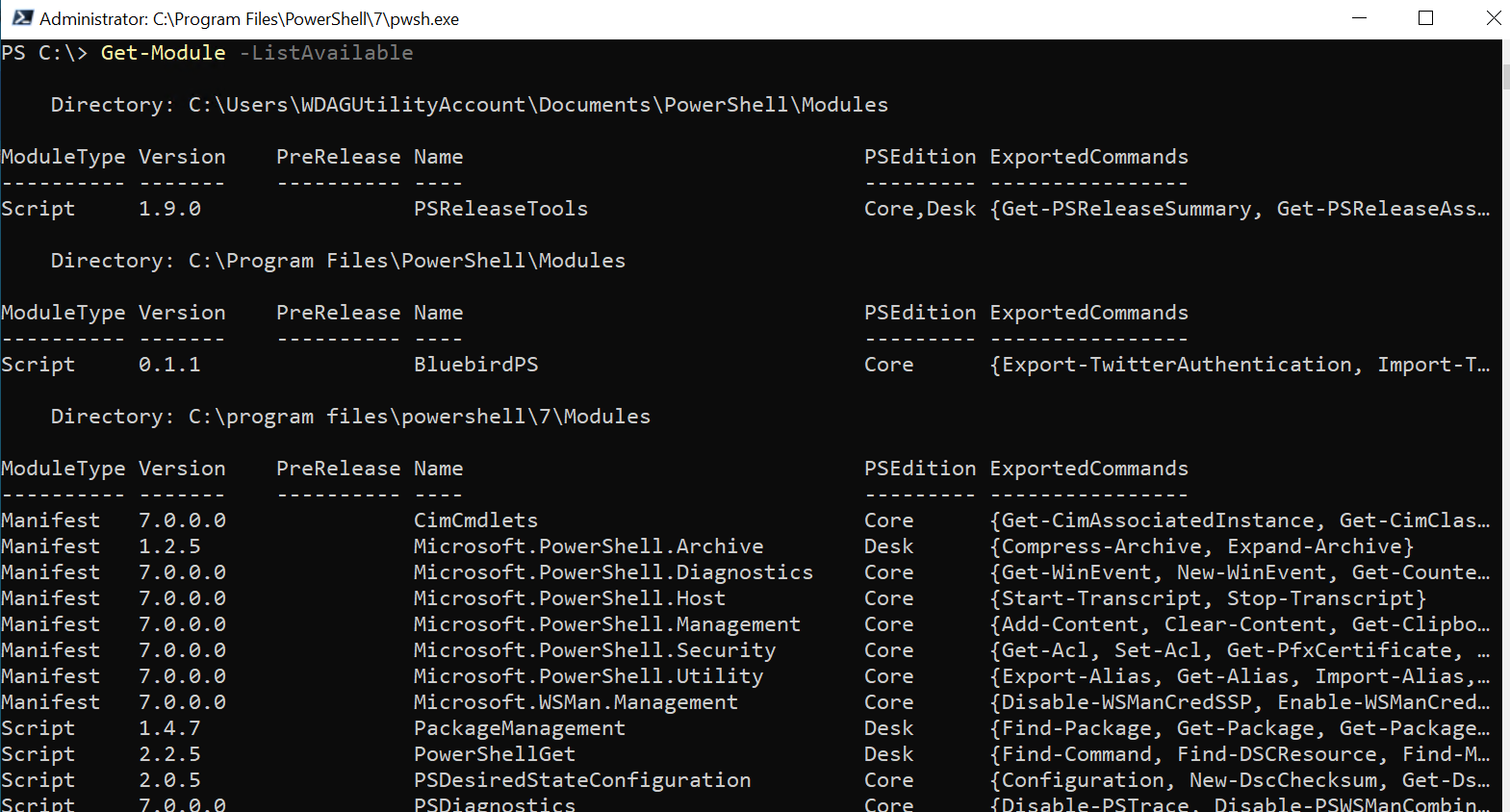
Here's a little code snippet to inventory available modules.
$p = $env:PSModulePath -split ";"
 $m = Get-Module -ListAvailable
 foreach ($loc in $p) {
     [pscustomobject]@{
         Location = $loc
         Modules = ($m | where {$_.path -match $loc.replace("\","\\") } ).count
     }
 }
This is a composite of results from both versions of PowerShell.
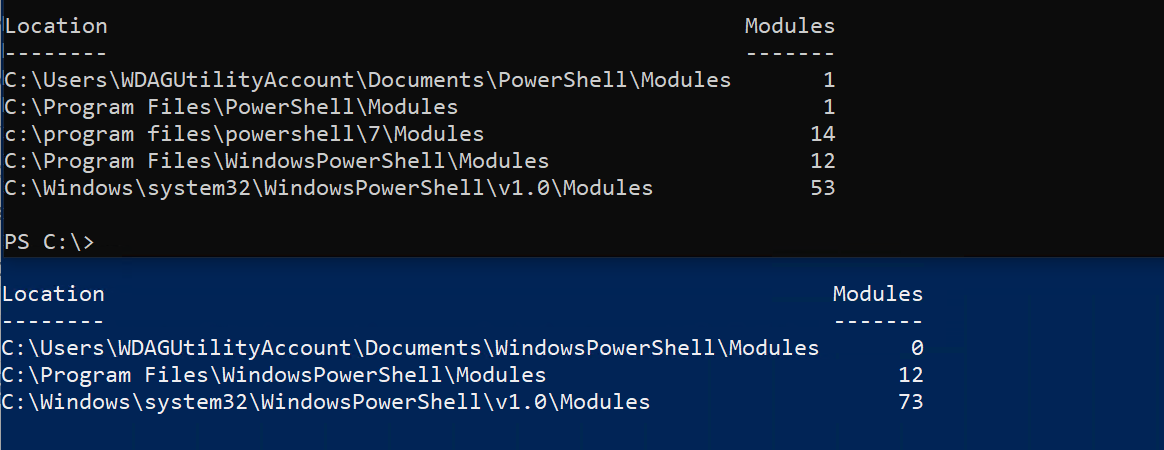
Key TakeAway #3: If you need to use a module in both Windows PowerShell and PowerShell 7.x, install it for all users in Windows PowerShell.
Summary
I hope this walk-through cleared up any mystery or confusion. Before you go let me mention a few things. First, just because PowerShell can "see" a Windows PowerShell module, there is no guarantee it will work. Don't let this deter you. The vast majority of Windows PowerShell modules work just fine in PowerShell. Those that don't most likely fail due to a .NET dependency that isn't supported in .NET Core, which is what PowerShell is running under.
Second, your PSModulePath variable might be different. Depending on the applications or programs you install, you might have additional locations. On my primary desktop, I have SQL Server Express installed so my variable includes C:\Program Files (x86)\Microsoft SQL Server\150\Tools\PowerShell\Modules\.
Technically, you could modify the environmental variable or adjust locations with a profile script. You might do this if you want to include a custom location. But I would advise against updating the variable so that Windows PowerShell can "see" PowerShell module locations. I'm working under the assumption that if a module is installed in PowerShell it requires PowerShell. For example, I installed the BluebirdPS module in PowerShell. If I modified things so that I could import it into Windows PowerShell, it will most likely fail. If you need modules to work cross-version, install them in Windows PowerShell for all users.
I encourage you to update PowerShellGet and then take a few minutes reading help and examples for the module commands.
Great explained. I learned this topic when I wrote PSModuleManager. Your post showed me I understand it well. Thanks!