I expect many of you are like me and have done, or will do, an in-place upgrade from Windows 10 to Windows 11. It is easy enough to run a PowerShell expression like this to see the operating system name.
Get-CimInstance win32_operatingsystem | Select-Object -property CaptionI get a value like Windows 11 Pro. However, operating system information is also stored in the registry under HKLM:\SOFTWARE\Microsoft\Windows NT\CurrentVersion.

The upgrade process doesn't appear to update the ProductName value. Without getting into the merits of the "best" way to get operating system information, I simply want to revise this registry setting. Naturally, I want to use PowerShell to automate this simple task because I will have several machines I will need to update.
Getting Information
First, I want a simple PowerShell function to provide information based on current registry values.
Function Get-OSProduct {
    [CmdletBinding()]
    Param()

    $reg = Get-ItemProperty -Path 'HKLM:\SOFTWARE\Microsoft\Windows NT\CurrentVersion'
    [PSCustomObject]@{
        Computername   = $env:computername
        ProductName    = $reg.Productname
        Build          = "{0}.{1}" -f $reg.CurrentBuildNumber,$reg.UBR
        Edition        = $reg.EditionID
        DisplayVersion = $reg.DisplayVersion
        Installed      = (Get-Date 1/1/1970).AddSeconds($reg.InstallDate)
    }
}
Loading this into my PowerShell session gives me this.
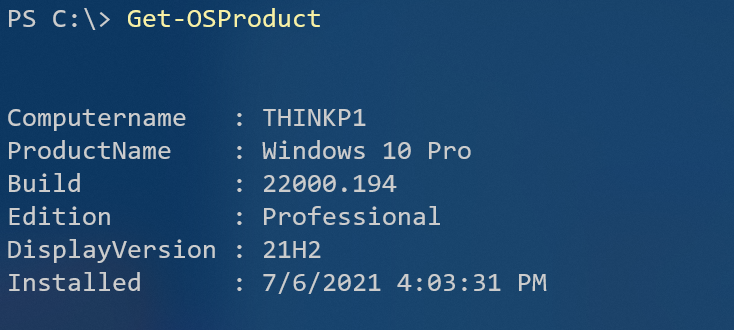
As far as I can tell, the Installed date is when I ran the Windows 11 upgrade on my ThinkPad. The Build property I constructed from two registry values to reflect the same information I get when running winver.exe. Some might argue that Windows 11 is really Windows 10.5 but since that isn't a legitimate value, I want to update the registry ProductName value with the value I get from Get-CimInstance.
Setting the Value
Update 15 Oct 2021 It turns out that this particular registry value as I'm about to change is not persistent. Windows will change the ProductName back to Windows 10 on a reboot. Still, you might find the code useful as an example of modifying other registry settings.
This is pretty simple to accomplish.
Function Set-OSProductName {
    [cmdletbinding(SupportsShouldProcess)]
    Param()

    #save the registry path to a variable to keep code easier to read
    $regPath = 'HKLM:\SOFTWARE\Microsoft\Windows NT\CurrentVersion'

    #get OS name from CIM
    $os = Get-CimInstance -ClassName Win32_OperatingSystem -Property Caption
    Write-Verbose "Detected operatings system $($os.caption)"

    #get current value
    $current = Get-ItemPropertyValue -Path $regPath -Name ProductName
    Write-Verbose "Current product name is $current"

    #update the registry value
    #I'm creating my own -whatif code
    if ($pscmdlet.ShouldProcess($regpath,"Update ProductName from $current to $($os.caption)")) {
        Set-ItemProperty -Path $regPath -Name ProductName -Value $os.Caption
    }
}
Because I'm updating the registry this needs to be run in an elevated session. I've also added support for -Whatif by specifying SupportsShouldProcess in the cmdletbinding attribute. I could have let Set-ItemProperty automatically detect -WhatIf, but I decided I wanted to write my own Whatif handler to use a more detailed message.

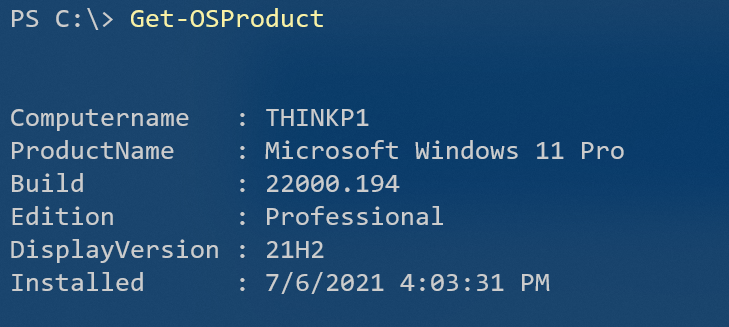
I''ll re-run the command and in a flash, I've updated the registry.
Summary
My intention in this article isn't to debate the merits of getting operating system information from CIM or the Registry. You might have a compelling use case unique to your environment that dictates one over the other. Or perhaps you simply wanted a little guidance on how to use PowerShell to update the registry. These functions are designed to be run locally. However, you could modify them to use PowerShell remoting and work on remote computers. But I'll leave those modifications to you,
Hey Jeff,
As always, thank you for the wonderful write-up. What is this syntax or method called where you..
“{0}.{1}” -f $reg.CurrentBuildNumber,$reg.UBR
I’ve seen it done before, but don’t know the name or style. I only know how to write it like this..
$reg.CurrentBuildNumber + ‘.’ + $reg.UBR
Is there any benefit to one or the other?
Thanks!
The -f is the .NET format operator. The values on the left like {0} and {1} are placeholders for the comma-separated values on the right. This is briefly described in about_operators. The -f operator also lets you quantify the formatting. Try this in Powershell: “Usage is {0:p2} out of {1:n0}.” -f (34.345/100),5gb
I think the + sign is for adding numbers. Not joining strings. Use -f or subexpressions like “Current build number is $($reg.ubr)”
Hey Jeff, Thank you for pointing me in the right direction, I’ll read up on the subject. I started using the + from reading articles like ( https://www.educba.com/powershell-concatenate-string/ ) where you can concatenate strings with the + operator. I see from your example that -f is much more powerful and flexible. 🙂
We had to concatenate strings back in the days of VBScript. And while it still works in PowerShell, when I see it, I think that the person is still thinking about working with text and not objects, and that they probably haven’t fully grasped the PowerShell paradigm. At least that’s my opinion.
Well, on my system, it resets it. It works when I run the script, but when I check later, it is back to “Windows 10”.
Well, how about that! It does indeed revert back on a reboot. I have no idea where Windows is pulling the information from to set the registry. But I guess for now, my code isn’t very useful. Unless you never reboot!