 Recently I posted an article explaining how to create a popup box in PowerShell using the Wscript.Shell COM object from our VBScript days. That was something I presented at the PowerShell Summit. Another option is a MessageBox, again like we used to use in VBScript. This works very much like the popup except the user has to click a button to dismiss the box. I can't think of a compelling reason why you would choose one technique over the other if you need the user to click something. But I'll let you make that call. Here's the function, New-Messagebox.
ManageEngine ADManager Plus - Download Free Trial
Exclusive offer on ADManager Plus for US and UK regions. Claim now!
#requires -version 2.0

Function New-Messagebox {

<#
.Synopsis
Display a VisualBasic style message box.
.Description
This function will display a graphical messagebox, like the one from VisualBasic
and VBScript. You must specify a message. The default button is OKOnly and the
default icon is for Information. If you want to use the value from a button click
in a PowerShell expression, use the -Passthru parameter.

The message box will remain displayed until the user clicks a button. The box may
also not appear on top, but if you have audio enabled you should hear the Windows
exclamation sound.
.Parameter Message
The text to display. Keep it short.
.Parameter Button
The button set to display. The default is OKOnly. Possible values are:
    OkOnly
    OkCancel
    AbortRetryIgnore
    YesNoCancel
    YesNo
    RetryCancel
.Parameter Icon
The icon to display. The default is Information. Possible values are:
    Critical
    Question
    Exclamation
    Information
.Parameter Title
The message box title. The default is no title. The title should be less than
24 characters long, otherwise it will be truncated.
.Parameter NoPassthru
Use this parameter if you DO NOT want the button value to be passed to the pipeline.
.Example
PS C:\> New-Messagebox "Time to go home!"
Display a message box with no title and the OK button.
.Example
PS C:\> $rc=New-Messagebox -message "Do you know what you're doing?" -icon exclamation -button "YesNoCancel" -title "Hey $env:username!!"
Switch ($rc) {
 "Yes" {"I hope your resume is up to date."}
 "No" {"Wise move."}
 "Cancel" {"When in doubt, punt."}
 Default {"nothing returned"}
}
.Example
PS C:\> New-MessageBox -message "Are you the walrus?" -icon question -title "Hey, Jude" -button YesNo
.Inputs
None
.Outputs
[system.string]
#>

[cmdletbinding()]

Param (
[Parameter(Position=0,Mandatory,HelpMessage="Specify a display message")]
[ValidateNotNullorEmpty()]
[string]$Message,
[ValidateSet("OkOnly","OkCancel","AbortRetryIgnore","YesNoCancel","YesNo","RetryCancel")]
[string]$Button="OkOnly",
[ValidateSet("Critical", "Question", "Exclamation", "Information")]
[string]$Icon="Information",
[string]$Title,
[switch]$NoPassthru
)

#load the necessary assembly
Try {
    Add-Type -AssemblyName "Microsoft.VisualBasic" -ErrorAction Stop
    #create the message box using the parameter values
    $returnValue = [microsoft.visualbasic.interaction]::Msgbox($message,"$button,$icon",$title)
}
Catch {
    Write-Warning "Failed to add Microsoft.VisualBasic assembly or create the messagebox."
    Write-Warning $error[0].Exception.Message
}
#do not write return value if -NoPassthru is called
if (-Not $NoPassthru) {
    Write-Output $returnValue
}

} #end function
Most of the function is a wrapper around this line:
$returnValue = [microsoft.visualbasic.interaction]::Msgbox($message,"$button,$icon",$title)
Like the popup function, I wanted to make it easier to create a messagebox without having to remember the names for buttons and icons so I use validation sets with my parameters. This makes it much easier to create a command like this in your script:
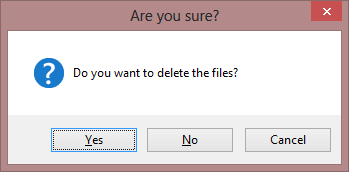
New-Messagebox -Message "Do you want to delete the files?" -Button YesNoCancel -Icon Question -Title "Are you sure?"
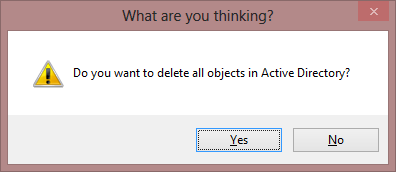
In the version I presented at the PowerShell Summit, the function did not write anything to the pipeline unless you used -Passthru. After thinking about it more, I realized the whole reason you are likely to use a MessageBox is to capture an interaction so I flipped the parameter and now it is -NoPassthru. Now, when the user clicks a button, the text value of that button is automatically written to the pipeline. If you include -NoPassthru you'll get nothing. Here's an example:
$ask = New-Messagebox -Message "Do you want to delete all objects in Active Directory?" -Button YesNo -Icon Exclamation -Title "What are you thinking?"
if ($ask -eq "yes") {
 Write-Host "Updating resume..." -ForegroundColor Red
 #evil code
}
else {
 Write-Host "Sanity restored" -ForegroundColor Green
}
Because the messagebox writes text to the pipeline, it is a little easier to use than the Popup technique where you have to decode an integer value. In any event, you now have some options.
If you find this useful, I hope you'll let me know.