 A few weeks ago I was getting more familiar with named captures in regular expressions. With a named capture, you can give your matches meaningful names which makes it easier to access specific captures. The capture is done by prefixing your regular expression pattern with a name.
ManageEngine ADManager Plus - Download Free Trial
Exclusive offer on ADManager Plus for US and UK regions. Claim now!
PS C:\> "UNC is \\server01\public" -match "\\\\(?<servername>\w+)\\(?<sharename>\w+)"
True
PS C:\> $matches

Name                           Value
----                           -----
servername                     server01
sharename                      public
0                              \\server01\public
When you know the name, you can get the value from $matches.
PS C:\> $matches.servername
server01
PS C:\> $matches.sharename
public
This also works, and even a bit better, using a REGEX object.
PS C:\> [regex]$rx="\\\\(?<servername>\w+)\\(?<sharename>\w+)"
PS C:\> $rx.Matches("UNC is \\server01\public")

Groups   : {\\server01\public, server01, public}
Success  : True
Captures : {\\server01\public}
Index    : 7
Length   : 17
Value    : \\server01\public

PS C:\> $rx.Matches("UNC is \\server01\public").groups

Groups   : {\\server01\public, server01, public}
Success  : True
Captures : {\\server01\public}
Index    : 7
Length   : 17
Value    : \\server01\public

Success  : True
Captures : {server01}
Index    : 9
Length   : 8
Value    : server01

Success  : True
Captures : {public}
Index    : 18
Length   : 6
Value    : public
With the REGEX object you can get the names.
PS C:\> $rx.GetGroupNames()
0
servername
sharename
PS C:\> $rx.GetGroupNames() | where {$_ -notmatch "\d+"}
servername
sharename
Because the names include index numbers, I usually filter them out. Once I know the names, I can use them to extract the relevant matches.
PS C:\> $rx.Matches("UNC is \\server01\public") | foreach {$_.groups["servername"].value; $_.groups[
"sharename"].value}
server01
public
Then I realized it wouldn't take much to take this to the next step in PowerShell. I have a name and a value, why not create an object? It isn't too difficult to create a hashtable on the fly and use that to create a custom object. Eventually I came up with ConvertFrom-Text.
#requires -version 3.0

Function ConvertFrom-Text {

<#
.SYNOPSIS
Convert structured text to objects.
.DESCRIPTION
This command will take structured text such as from a log file and convert it
to objects that you can use in the PowerShell pipeline. You can specify the
path to a text file, or pipe content directly into this command. The piped
content could even be output from command-line tools. You have to specify a
regular expression pattern that uses named captures. See examples.
.PARAMETER Pattern
A regular expression pattern that uses named captures. This parameter has an
alias of Regex.
.PARAMETER Path
The filename and path to the text or log file.
.PARAMETER Inputobject
Any text that you want to pipe into this command. It can be a certain number
of lines from a large text or log file. Or the output of a command line tool.
.EXAMPLE
PS C:\> $b = "(?<Date>\d{2}-\d{2}-\d{4}\s\d{2}:\d{2}).*(?<Error>\d+),\s+(?<Step>.*):\s+(?<Action>\w+),\s+(?<Path>(\w+\\)*\w+\.\w+)"
PS C:\> convertfrom-text -pattern $b -path C:\windows\DtcInstall.log

Date   : 10-18-2013 10:49
Error  : 0
Step   : CMsdtcUpgradePlugin::PostApply
Action : Enter
Path   : com\complus\dtc\dtc\msdtcstp\msdtcplugin.cpp

Date   : 10-18-2013 10:49
Error  : 0
Step   : CMsdtcUpgradePlugin::PostApply
Action : Exit
Path   : com\complus\dtc\dtc\msdtcstp\msdtcplugin.cpp
...

The first command creates a variable to hold the regular expression pattern
that defines named captures for content in the DtcInstall.log. The second line
runs the command using the pattern and the log file.
.EXAMPLE
PS C:\> $wu = "(?<Date>\d{4}-\d{2}-\d{2})\s+(?<Time>(\d{2}:)+\d{3})\s+(?<PID>\d+)\s+(?<TID>\w+)\s+(?<Component>\w+)\s+(?<Message>.*)"
PS C:\> $out = ConvertFrom-Text -pattern $wu -path C:\Windows\WindowsUpdate.log
PS C:\> $out | group Component | Sort Count

Count Name                      Group
----- ----                      -----
   20 DtaStor                   {@{Date=2014-01-27; Time=07:19:19:584; PID=1...
   72 Setup                     {@{Date=2014-01-27; Time=07:19:05:868; PID=1...
  148 SLS                       {@{Date=2014-01-27; Time=07:19:05:086; PID=1...
  150 PT                        {@{Date=2014-01-27; Time=07:19:08:946; PID=1...
  209 WuTask                    {@{Date=2014-01-26; Time=20:05:28:483; PID=1...
  256 EP                        {@{Date=2014-01-26; Time=21:21:23:341; PID=1...
  263 Handler                   {@{Date=2014-01-27; Time=07:19:42:878; PID=3...
  837 Report                    {@{Date=2014-01-26; Time=21:21:23:157; PID=1...
  900 IdleTmr                   {@{Date=2014-01-26; Time=21:21:23:338; PID=1...
  903 Service                   {@{Date=2014-01-26; Time=20:05:29:104; PID=1...
  924 Misc                      {@{Date=2014-01-26; Time=21:21:23:033; PID=1...
 1062 DnldMgr                   {@{Date=2014-01-26; Time=21:21:23:159; PID=1...
 2544 AU                        {@{Date=2014-01-26; Time=19:55:27:449; PID=1...
 2839 Agent                     {@{Date=2014-01-26; Time=21:21:23:045; PID=1...

PS C:\> $out | where {[datetime]$_.date -ge [datetime]"2/10/2014" -AND $_.component -eq "AU"} | Format-Table Date,Time,Message -wrap

Date       Time         Message
----       ----         -------
2014-02-10 05:36:44:183 ###########  AU: Initializing Automatic Updates  ###########
2014-02-10 05:36:44:184 Additional Service {117CAB2D-82B1-4B5A-A08C-4D62DBEE7782} with Approval
                        type {Scheduled} added to AU services list
2014-02-10 05:36:44:184 AIR Mode is disabled
2014-02-10 05:36:44:185 # Approval type: Scheduled (User preference)
2014-02-10 05:36:44:185 # Auto-install minor updates: Yes (User preference)
2014-02-10 05:36:44:185 # ServiceTypeDefault: Service 117CAB2D-82B1-4B5A-A08C-4D62DBEE7782
                        Approval type: (Scheduled)
2014-02-10 05:36:44:185 # Will interact with non-admins (Non-admins are elevated (User preference))
2014-02-10 05:36:44:204 WARNING: Failed to get Wu Exemption info from NLM, assuming not exempt,
                        error = 0x80070490
2014-02-10 05:36:44:213 AU finished delayed initialization
2014-02-10 05:38:01:000 #############
...

In this example, the WindowsUpdate log is converted from text to objects using
the regular expression pattern. Given the size of the log file this process
can take some time to complete. For example, an 11,000+ line file took 20 minutes.

.EXAMPLE
PC C:\> get-content c:\windows\windowsupdate.log -totalcount 50 | ConvertFrom-Text $wu

This example gets the first 50 lines from the Windows update log and converts
that to objects using the pattern from the previous example.
.EXAMPLE
PS C:\> $c = "(?<Protocol>\w{3})\s+(?<LocalIP>(\d{1,3}\.){3}\d{1,3}):(?<LocalPort>\d+)\s+(?<ForeignIP>.*):(?<ForeignPort>\d+)\s+(?<State>\w+)?"
PS C:\> netstat | select -skip 4 | convertfrom-text $c | format-table

Protocol LocalIP      LocalPort ForeignIP      ForeignPort State
-------- -------      --------- ---------      ----------- -----
TCP      127.0.0.1    19872     Novo8          50835       ESTABLISHED
TCP      127.0.0.1    50440     Novo8          50441       ESTABLISHED
TCP      127.0.0.1    50441     Novo8          50440       ESTABLISHED
TCP      127.0.0.1    50445     Novo8          50446       ESTABLISHED
TCP      127.0.0.1    50446     Novo8          50445       ESTABLISHED
TCP      127.0.0.1    50835     Novo8          19872       ESTABLISHED
TCP      192.168.6.98 50753     74.125.129.125 5222        ESTABLISHED

The first command creates a variable to be used with output from the Netstat
command which is used in the second command.
.EXAMPLE
PS C:\> $arp = "(?<IPAddress>(\d{1,3}\.){3}\d{1,3})\s+(?<MAC>(\w{2}-){5}\w{2})\s+(?<Type>\w+$)"
PS C:\> arp -g | select -skip 3 | foreach {$_.Trim()} | convertfrom-text $arp

IPAddress                         MAC                              Type
---------                         ---                              ----
172.16.10.1                       00-13-d3-66-50-4b                dynamic
172.16.10.100                     00-0d-a2-01-07-5d                dynamic
172.16.10.101                     2c-76-8a-3d-11-30                dynamic
172.16.10.121                     00-0e-58-ce-8b-b6                dynamic
172.16.10.122                     1c-ab-a7-99-9a-e4                dynamic
172.16.10.124                     00-1e-2a-d9-cd-b6                dynamic
172.16.10.126                     00-0e-58-8c-13-ac                dynamic
172.16.10.128                     70-11-24-51-84-60                dynamic
...

The first command creates a regular expression for the ARP command. The second
prompt shows the ARP command being used to select the content, trimming each
line, and then converting the output to text using the regular expression named
pattern.
.NOTES
Last Updated: February 10, 2014
Version     : 0.9

Learn more:
 PowerShell in Depth: An Administrator's Guide (http://www.manning.com/jones2/)
 PowerShell Deep Dives (http://manning.com/hicks/)
 Learn PowerShell 3 in a Month of Lunches (http://manning.com/jones3/)
 Learn PowerShell Toolmaking in a Month of Lunches (http://manning.com/jones4/)

  ****************************************************************
  * DO NOT USE IN A PRODUCTION ENVIRONMENT UNTIL YOU HAVE TESTED *
  * THOROUGHLY IN A LAB ENVIRONMENT. USE AT YOUR OWN RISK.  IF   *
  * YOU DO NOT UNDERSTAND WHAT THIS SCRIPT DOES OR HOW IT WORKS, *
  * DO NOT USE IT OUTSIDE OF A SECURE, TEST SETTING.             *
  ****************************************************************
.LINK
https://jdhitsolutions.com/blog/2014/02/convert-text-to-object-with-powershell-and-regular-expressions
.LINK
Get-Content
About_Regular_Expressions
#>

[cmdletbinding(DefaultParameterSetname="File")]
Param(

[Parameter(Position=0,Mandatory,
HelpMessage="Enter a regular expression pattern that uses named captures")]
[ValidateScript({
  if (($_.GetGroupNames() | where {$_ -notmatch "^\d{1}$"}).Count -ge 1) {
    $True
  }
  else {
    Throw "No group names found in your regular expression pattern."
  }
})]
[Alias("regex")]
[regex]$Pattern,
[Parameter(Position=1,Mandatory,ParameterSetName='File')]
[ValidateScript({Test-Path $_})]
[string]$Path,

[Parameter(Position=1,Mandatory,ValueFromPipeline,ParameterSetName='Inputobject')]
[ValidateNotNullorEmpty()]
[string]$InputObject

)

Begin {
    $begin=Get-Date
    Write-Verbose "$((Get-Date).TimeOfDay) Starting $($MyInvocation.Mycommand)"
    Write-verbose "$((Get-Date).TimeOfDay) Parameter set $($PSCmdlet.ParameterSetName)"
    Write-Verbose "$((Get-Date).TimeOfDay) Using pattern $($pattern.ToString())"
    #Get the defined capture names
    $names = $pattern.GetGroupNames() | where {$_ -notmatch "^\d+$"}
    Write-Verbose "$((Get-Date).TimeOfDay) Using names: $($names -join ',')"

    #define a hashtable of parameters to splat with Write-Progress
    $progParam=@{
      Activity=$myinvocation.mycommand
      Status = "pre-processing"
    }
} #begin

Process {
  If ($PSCmdlet.ParameterSetName -eq 'File') {
    Write-Verbose "$((Get-Date).TimeOfDay) Processing $Path"
    Try {
        $progParam.CurrentOperation="Getting content from $path"
        $progParam.Status="Processing"
        Write-Progress @progParam
        $content = Get-Content -path $path | where {$_}
    } #try
    Catch {
        Write-Warning "Could not get content from $path. $($_.Exception.Message)"
        Write-Verbose "$((Get-Date).TimeOfDay) Exiting function"

        Return
    }
    } #if file parameter set
    else {
        Write-Verbose "$((Get-Date).TimeOfDay) processing input: $Inputobject"
        $content = $InputObject
    }

    if ($content) {
        Write-Verbose "$((Get-Date).TimeOfDay) processing content"
        $content |  foreach-object -begin {$i=0} -process {
         #calculate percent complete
         $i++
         $pct=($i/$content.count)*100
         $progParam.PercentComplete=$pct
         $progParam.Status="Processing matches"
         Write-Progress @progParam
         #process each line of the text file
         $pattern.Matches($_) |
         foreach-object {
            #process each match
            $match = $_
            Write-Verbose "$((Get-Date).TimeOfDay) processing match"
            $progParam.currentoperation=$match
            Write-Progress @progParam

            #get named matches and create a hash table for each one
            $progParam.Status = "Creating objects"
            Write-Verbose "$((Get-Date).TimeOfDay) creating objects"
            $hash=[ordered]@{}
            foreach ($name in $names) {
              $progParam.CurrentOperation=$name
              Write-Progress @progParam
              Write-Verbose "$((Get-Date).TimeOfDay) getting $name"
              #initialize an ordered hash table

              #add each name as a key to the hash table and the corresponding regex value
              $hash.Add($name,$match.groups["$name"].value)

            }
             Write-Verbose "$((Get-Date).TimeOfDay) writing object to pipeline"
              #write a custom object to the pipeline
              [pscustomobject]$hash

         } #foreach match
        } #foreach line in the content
    } #if $content
} #process

End {
    Write-Verbose "$((Get-Date).TimeOfDay) Ending $($MyInvocation.Mycommand)"
    $end = Get-Date
    Write-Verbose "$((Get-Date).TimeOfDay) Total processing time $($end-$begin)"
} #end

} #end function

#define an optional alias
Set-Alias -Name cft -Value ConvertFrom-Text
The function requires a regular expression pattern that uses named captures. With the pattern you can either specify the path to a log file, or you can pipe structured text to the function. By "structured text" I mean something like a log file with a predictable pattern. Or even output from a command line tool that has a consistent layout. The important part is that you can come up with a regular expression pattern to analyze the data. I also wanted to be able to pipe in text in the event I only wanted to process part of a large log file.
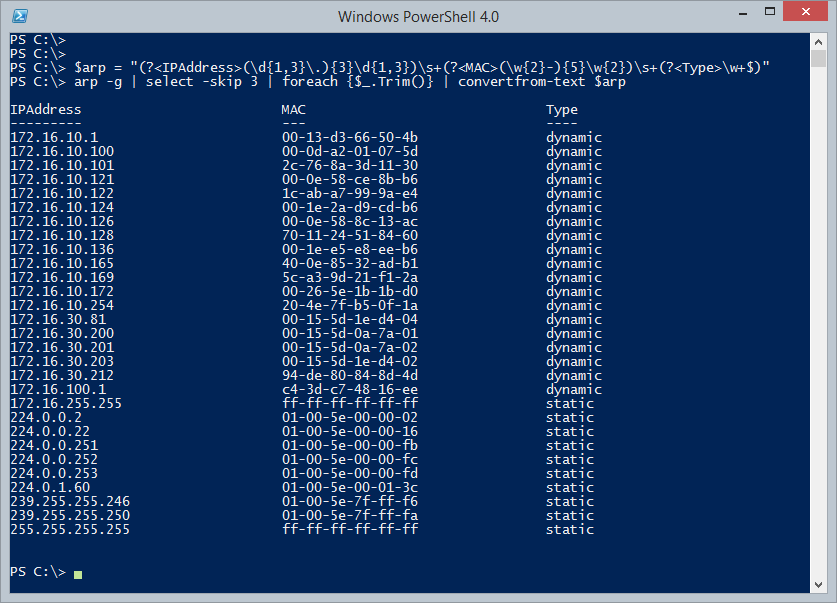
Here's an example using the ARP command.
PS C:\> $arp = "(?<IPAddress>(\d{1,3}\.){3}\d{1,3})\s+(?<MAC>(\w{2}-){5}\w{2})\s+(?<Type>\w+$)"
PS C:\> arp -g | select -skip 3 | foreach {$_.Trim()} | convertfrom-text $arp
In this particular example, I'm trimming the ARP output to remove any leading or trailing spaces from each line and then converting each line to an object, using the regular expression pattern.
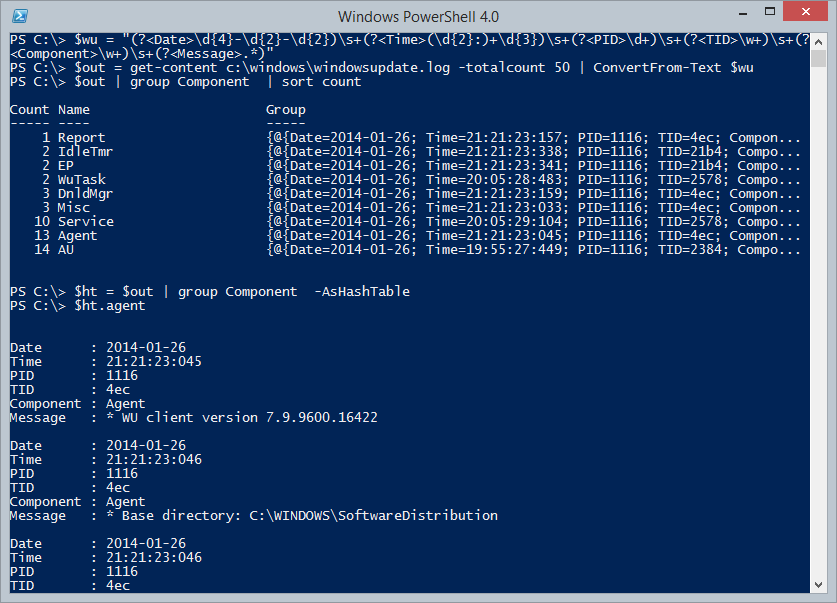
If you haven't jumped to why command is useful, is that once I have objects I can easily filter, sort, group, export, or just about anything else. By converting a log file into a collection of objects I can do tasks like this:
$wu = "(?<Date>\d{4}-\d{2}-\d{2})\s+(?<Time>(\d{2}:)+\d{3})\s+(?<PID>\d+)\s+(?<TID>\w+)\s+(?<Component>\w+)\s+(?<Message>.*)"
$out = get-content c:\windows\windowsupdate.log -totalcount 50 | ConvertFrom-Text $wu
$out | group Component  | sort count
$ht = $out | group Component  -AsHashTable
$ht.agent
I hope some of you will try this out and let me know what you think. What works? What is missing? What problem did this solve? Inquiring minds, well at least mine, want to know. Enjoy.

This looks like a really nice “meta-tool” which would be useful in converting existing command-line apps to cmdlets. I haven’t tried it yet, but hope to soon.
Well done!
Thanks. I figured someone else must have had the same idea and sure enough they did. Here’s another way to convert regex matches to objects http://gallery.technet.microsoft.com/scriptcenter/New-PSObjectFromMatches-87d8ce87
Good link. The examples there are exactly the kind of things I was talking about.