Last month I started a project to begin backing up critical folders. This backup process is nothing more than another restore option should I need it. Still, it has been running for over a month and I now have a number of full backup files. I don't need to keep all of them. If I keep the 4 most recent full backups, that should be sufficient. Here's how I manage this process using PowerShell.
When I create a full backup file, it gets copied to a share on my Synology NAS device. Here's what I have now.
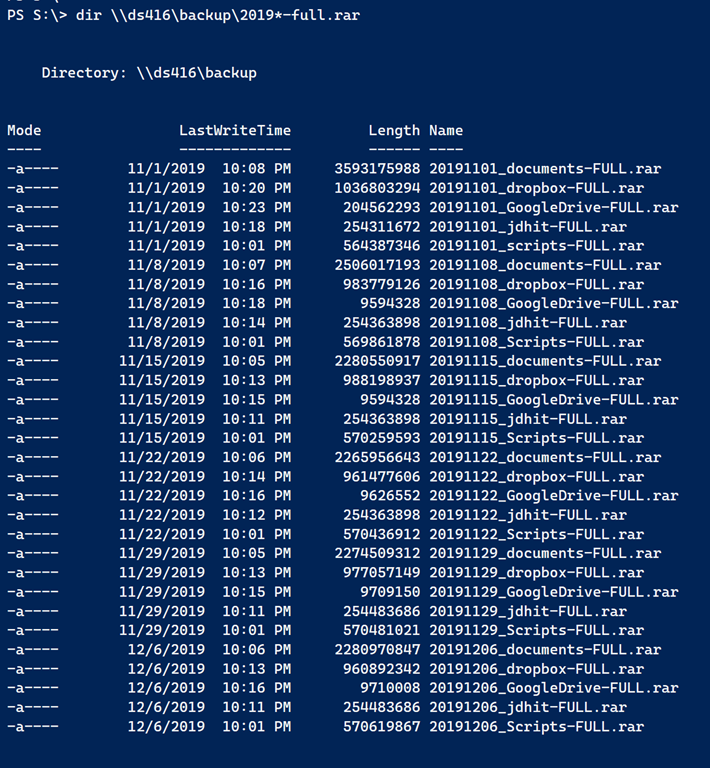
If you recall, each file name includes what is in essence a set description; Scripts and Dropbox for example. It is easy enough to sort the files on the last write time and then delete accordingly. I have 5 sets and could run this:
Get-childitem -Path "\\ds416\backup\20*-full.rar" |
Sort-Object -Property LastWriteTime -Descending |
Select-Object -Skip 20
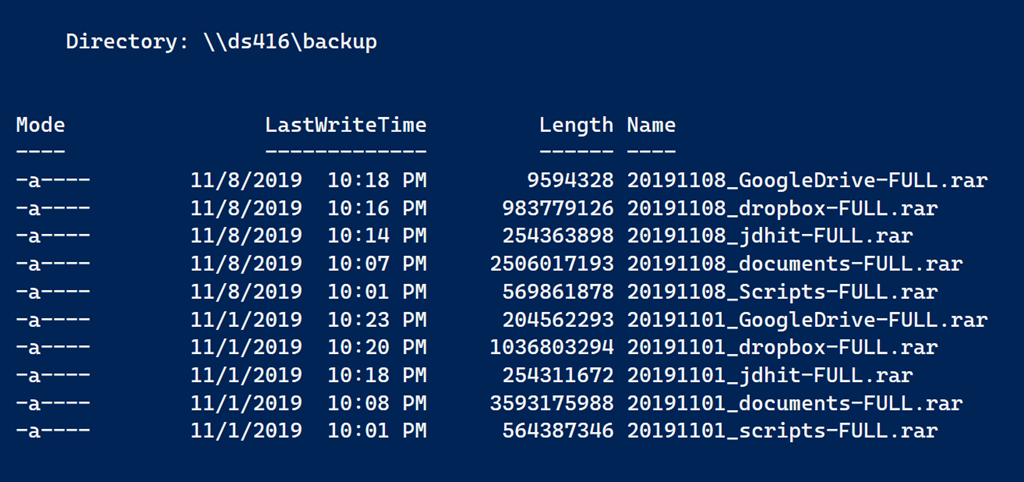
I these should be the oldest files that I can delete. However, I don't want to make any assumptions. What if a full backup didn't complete one week or I manually ran an extra full backup? I need a more sophisticated approach. Let's start again.
First, get all of the backup files.
$files = Get-ChildItem -Path "\\ds416\backup\20*-full.rar" -file
Next, using a regular expression pattern to extract the backup set name, I group the files.
$grouped = $files | Group-Object -property { ([regex]"(?<=_)\w+(?=-)").match($_.BaseName).value }
The regular expression is looking for text that is preceded by an _ and followed by a -. These are lookbehinds and lookaheads.
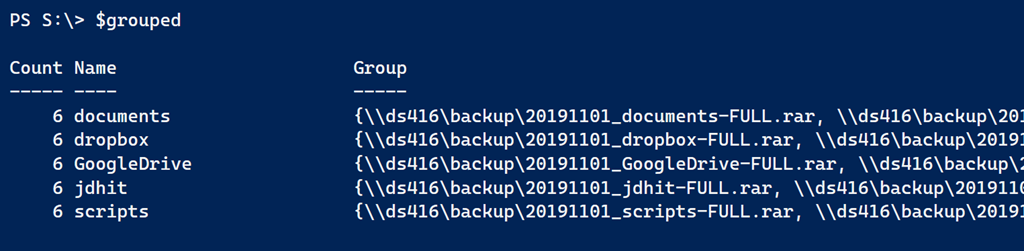
Now I can process each group, sort the files and remove the oldest ones.
foreach ($item in $grouped) {
   $item.group | Sort-Object -property LastWriteTime -descending | Select-Object -skip 4 | Remove-Item -WhatIf
}
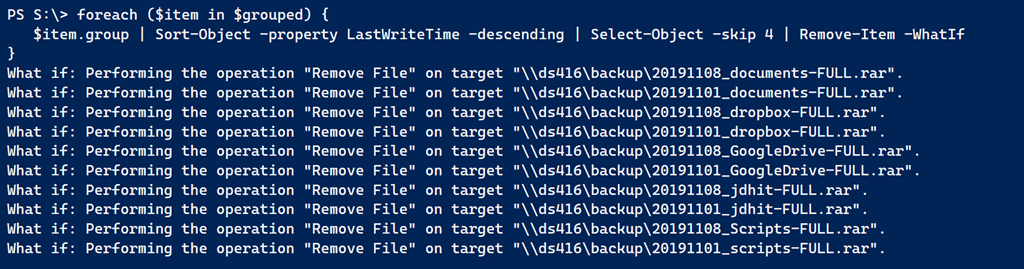
Here's my complete backup trim PowerShell script.
#MyBackupTrim.ps1

#trim full backups to the last X number of files

[cmdletbinding(SupportsShouldProcess)]
Param(
    [Parameter(Position = 0, HelpMessage = "Specify the backup folder location")]
    [ValidateNotNullOrEmpty()]
    [ValidateScript({Test-Path $_ })]
    [string]$Path = "\\ds416\backup",
    [Parameter(HelpMessage = "Specify a file pattern")]
    [ValidateNotNullOrEmpty()]
    [string]$Pattern = "*-FULL.rar",
    [Parameter(HelpMessage = "Specify the number of the most recent files to keep")]
    [Validatescript({ $_ -ge 1 })]
    [int]$Count = 4
)

$find = Join-Path -Path $path -ChildPath $pattern
Write-Verbose "Finding backup files from $Find"
Try {
    $files = Get-ChildItem -Path $find -file -ErrorAction Stop
}
Catch {
    Throw $_
}

if ($files.count -gt 0) {
    Write-Verbose "Found $($files.count) backup files"
    # group the files based on the naming convention
    # like 20191108_documents-FULL.rar and 20191108_Scripts-FULL.rar
    # but make sure there are at least $Count number of files
    $grouped = $files | Group-Object -property { ([regex]"(?<=_)\w+(?=-)").match($_.BaseName).value } | Where-Object { $_.count -gt $count}
    if ($grouped) {
        foreach ($item in $grouped) {
            Write-Verbose "Trimming $($item.name)"
            $item.group | Sort-Object -property LastWriteTime -descending | Select-Object -skip $count | Remove-Item
        }
    }
    else {
        Write-Host "Not enough files to justify cleanup." -ForegroundColor magenta
    }
}

#End of script
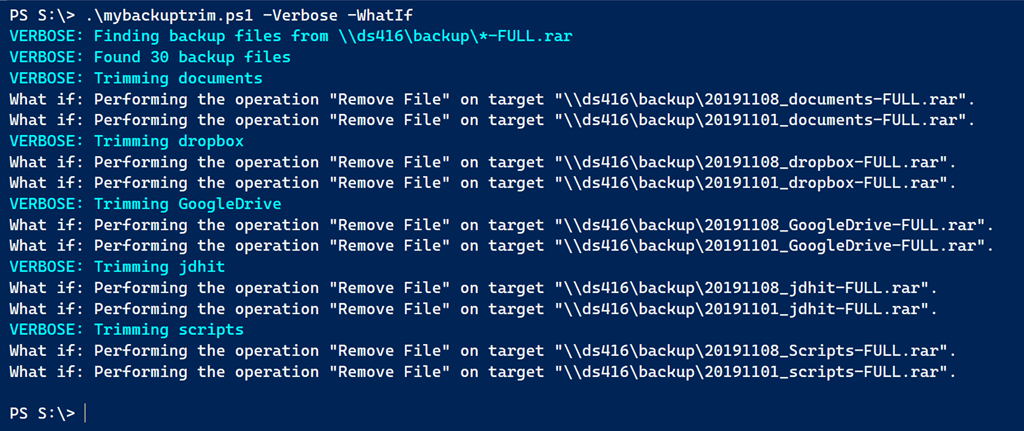
I can add this script to the end of my Weekly backup script and trim away old files. I can periodically check my backup folders manually to verify I'm only keeping what I really need. Otherwise I can kick back and let PowerShell do my work for me.
1 thought on “Managing My PowerShell Backup Files”
Comments are closed.