One of the reasons I enjoy Twitter is that it exposes me to PowerShell ideas and enthusiasts beyond my immediate circle. I came across a blog post from David Longnecker about a short function to display file content in a numbered format. Basically taking Get-Content and adding a line number to the output. Well I’m like a raccoon drawn by shiny objects and was easily distracted enough to add my own variations on the idea.
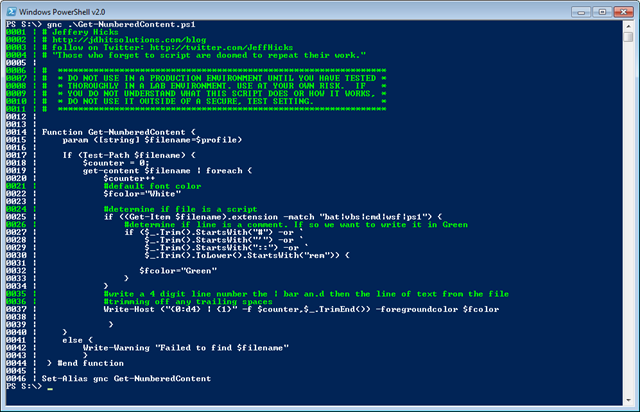
Since David was using Write-Host, I decided to take advantage of the color opportunities. Since I typically use Get-Content to quickly look at scripts, I decided that if the line began with a comment character, to display it in Green. But I do more than PowerShell, so I added code to see if the file was a script file (.bat, .cmd, .wsf, .vbs or .ps1). If so then it checks for the beginning comment character. Perhaps you’d like to see what I’m talking about.
Function Get-NumberedContent {
param ([string] $filename=$profile)
If (Test-Path $filename) {
$counter = 0
get-content $filename | foreach {
$counter++
#default font color
$fcolor="White"
#determine if file is a script
if ((Get-Item $filename).extension -match "bat|vbs|cmd|wsf|ps1") {
#determine if line is a comment. If so we want to write it in Green
if ($_.Trim().StartsWith("#") -or `
$_.Trim().StartsWith("'") -or `
$_.Trim().StartsWith("::") -or `
$_.Trim().ToLower().StartsWith("rem")) {
$fcolor="Green"
}
}
#write a 4 digit line number the | bar an.d then the line of text from the file
#trimming off any trailing spaces
Write-Host ("{0:d4} | {1}" -f $counter,$_.TrimEnd()) -foregroundcolor $fcolor
}
}
else {
Write-Warning "Failed to find $filename"
}
} #end function
The other change I made was formatting the line number so that it is always 4 digits with leading zeros. I rarely look at files with more than 10K lines with Get-Content so this seems reasonable. Oh..I also added minor error handling if you try to look at a file that doesn’t exist and the function defaults to your PowerShell profile.
I gave my function an alias of gnc. Here’s some sample output:
I can think of a few more enhancements but I have to get something done today!
Hah! Very cool. I like the four digit idea better than the tab; helps with the alignment. 🙂 I’ve been experimenting with detecting the window width and cleaning up wrapping lines a bit better. Thanks!