Earlier this week I was looking at the GoFundMe website in the midst of debating a new project. One of the considerations I have for sites like this is the expense involved. Certainly I don't expect this type of service to be free. But I started wondering about what net donations might look like. According to GoFundMe, assuming I am interpreting this correctly, the site takes 5% of the donation right off the top. In addition to that there is a processing fee of 2.9% of the donation plus 30 cents. At least for the US. So for a $10 donation the net donation would be $8.91.
10 - (10*.05) - (10*.029 +.30)
Alright then. This should be simple enough to turn into a PowerShell function.
Function FundIt {
[cmdletbinding()]

Param(
[Parameter(Position=0,Mandatory,ValueFromPipeline)]
[double]$Donation,
[alias("currency")]
[Switch]$UseCurrency
)

Begin {
    Write-Verbose "Starting: $($MyInvocation.Mycommand)"

    #define rates
    $GFMRate = .05
    $WePay = .029
    $PerTransaction = .30

} #begin

Process {
    Write-Verbose "Calculating donation of `$$Donation"

    $GFM = $donation * $GFMRate
    $Processing = [math]::Round(($Donation * $WePay) + $PerTransaction,2)
    $NetDonation = [math]::Round( $Donation - $GFM - $Processing,2)

    if ($UseCurrency) {
        #Imporant: the values will be treated as strings
        [pscustomobject]@{
          Donation = "{0:c2}" -f $Donation
          Fees = "{0:c2}" -f  ($GFM + $Processing)
          NetDonation = "{0:c2}" -f $NetDonation
        }
    }
    else {
        [pscustomobject]@{
          Donation = $Donation
          Fees = $GFM + $Processing
          NetDonation = $NetDonation
        }
    }

} #process

End {
    Write-Verbose "Ending: $($MyInvocation.Mycommand)"
} #end

} #close function
This also should make for a fun learning opportunity.
The function takes a parameter for the donation amount. I cast it as a [double] in the event someone might donate $10.25. If used [int] PowerShell would turn it into $10. I'll come back to the other parameter in a bit.
I define the rates from GoFundMe as variables. This makes it easier to calculate some values.
$GFM = $donation * $GFMRate
$Processing = [math]::Round(($Donation * $WePay) + $PerTransaction,2)
$NetDonation = [math]::Round( $Donation - $GFM - $Processing,2)
You'll note that I'm using the Round() method of the .NET Math class. This is so that the result is formatted to 2 decimal points. This is what I want to see, not necessarily how the site operates. With these values I can create a custom object.
[pscustomobject]@{
    Donation = $Donation
    Fees = $GFM + $Processing
    NetDonation = $NetDonation
}
Here's a simple demonstration, and yes I know I'm not using a standard function name but this is for fun.

I also wrote the function as an advanced function so that I can pipe values into it. If you look at the parameter definition for $Donation you'll see that I have a setting for ValueFromPipeline.
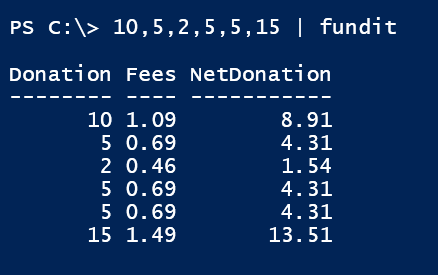
This makes it pretty clear about what happens with each donation. But what did I end up with? My function writes objects to the pipeline so that I can use other cmdlets, like Measure-Object.

Here's the fun part: I can measure multiple properties.
10,5,2,5,5,15 | fundit |
measure-object -property Donation,Fees,netdonation -sum |
Select Property,Sum,Count
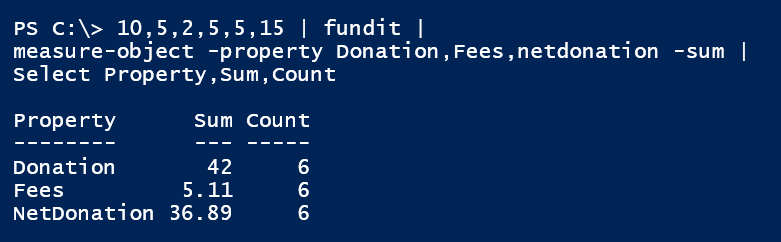
I thought that was pretty handy.
I know that the values are in dollars. But let's say I was creating a report and I wanted to make it pretty and include the $ sign, or whatever my currency symbol might be.
If you recall, I included a switch parameter called UseCurrency along with a parameter alias of currency.
[alias("currency")]
[Switch]$UseCurrency
If I run the function with –UseCurrency, then this parameter will have a value of $True. That is how a Switch parameter works. In my function I can test the parameter value and it it is true, then I'll create the same custom object, except that I will use the –F operator to format the value as a string using the currency symbol.
if ($UseCurrency) {
    #Imporant: the values will be treated as strings
    [pscustomobject]@{
        Donation = "{0:c2}" -f $Donation
        Fees = "{0:c2}" -f  ($GFM + $Processing)
        NetDonation = "{0:c2}" -f $NetDonation
    }
}
This operator is used to format strings in the .NET Framework. You can read more about this online at http://go.microsoft.com/fwlink/?LinkID=166450. But in short, the {0} on the left side of the operator is a numbered place holder. The c is the modifier which in this case indicates to use a currency format string and I'm limiting it to 2 places. I probably don't need that since I'm already rounding but I left it in for the sake of education. On the right side of the –f operator is a comma separated list of values that will "plug in" to the place holders. The net result is this:
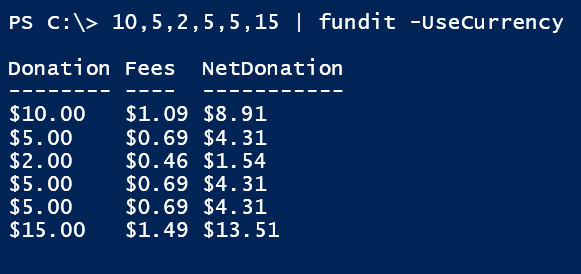
That looks pretty, but be aware that these values are strings.
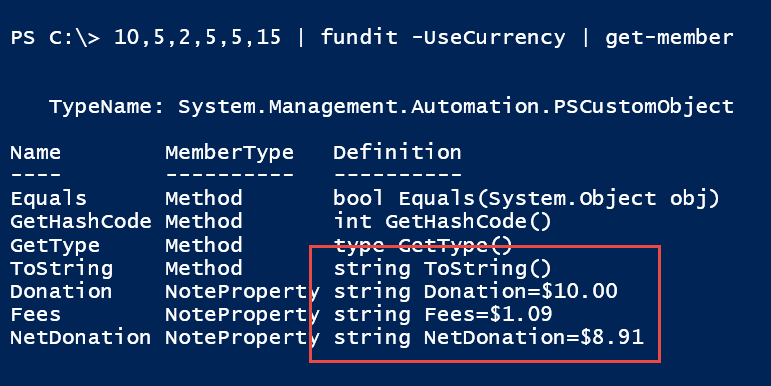
This means my previous method of getting a sum will fail. Instead I need to use numbers and then format the result.
10,5,2,5,5,15 | fundit |
measure-object -property Donation,Fees,netdonation -sum |
Select Property,@{Name="Total";Expression={ "{0:c}" -f $_.sum}},Count
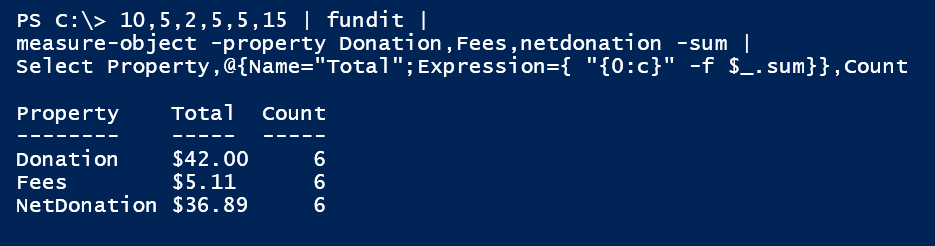
Now I have the best of everything. Although if I truly want to make a pretty report, I can use Format-Table so that I can specify an alignment on the custom property.
10,5,2,5,5,15 | fundit |
measure-object -property Donation,Fees,netdonation -sum |
Format-Table Property,
@{Name="Total";Expression={ "{0:c}" -f $_.sum};Align="Right"},Count
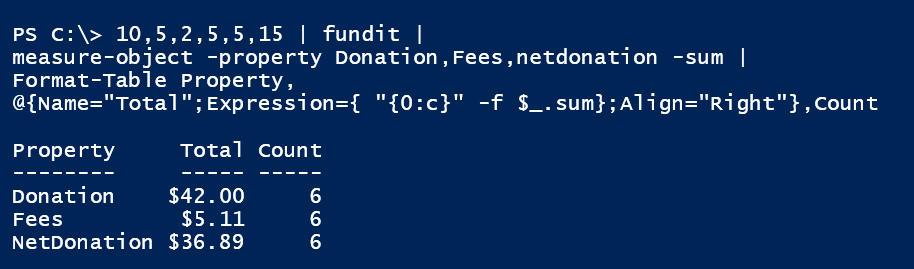
I hope you found this fun and informative. If you have any questions about what I did or why, please drop them in the comments.
What about adding an output field to represent the effective percentage rate of the fee. For instance, with a $10 donation the fee is 10.9%.
Seems like that would be a useful bit of information.
Interesting post. Thanks for sharing!
Sure, you can add as much as you want. You could modify the function:
Function FundIt {

[cmdletbinding()]
Param(
[Parameter(Position=0,Mandatory,ValueFromPipeline)]
[double]$Donation,
[alias("currency")]
[Switch]$UseCurrency
)
Begin {
Write-Verbose "Starting: $($MyInvocation.Mycommand)"
#define rates
$GFMRate = .05
$WePay = .029
$PerTransaction = .30
} #begin
Process {
Write-Verbose "Calculating donation of `$$Donation"
$GFM = $donation * $GFMRate
$Processing = [math]::Round(($Donation * $WePay) + $PerTransaction,2)
$NetDonation = [math]::Round( $Donation - $GFM - $Processing,2)
$PctFee = ($GFM + $processing) / $Donation
if ($UseCurrency) {
#Imporant: the values will be treated as strings
[pscustomobject]@{
Donation = "{0:c2}" -f $Donation
Fees = "{0:c2}" -f ($GFM + $Processing)
PctFee = "{0:p}" -f $PctFee
NetDonation = "{0:c2}" -f $NetDonation
}
}
else {
[pscustomobject]@{
Donation = $Donation
Fees = $GFM + $Processing
PctFee = $PctFee * 100
NetDonation = $NetDonation
}
}
} #process
End {
Write-Verbose "Ending: $($MyInvocation.Mycommand)"
} #end
} #close function
Or add it as a custom property after you run the original command:
20,5,20,25 | fundit | select *,@{Name="PctFee";Expression = {($_.fees/$_.donation)*100}}It’s a matter of deciding if you need this information all the time or only is certain situations.