In PowerShell, the primary means to get interactive input from a user is with the Read-Host cmdlet. There's nothing wrong with it but sometimes if you are using it in a graphical tool like the PowerShell ISE or VS Code you may not realize you are being prompted. Or perhaps you are building some other type of PowerShell-based tool where you would like something other than a console-based prompt. I thought I'd give a sneak peak at a function I will be adding to my PSScriptTools module that creates a graphical inputbox using WPF.
In the past, you've probably written PowerShell code to use generate a VBScript style input box. I know I have several versions. When I wrote them they worked just fine. They still "work" but today with very high resolution monitors, I'm currently running a 4K monitor, anything that uses Windows Forms doesn't scale well. WPF on the other hand is designed to automatically scale and adjust. It doesn't care that I'm running a 4K screen.
The function I wrote, called Invoke-InputBox, works the same was as Read-Host. You can specify a prompt, enter something and the command writes it back to the pipeline. Although since this is a form, you can also specify a title. Here is the form with default values.
$p = Invoke-InputBox
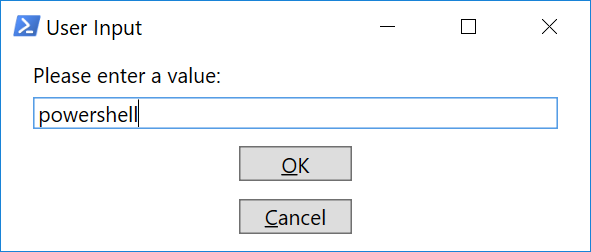
Pressing OK will write the value in the text box to the pipeline and assign it to $p. I also added a parameter so that you can enter a secure string.
$s = Invoke-InputBox -Title "New Password" -Prompt "Enter a new password" -AsSecureString
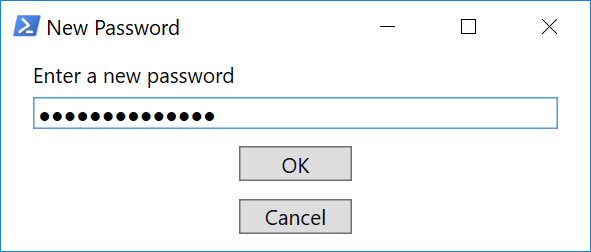
I went "quick and dirty" and created a simple WPF form using a stack panel. There's no messy xaml. I think the code is pretty straightforward. I'll share the current version here, but look for it to eventually appear in the PSScriptTools module.
Function Invoke-InputBox {

    [cmdletbinding(DefaultParameterSetName="plain")]
    [OutputType([system.string],ParameterSetName='plain')]
    [OutputType([system.security.securestring],ParameterSetName='secure')]

    Param(
        [Parameter(ParameterSetName="secure")]
        [Parameter(HelpMessage = "Enter the title for the input box. No more than 25 characters.",
        ParameterSetName="plain")]

        [ValidateNotNullorEmpty()]
        [ValidateScript({$_.length -le 25})]
        [string]$Title = "User Input",

        [Parameter(ParameterSetName="secure")]
        [Parameter(HelpMessage = "Enter a prompt. No more than 50 characters.",ParameterSetName="plain")]
        [ValidateNotNullorEmpty()]
        [ValidateScript({$_.length -le 50})]
        [string]$Prompt = "Please enter a value:",

        [Parameter(HelpMessage = "Use to mask the entry and return a secure string.",
        ParameterSetName="secure")]
        [switch]$AsSecureString
    )

    if ($PSEdition -eq 'Core') {
        Write-Warning "Sorry. This command will not run on PowerShell Core."
        #bail out
        Return
    }

    Add-Type -AssemblyName PresentationFramework
    Add-Type –assemblyName PresentationCore
    Add-Type –assemblyName WindowsBase

    #remove the variable because it might get cached in the ISE or VS Code
    Remove-Variable -Name myInput -Scope script -ErrorAction SilentlyContinue

    $form = New-Object System.Windows.Window
    $stack = New-object System.Windows.Controls.StackPanel

    #define what it looks like
    $form.Title = $title
    $form.Height = 150
    $form.Width = 350

    $label = New-Object System.Windows.Controls.Label
    $label.Content = "    $Prompt"
    $label.HorizontalAlignment = "left"
    $stack.AddChild($label)

    if ($AsSecureString) {
        $inputbox = New-Object System.Windows.Controls.PasswordBox
    }
    else {
        $inputbox = New-Object System.Windows.Controls.TextBox
    }

    $inputbox.Width = 300
    $inputbox.HorizontalAlignment = "center"

    $stack.AddChild($inputbox)

    $space = new-object System.Windows.Controls.Label
    $space.Height = 10
    $stack.AddChild($space)

    $btn = New-Object System.Windows.Controls.Button
    $btn.Content = "_OK"

    $btn.Width = 65
    $btn.HorizontalAlignment = "center"
    $btn.VerticalAlignment = "bottom"

    #add an event handler
    $btn.Add_click( {
            if ($AsSecureString) {
                $script:myInput = $inputbox.SecurePassword
            }
            else {
                $script:myInput = $inputbox.text
            }
            $form.Close()
        })

    $stack.AddChild($btn)
    $space2 = new-object System.Windows.Controls.Label
    $space2.Height = 10
    $stack.AddChild($space2)

    $btn2 = New-Object System.Windows.Controls.Button
    $btn2.Content = "_Cancel"

    $btn2.Width = 65
    $btn2.HorizontalAlignment = "center"
    $btn2.VerticalAlignment = "bottom"

    #add an event handler
    $btn2.Add_click( {
            $form.Close()
        })

    $stack.AddChild($btn2)

    #add the stack to the form
    $form.AddChild($stack)

    #show the form
    $inputbox.Focus() | Out-Null
    $form.WindowStartupLocation = [System.Windows.WindowStartupLocation]::CenterScreen

    $form.ShowDialog() | out-null

    #write the result from the input box back to the pipeline
    $script:myInput

}
Because the function uses WPF, it will not work in PowerShell Core. In the meantime I hope some of you will try it out and let me know what you think.
This is perfect. I have been looking for a simple dialog box .
I have a script that automates the creation of custom SharePoint web applications and site collection. Currently I ask for the information at the command line which can be confusing for some admin who are not familiar with powershell.
I will try this out and let you know.
Thanks
This is exactly what I was looking for. Did the usual scouring the net with varying searches, although I wish it’d popped up first but hey ho.
Thank You.
Frankie