I have no idea what possessed me, but the other day I came across an older script that uses PowerShell to create an HTML report showing drive utilization for a group of computers. The utilization is displayed using a color gradient from green to red to provide a visual reference. As I looked at the code I thought about what would be interesting to add and now a day or two later I have something new to show you.
The function could have been revised using commands in the Storage module like Get-Volume and Get-Disk. But I decided to stick to using Get-CimInstance to query traditional Win32_* classes. I also wanted to leverage the use of Get-CimAssociatedInstance to capture additional information. You can find the script file as a gist on Github.
Usage is pretty straightforward. You specify one or more computers and off you go. There is a default value for the resulting HTML file, but you'll likely want to specify your own. Because the function is generating custom HTML on the fly, I also provided options for you to provide pre and post content HTML material, just as you might with ConvertTo-HTML. I also give you an option to specify a graphics file which is display like a logo at the top of the report. The graphics file will be embedded in the HTML file. The CSS is also embedded in the HTML making the entire file completely self-contained.
$params = @{
Computername = 'bovine320','dom1','think51','srv1','win10'
Path = 'c:\work\r.html'
Precontent = "<H3>Company Confidential</H3>"
PostContent = "This report is provided <i>as-is</i>. Use commands like <b>Get-Volume</b> to validate."
LogoPath = 'c:\scripts\db.png'
}
New-HTMLDiskReport @params
As you look through the code, notice how I'm using Write-Progress to keep the user informed. This is something I wish more of you used instead of Write-Host. It makes your code much more professional. Let me show you the result.
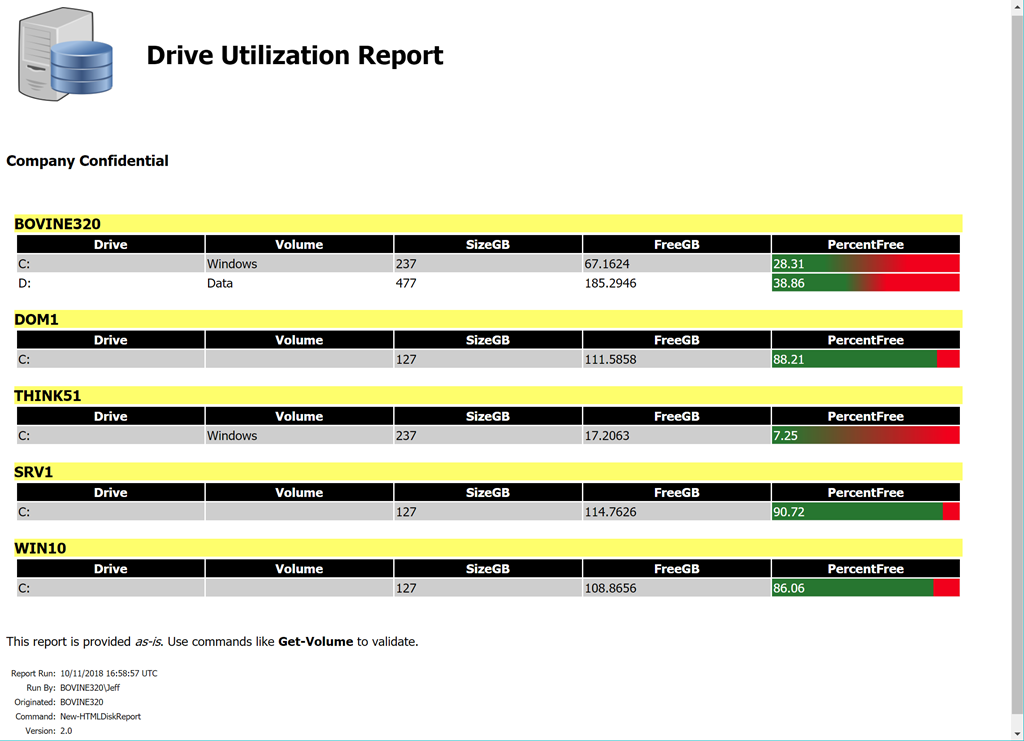
The color gradient is self-evident but let me point out a few other things. Notice the footer.
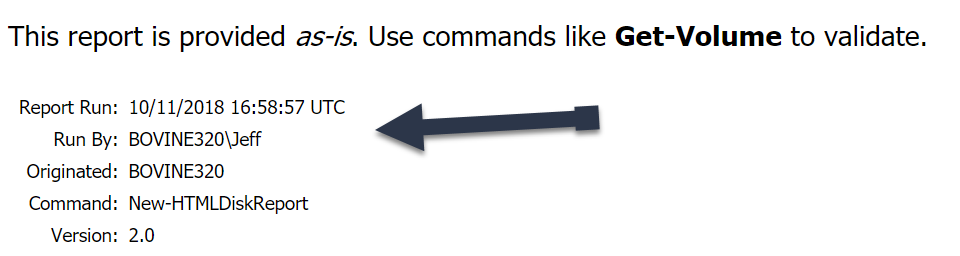
This is something I've started doing in my HTML report scripts and I encourage you to think about. At some point, you might set up a script like this to run as a scheduled job or task. Perhaps emailing a group of Admins. Over time and with staff turnover, you may wonder "Where is this coming from?" Hopefully, the metadata information can help you track it down. I create a custom object and convert it to an HTML fragment.
#add some metadata about this report
[xml]$metadata = [pscustomobject]@{
    "Report Run" = "$((Get-Date).ToUniversalTime()) UTC"
    "Run By"     = "$($env:USERDOMAIN)\$env:username"
    Originated   = $env:Computername
    Command      = $($myinvocation.invocationname)
    Version      = "2.0"
} | ConvertTo-html -as List -Fragment
If you look in the code you'll see additional steps to insert style tags.
The other feature is the use of the Title attribute, or a customized version, to display additional information. If you hover your mouse over the computer name, you'll see a popup with the operating system.
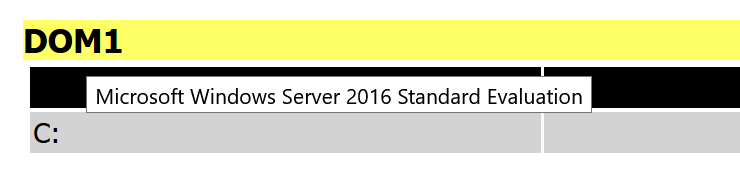
Because I save the HTML as XML I can easily parse and update it.
#convert drive objects to HTML but as an XML document
Write-Verbose "Converting to XML"
[xml]$html = $drives | ConvertTo-Html -Fragment

#add the computer name as the table caption
$caption = $html.CreateElement("caption")
$html.table.AppendChild($caption) | Out-Null
$html.table.caption = $data[0].SystemName
$pop = $html.CreateAttribute("title")
$pop.value = (Get-Ciminstance -ClassName Win32_OperatingSystem -Property caption -cimsession $cs).caption
$html.table.item("caption").attributes.append($pop) | Out-Null
I do something similar with physical media information when you hover over the device ID.
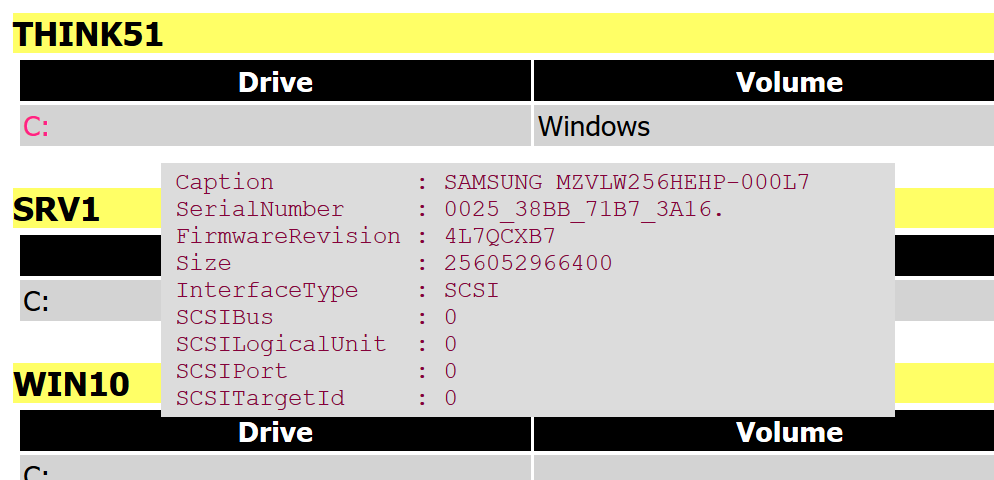
Getting the information uses Get-CimassociatedInstance. Because a computer might have more than one drive, I create a hashtable using the device ID as the key and the DiskDrive instance as the value.
#initialize a hashtable of for phsyical media
$hash = @{}
#Create a custom object for each drive
$drives = foreach ($item in $data) {

    $Physical = $item | Get-CimAssociatedInstance -ResultClassName Win32_DiskPartition | Get-CimAssociatedInstance -ResultClassName Win32_DiskDrive
    $hash.Add($item.DeviceID,$physical)

    $prophash = [ordered]@{
        Drive         = $item.DeviceID
        Volume        = $item.VolumeName
        SizeGB        = $item.size / 1GB -as [int]
        FreeGB        = "{0:N4}" -f ($item.Freespace / 1GB)
        PercentFree   = [math]::Round(($item.Freespace / $item.size) * 100, 2)
    }
    New-Object PSObject -Property $prophash
} #foreach item
Later I add a custom tip class.
#add physical media as a popup for each device
for ($i=1; $i -le $html.table.tr.count -1;$i++) {
    $id = $html.table.tr[$i].ChildNodes[0]."#text"
    $pop = $html.CreateAttribute("tip")
    $props = ($hash.Item($id) | Select-Object -property Caption,SerialNumber,FirmwareRevision,Size,InterfaceType,SCSI* | Out-String).trim()
    $pop.Value = $props
    $html.table.tr[$i].ChildNodes[0].Attributes.append($pop) | Out-Null
}
The hardest part, since I am not a web design person, was getting the correct style settings to display the text neatly.
td[tip]:hover {
    color: #ff2283;
    position: relative;
}

td[tip]:hover:after {
    content: attr(tip);
    left: 0;
    top: 100%;
    margin-left: 80px;
    margin-top: 10px;
    width: 400px;
    padding: 3px 8px;
    position: absolute;
    color: #85003a;
    font-family: 'Courier New', Courier, monospace;
    font-size: 10pt;
    background-color: gainsboro;
    white-space: pre-wrap;
}
But I have to say I like the way it turned out.
You may not have a need for this script as it is written, but hopefully, I've given you a few ideas and some code samples to begin working with. Enjoy and I hope you'll let me know what you think.
Sweet!
Hi
is there a script to list the ADgroupmember of the same name in different groups of the same OU?
thanks 🙂
I’m not sure I completely understand your question but there are cmdlets for getting group members from Active Directory so, yes, you could create such a script. If you have the AD module installed take a look at how to use Get-ADGroupMember and start there. Use the forums at PowerShell.org for additional help with your script.
Jeff,
Thank you for publishing a script for checking the system disk free space. I was able to extend it to look at additional properties such a space available in several key folders to create a report showing where files can be deleted. I would like to alter the output from custom properties to an array of PSCustomObjects. So far my attempts have ended in failure. Any insight you could provide would be very helpful.
Thanks!
John Edward Strode
Your best bet is to post what you are trying to do in the forums at PowerShell.org.
Hello Jeffery,
thank you for the script, I found it very useful, and I’m already making some customizations.
However, I experienced some problems with the gradient in the bar displaying the remaining disk space.
Debugging I found that the line
[int]$start = $html.table.tr[$i].td[-1]
was sometimes doing a wrong conversion because of the decimal separator of some european countries (E.g “23,5” in Spanish culture was converted to 235 when doing the cast to int, Therefore, the bar displayed a free space of 235% filling all the bar in green.)
So I replaced the line with
$start = [int][System.Math]::Truncate([System.decimal]::Parse($html.table.tr[$i].td[-1]))
which use operations that take into account the current culture.
I hope this may be of some help to some one
Best regards
Marc
That’s the kind of thing that is very difficult for me to catch. Thanks.