By, you've most likely heard about the new -parallel parameter with ForEach-Object in the latest preview of PowerShell 7 Personally. I've been waiting for this for a long time. I used to only use PowerShell workflows because it offered a way to run commands in parallel. Having this feature as part of the language is a welcome addition. But this isn't magic and there are real-world consequences when you use it. The -Parallel parameter will spin up a collection of runspaces and run your scriptblock in each one. Running something in parallel does not mean in order.
Here's an example of the new parameter in action.
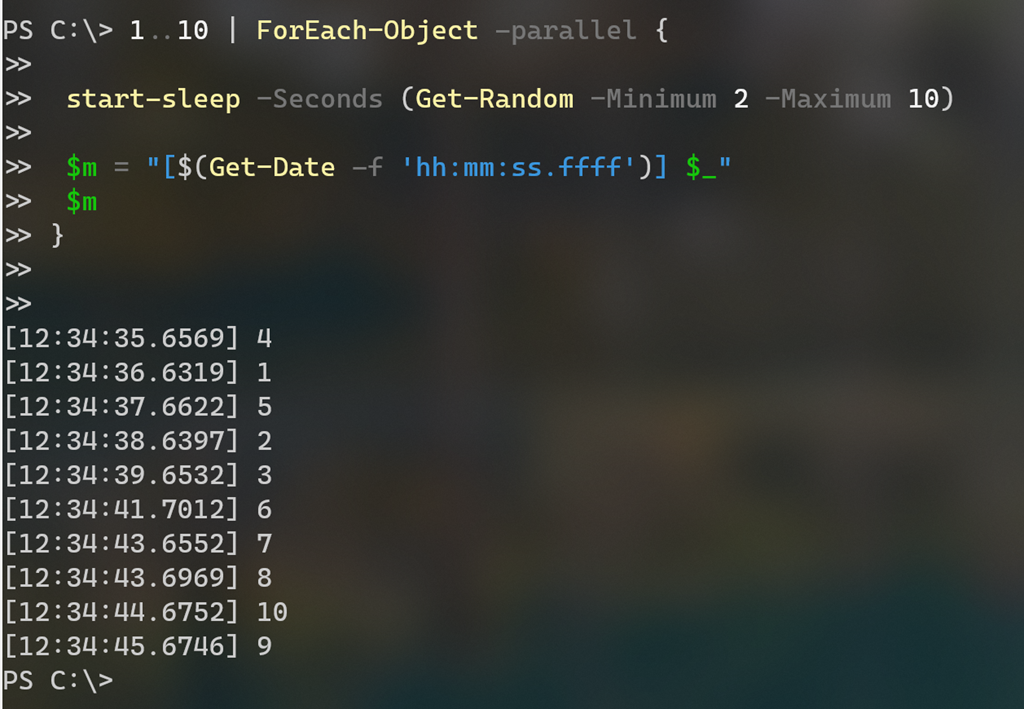
I introduced a random sleep interval to help demonstrate that the commands are running in parallel. The result is written to the pipeline as each parallel operation completes. Let's dig into this a bit deeper.
Straight Pipeline
Here is a straight forward pipeline example using ForEach-Object.
Measure-Command {
    1..5000 | ForEach-Object { [math]::Sqrt($_) * 2 }
}
This took me 34ms to complete. Here's the same command but run using -parallel.
Measure-Command {
    1..5000 | ForEach-Object -parallel { [math]::Sqrt($_) * 2 }
}
This took 89 seconds. Clearly, there is overhead involved when using this parameter.
However, there is potential room for improvement. By default the command spins up 5 runspaces at a time. You can increase or decrease this with the -ThrottleLimit parameter.
Measure-Command {
    1..5000 | ForEach-Object -parallel { [math]::Sqrt($_) * 2 } -throttlelimit 25
}
This version finished in almost 5 seconds! By comparison, using the ForEach enumerator:
Measure-Command {
    foreach ($x in (1..5000)) { [math]::Sqrt($x) * 2 }
}
takes about 7 ms.
Running Scriptblocks
Let's increase the complexity and do something a bit more practical. Here is a scriptblock that will give me an object showing file usage in a given folder.
$t = {
    param ([string]$Path)
    Get-ChildItem -path $path -recurse -file -erroraction SilentlyContinue |
        Measure-Object -sum -Property Length -Maximum -Minimum |
        Select-Object @{Name = "Computername"; Expression = { $env:COMPUTERNAME } },
        @{Name = "Path"; Expression = { Convert-Path $path } },
        Count, Sum, Maximum, Minimum
}

Measure-Command {
    "c:\work", "c:\scripts", "d:\temp", "C:\users\jeff\Documents", "c:\windows" |
    ForEach-Object -process { Invoke-Command -scriptblock $t -argumentlist $_ }
}
Running this locally on my Windows 10 desktop with 32GB of memory took a little over 34 seconds. Here's the same command using -Parallel.
Measure-Command {
    "c:\work", "c:\scripts", "d:\temp", "C:\users\jeff\Documents", "c:\windows" | ForEach-Object -parallel {
        $path = $_
        Get-ChildItem -path $path -recurse -file -erroraction SilentlyContinue |
            Measure-Object -sum -Property Length -Maximum -Minimum |
            Select-Object @{Name = "Computername"; Expression = { $env:COMPUTERNAME } },
            @{Name = "Path"; Expression = { Convert-Path $path } },
            Count, Sum, Maximum, Minimum

    }
}
You should notice a big difference in the syntax. Because each parallel scriptblock is running in a new runspace, it is harder to pass variables like $t. There are ways around this. For me, the easiest solution for the demonstration was to simply copy the scriptblock.
This command took about 50 seconds to run. Although if I bumped the throttle limit to 6. it completed in about 20 seconds.
Remote Commands
Where -Parallel begins to make sense is with commands that involve remote computers, or anything that contains some form of variability. Here's a traditional command you might run.
Measure-Command {
    'srv1', 'srv2', 'win10', 'dom1', 'srv1', 'srv2', 'win10', 'dom1' | ForEach-Object {
        Get-WinEvent -FilterHashtable @{Logname = "system"; Level = 2, 3 } -MaxEvents 100 -ComputerName $_
    }
}
I only have a few virtual machines to test with so I'm repeating the command with them. This completed in about 3 seconds. Compared to the -Parallel approach:
Measure-Command {
    'srv1', 'srv2', 'win10', 'dom1', 'srv1', 'srv2', 'win10', 'dom1' | ForEach-Object -parallel {
        Get-WinEvent -FilterHashtable @{Logname = "system"; Level = 2, 3 } -MaxEvents 100 -ComputerName $_
    }
}
which took just under 1 second. Let's up the sample size.
Measure-Command {
    $d = ('srv1', 'srv2', 'win10', 'dom1')*5 |
    ForEach-Object {
        Get-WinEvent -FilterHashtable @{Logname = "system"; Level = 2, 3 }  -ComputerName $_
    }
}
This took 9.7 seconds compared to this:
Measure-Command {
    $d = ('srv1', 'srv2', 'win10', 'dom1')*5  |
        ForEach-Object -parallel {
            Get-WinEvent -FilterHashtable @{Logname = "system"; Level = 2, 3 }  -ComputerName $_
        }
}
which completed in 3.7 seconds
PowerShell at Scale
Let's really see what this looks like at scale. I'll even try to simulate server and network latency.
Measure-Command {
    $d = ('srv1', 'srv2', 'win10', 'dom1') * 100 | ForEach-Object {
        Get-WinEvent -FilterHashtable @{Logname = "system"; Level = 2, 3 }  -ComputerName $_
        #simulate network/server latency
        Start-Sleep -Seconds (Get-Random -Minimum 1 -Maximum 5)
    }
}
On my desktop this took over 18 minutes to complete, returning almost 41,000 records. Here's the default PowerShell 7 version using -parallel:
Measure-Command {
    $d = ('srv1', 'srv2', 'win10', 'dom1') * 100 | ForEach-Object -parallel {
        Get-WinEvent -FilterHashtable @{Logname = "system"; Level = 2, 3 }  -ComputerName $_
        Start-Sleep -Seconds (Get-Random -Minimum 1 -Maximum 5)
    }
}
Now the command completes in 3 minutes 35 seconds.
The default throttle limit value might change. Jeffrey Snover has said he thinks it should be higher and I think I agree. Let's wee what happens when using the default ThrottleLimit value from Invoke-Command.
Measure-Command {
    $d = ('srv1', 'srv2', 'win10', 'dom1') * 100 | ForEach-Object -parallel {
        Get-WinEvent -FilterHashtable @{Logname = "system"; Level = 2, 3 }  -ComputerName $_
        Start-Sleep -Seconds (Get-Random -Minimum 1 -Maximum 5)
    } -throttlelimit 32
}
This completed in 49 seconds!
A Workflow Alternative
For one last comparison here is an admittedly rough workflow that approximates the other examples. I switched to Get-Eventlog because i don't think the workflow likes sending the filtering hashtable over a serialize connection.
Workflow GetLogs {

    Param()

    Sequence {
        $computers = ('srv1.company.pri', 'srv2.company.pri', 'win10.company.pri', 'dom1.company.pri') * 100
        foreach -parallel ($computer in $computers) {

            inlinescript {
                Write-Verbose "$(Get-Date) Processing $using:computer"
                Start-Sleep -Seconds (Get-Random -Minimum 1 -Maximum 5)
                Get-Eventlog -LogName system -EntryType error, Warning -ComputerName $using:computer
            } #inline
        } #foreach
    } #sequence
} #workflow
}

$d = getlogs -pscomputername localhost -ErrorAction SilentlyContinue
This is not what PowerShell workflows were intended for, although I expect many people have tried to use them in this fashion. This command completed in 10:05, although it would probably have improved with a higher throttle limit.
Conclusions
The only absolute conclusion you can make is that you need to do your own testing to determine if using -parallel makes sense for your command or project. Personally, my take away is that -parallel works best for large scale operations with a lot of variability. You might have comparable results writing your commands to scale with Invoke-Command.
$computers = ('srv1', 'srv2', 'win10', 'dom1') * 100
$d = Invoke-Command {
        Get-WinEvent -FilterHashtable @{Logname = "system"; Level = 2, 3 }
        Start-Sleep -Seconds (Get-Random -Minimum 1 -Maximum 5)
} -throttlelimit 32 -ComputerName $computers
Yes, there is overhead as PSSessions have to be setup and torn down. This completed in 1:56 for me which is still acceptable performance and as a bonus, this doesn't require PowerShell 7.
I plan to continue experimenting with this feature and would love to hear about your experiences using it. I believe eventually there will a community consensus on when to use this but for now we have the pleasure of figuring that out!
1 thought on “Making Sense of Parallel ForEach-Object in PowerShell 7”
Comments are closed.