I hope you tried your hand at this Iron Scripter PowerShell challenge on reporting memory usage. The basic challenge was to find the total percent of working set memory that a specific process or service is using. Here's how I approached it, with my usual disclaimer that my solution is not the only or nor should it be considered authoritative. Still, I hope you pickup a PowerShell scripting tip or technique.
Using Get-CimInstance
My first approach used Get-CimInstance, primarily because it can get information from remote computers. The code I'm about to go through are commands I can run at a PowerShell prompt. Once these commands work and produce the results I'm after, I can wrap them up into a function.
First, I need to find how much memory is currently in use.
$computername = $env:COMPUTERNAME
$os = Get-CimInstance win32_operatingsystem -Property TotalVisibleMemorySize,FreePhysicalMemory -Computername $computername
$inUseMemory = ($os.TotalVisibleMemorySize - $os.FreePhysicalMemory)*1KB
Let me point out the use the the -Property parameter with Get-CimInstance. This is a little thing you can do that might positive performance gains. Getting information from the CIM Repository is much like a SQL query. The best and fastest query is one where you only select the properties you need. Since I only need the two memory properties, that is all that I ask for. I also know based on experience and prior research that the values are in KB. Multiplying the value by 1KB turns the value into bytes.
With this value, I can query a specific service and create custom output that calculates the percent working set memory from the total in-use memory.
Get-CimInstance win32_process -filter "name='sqlservr.exe'" |
Select-Object -Property ProcessID,Name,HandleCount,WorkingSetSize,
@{Name="PctUsedMemory";Expression = {($_.WorkingSetSize/$InUseMemory) * 100}}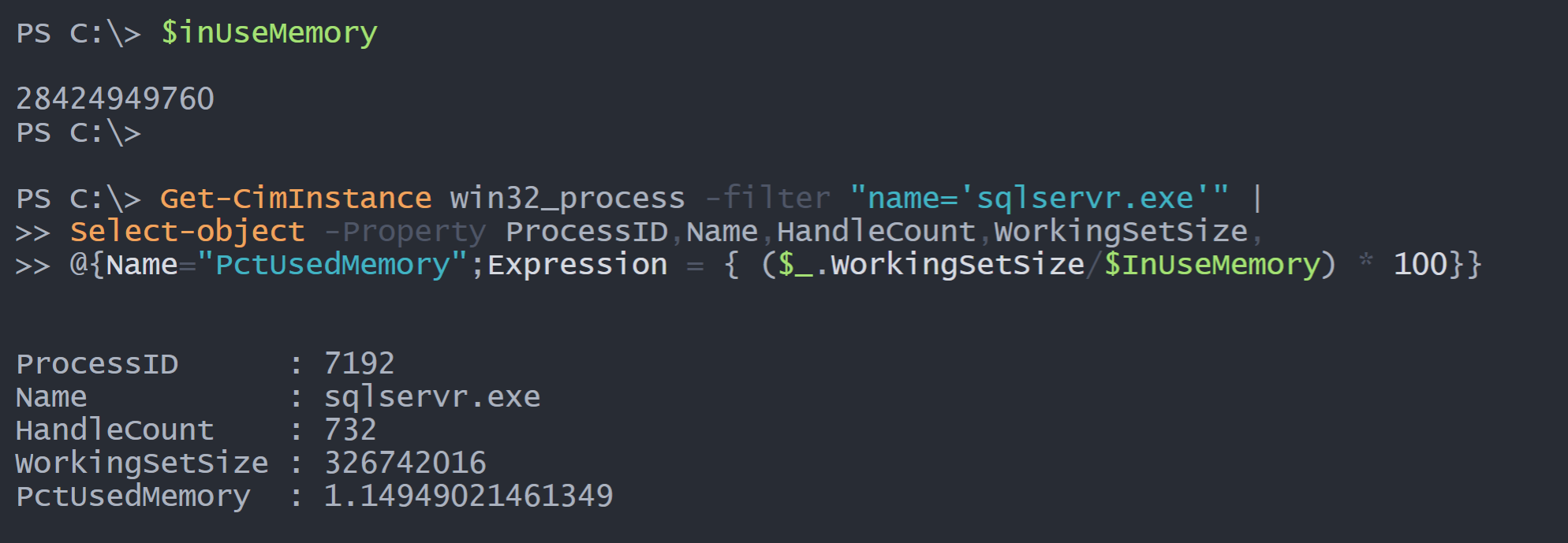
It wouldn't take much to turn that into a simple PowerShell function.
But in the meantime, I'll extend this concept for all processes other than the System Idle.
Get-CimInstance -class win32_process -computername $computername -filter "Name<>'systemidleprocess'" |
 Group-Object -property Name |
 ForEach-Object {
 $stat = $_.Group | Measure-Object -Property WorkingSetSize -sum
 $_ | Select-Object -Property Name,Count,@{Name="TotalWS";Expression={$stat.sum}},
 @{Name="PctUsedMemory";Expression={[math]::Round(($stat.sum/$InUseMemory)*100,2)}}
 } | Sort-Object -property PctUsedMemory -Descending|
 Select-Object -first 10 |
 Format-Table
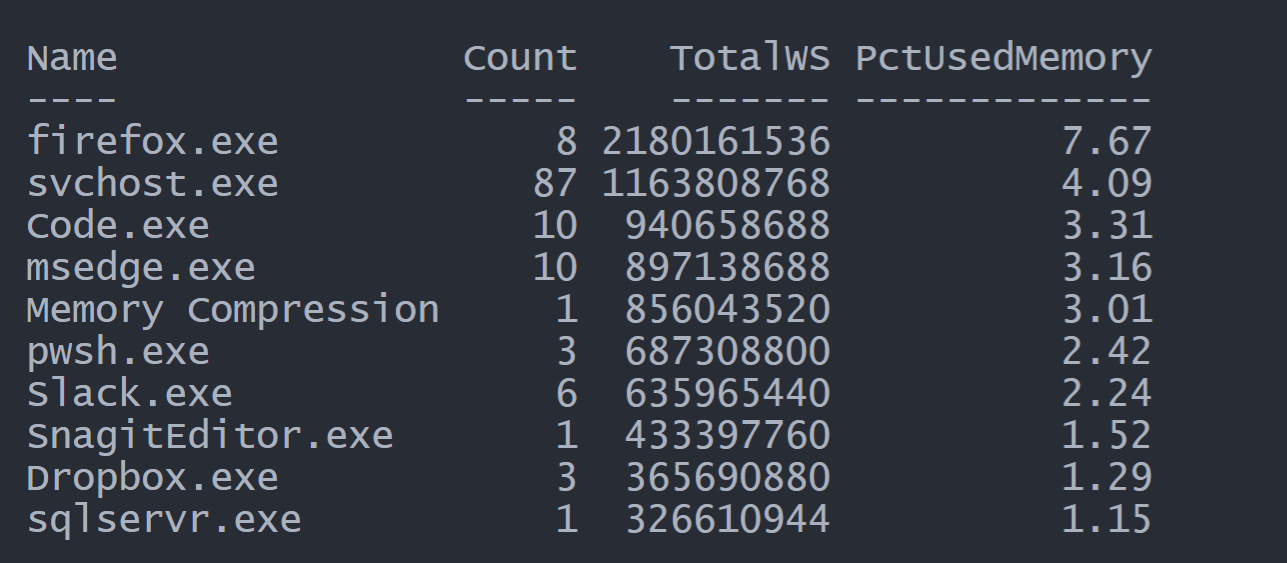
This code is also using the $InUseMemory value I retrieved at the beginning. The processes instances are grouped on the Name property. This is because I might 10 svchost processes and I want to treat them as one item.
The grouped objects are then enumerated using ForEach-Object. With each item in the group, I'm measuring the total Workingsetsize of the group.
$stat = $_.Group | Measure-Object -Property WorkingSetSize -sumI'm then creating a custom object using Select-Object to define new properties. The results are piped to Sort-Object to sort on the custom PctUsedMemory property in descending order. The sorted results are piped to Select-Object to grab the first 10. And finally, to make it pretty on the screen, I'll format the results as a table.
If I were to turn this into a function, I'd most likely create a true custom object instead of relying on Select-Object.
$computername = $env:COMPUTERNAME
$os = Get-CimInstance win32_operatingsystem -Property TotalVisibleMemorySize,FreePhysicalMemory -Computername $computername
$inUseMemory = ($os.TotalVisibleMemorySize - $os.FreePhysicalMemory)* 1KB
$grouped = Get-CimInstance win32_process -computername $computername -filter "Name <>'system idle process'" |
Group-Object -property Name

$results = ForEach ($item in $Grouped) {
    $stat = $item.Group | Measure-Object -Property WorkingSetSize -Sum
    [pscustomobject]@{
        PSTypeName    = "ProcessWSPercent"
        Name          = $item.Name
        Count         = $item.count
        TotalWS       = $stat.sum
        PctUsedMemory = [math]::Round(($stat.sum / $InUseMemory) * 100, 2)
    }
}

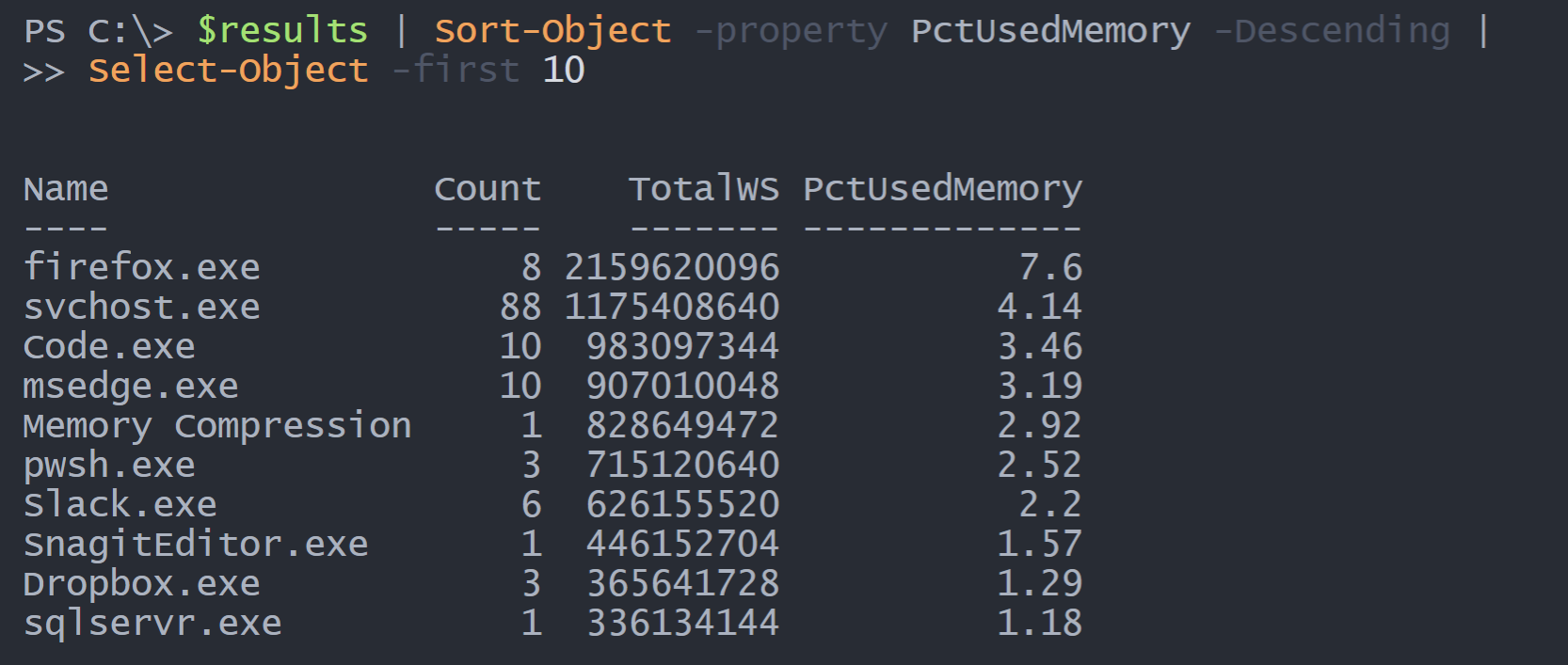
$results | Sort-Object -property PctUsedMemory -Descending |
Select-Object -first 10
I think this approach is easier to read in a script file. And if I wanted to, I could create a custom format.ps1xml file to format the results. Perhaps displaying TotalWS in MB instead of bytes, which is what I have now.
Using Get-Process
Here's a variation using Get-Process. In this version I'm going to get the total workingset value from all processes.
$ps = Get-Process
$totalWS = ($ps | Measure-Object -Property WS -Sum).sum
Now I can filter, select, sort and select what I want to see.
$ps | Where-Object {$_.name -notmatch "^(system|idle)$"} |
Select-Object -property Name,WS,@{Name="PctTotalWS";Expression = {($_.ws/$totalWS)*100}} |
Sort-Object -Property PctTotalWS -Descending |
Select-Object -first 10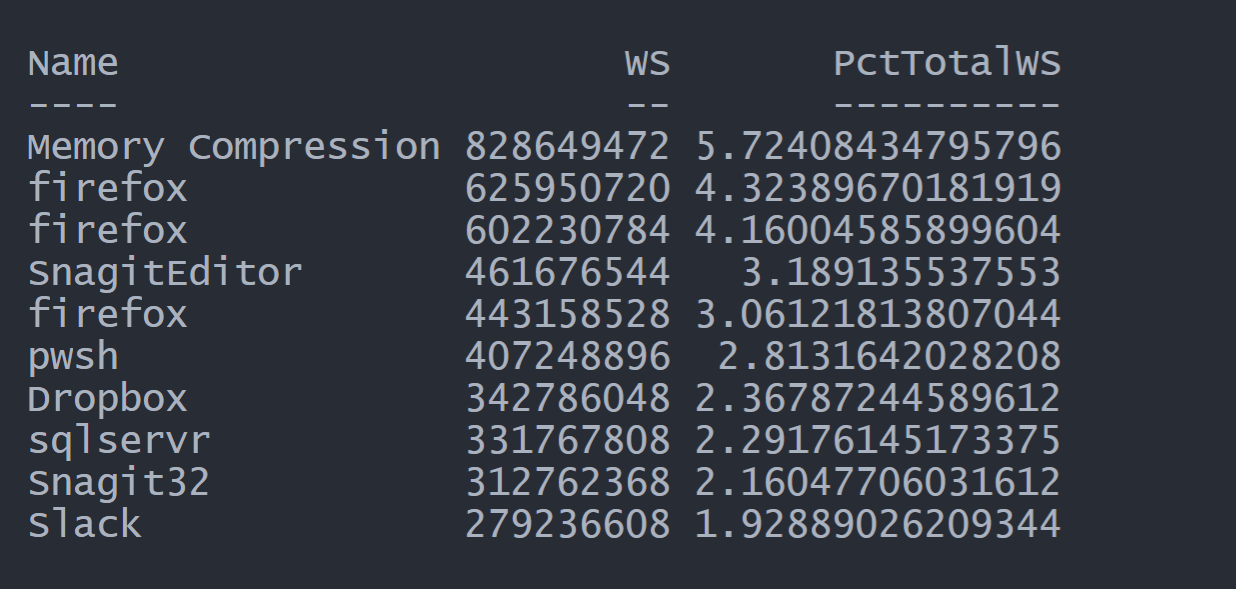
This variation is displaying results for each process. I can group them in a similar way as I did earlier.
$ps | Where-Object { $_.name -notmatch "^(system|idle)$" } |
Group-Object -Property name |
ForEach-Object {
    $wsSum = ($_.group | Measure-Object -Property WS -Sum).sum
    [PSCustomObject]@{
        Name       = $_.Name
        Count      = $_.count
        TotalWS    = $wsSum
        PctTotalWS = [math]::round(($wsSum / $totalWS) * 100, 4)
    }
} | Sort-Object -Property PctTotalWS -Descending | Select-Object -First 5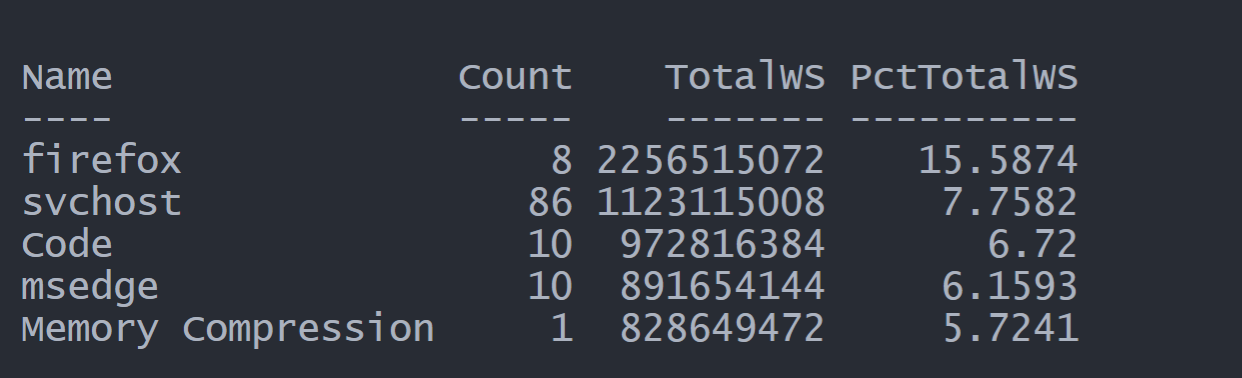
Again, it wouldn't take much to turn this into an easy to use PowerShell function.
Using Performance Counters
The last way I might tackle this is by using performance counters. I'll work with a single process that might have multiple instances.
$name = "firefox"
$Counters = (Get-Counter "\process(firefox*)\Working Set").CounterSamples
$total = ($counters | Measure-Object -property CookedValue -sum).Sum
$committed = (Get-Counter "\memory\committed bytes").Countersamples[0].CookedValue
$pct = ($total/$committed)*100
You'll notice that I'm using an index of [0] to get the committed bytes value, even though if you run the Get-Counter command you'll only see one result. There is a little quirk with Get-Counter where it returns an array with an empty second value. With these values, I can create a results object.
[pscustomobject]@{
        ProcessName = $name
        ProcessCount = $counters.count
        TotalWS = [math]::round($total / 1mb, 4)
        PctCommitted = [math]::round($pct, 4)
}
I'll extend this concept to all processes, again grouping like processes.
[pscustomobject]@{
        ProcessName = $name
        ProcessCount = $counters.count
        TotalWS = [math]::round($total / 1mb, 4)
        PctCommitted = [math]::round($pct, 4)
}
My code is using a regular expression to filter out select performance counter results. The rest of the code should look familiar.
$data = foreach ($item in $grouped) {
          $total = ($item.group | Measure-Object -Property CookedValue -Sum).Sum
          $pct = ($total / $committed) * 100

          [pscustomobject]@{
            ProcessName  = $item.Name
            ProcessCount = $item.count
            TotalWS      = [math]::round($total / 1mb, 4)
            PctCommitted = [math]::round($pct, 4)
          }
        }

$data | Sort-Object TotalWS -Descending | Select-Object -first 10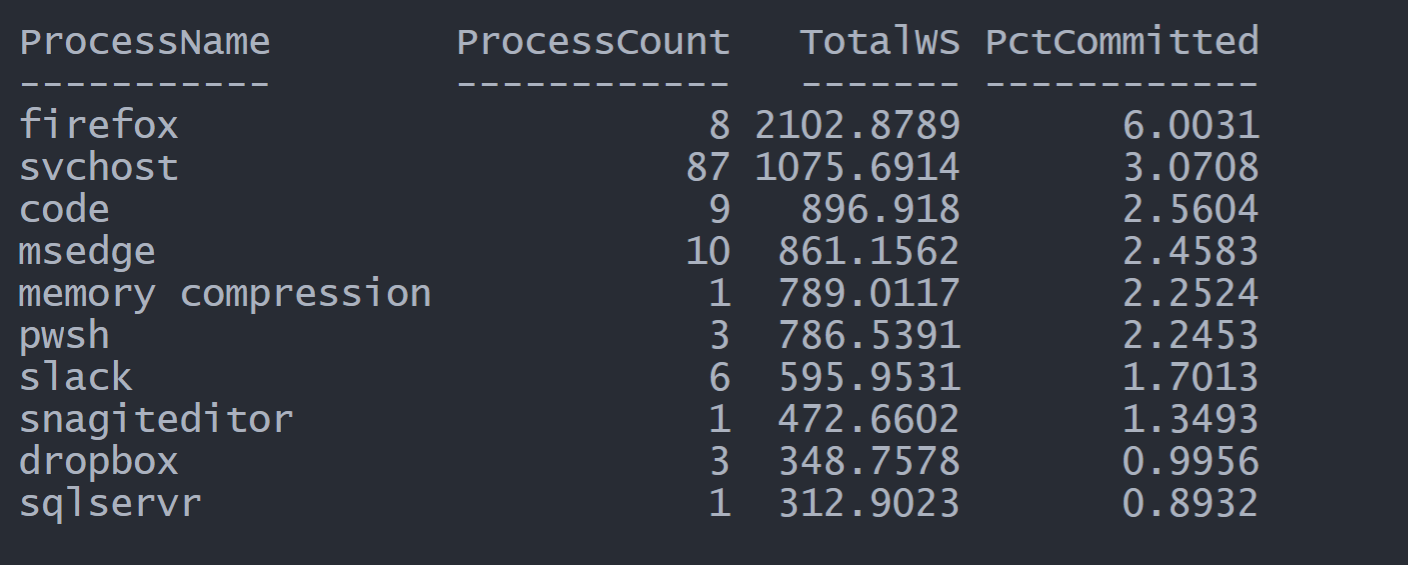
This code should work in Windows under bot Windows PowerShell and PowerShell 7.1.
Services
Let's wrap up by looking how to approach this from a service angle. A running service is a running process so I should be able to use most of the code I've already shown you. I'll re-run the code to get the $InUseMemory value.
$computername = $env:COMPUTERNAME
$os = Get-CimInstance win32_operatingsystem -Property TotalVisibleMemorySize,FreePhysicalMemory -Computername $computername
$inUseMemory = ($os.TotalVisibleMemorySize - $os.FreePhysicalMemory)* 1KB
I'll use Get-CimInstance to query the Win32_Service class because it will include the associated process id. Thus for each service I can get the corresponding process and build a custom object.
Get-CimInstance -classname win32_service -Filter "state = 'running'" -Property Name, ProcessID -ComputerName $computername |
ForEach-Object -Begin {
    #define a hashtable of parameters to splat to Get-CimInstance in the process block
    $splat = @{
        ClassName    = "Win32_process"
        filter       = ""
        Property     = "Name", "ProcessID", "WorkingSetSize"
        Computername = $Computername
    }
} -Process {
    #update the filter
    $splat.filter = "processid=$($_.processid)"
    $proc = Get-CimInstance @splat
    [pscustomobject]@{
        PSTypeName    = "svcMemoryDetail"
        ServiceName   = $_.Name
        ProcessName   = $proc.Name
        ProcessID     = $proc.ProcessId
        TotalWS       = $proc.WorkingSetSize
         PctUsedMemory = [math]::Round(($proc.WorkingSetSize / $inUseMemory) * 100, 4)
    }
} | Sort-Object PctUsedMemory -Descending | Select-Object -First 10 | Format-Table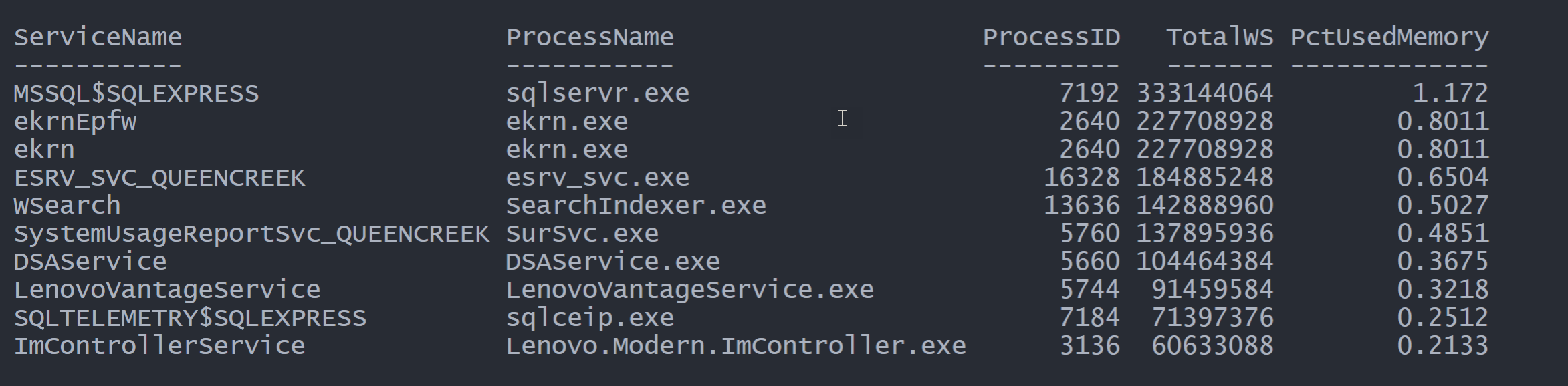
If I were to continue and create a function around this, I'd also create a custom format.ps1xml file to present a pretty table.
Wrap-Up
If you've been following me for any length of time you should recognize a familiar workflow.
- Write code that runs interactively at a prompt.
- Create a function wrapped around the code that writes an object to the pipeline.
- Add custom type and format updates to make it easy to work with command results.
If you use variables in your console code, like I did for $Computername, it doesn't take much effort to use them as function parameters.
There's admittedly a lot going on in this post, so don't be shy if you have questions or need a little clarity. Most likely someone else does as well. Otherwise, I hope you'll try some of the code yourself to see how it works. I also want you to try your hand at the Iron Scripter challenges. There are tests for all levels and there is no deadline.
Good luck.
When creating custom objects as part of a pipeline, do you prefer using the [pscustomobject] type accelerator with a hashtable over Select-Object? In your post you said, “If I were to turn this into a function, I’d most likely create a true custom object instead of relying on Select-Object.” Since you can create even complex calculated properties in Select-Object, what are the advantages of using the [pscustomobject] type accelerator in these instances?
That’s an excellent question. In a script or file, I’d tend to use the [PSCustomObject] because I think the code is easier to read in file. Select-Object with a lot of custom property hashtables can be harder to read and troubleshoot. It is also much easier to insert a type name using [PSCustomObject]. I would probably start with Select-Object and custom properties at the console but then convert to the [PSCustomObject] approach when I begin scripting.
This is very handy 🙂
Do you intend to add it to your PSScriptTools module?
Post an issue with the request and how you might use it and what would make it move valuable as a PowerShell scripting tool.
Hi Jeff,
Thank you!,
It was toughest to me to find if the sqlservice only on the windows server using what is the percentage of total memory used by it, i always used to scratch my head when i total memory of all processes used to come around 180 % of the total 80GB RAM.
However i used to provide sort of average % of the memory used only by SQL service.
Hope now this would help me to provide correct % of the total memory used by SQL service
out of server total memory.
Hi Jeff, Thank you!, It was toughest to me to find if the sqlservice on the windows server using what is the percentage of total memory used by it,
I used to scratch my head, when i get total memory of all processes used to come around 140 GB ( or >100% total memory of windows server) of the total 80GB RAM. However i used to provide sort of average % of the memory used only by SQL service.
Hope now this would help me to provide correct % of the total memory used by SQL service out of server total memory.
Note: This scenario was challenging, as we wanted to find out, only if the sqlservice on each server uses more than 60% of total memory, then only we can ask sql team to create a request increase the memory to get rid of pesky Priority 2 tickets.