 Since moving to Windows 8, I've continued exploring all the possibilities around Hyper-V on the client, especially using PowerShell. Because I'm trying to run as many virtual machines on my laptop as I can, memory considerations are paramount as I only have 8GB to work with. Actually less since I still have to run Windows 8!
Anyway, I need to be able to see how much memory my virtual machines are using. The Get-VM cmdlet can show me some of the data.
PS C:\> get-vm chi-dc03

Name     State   CPUUsage(%) MemoryAssigned(M) Uptime   Status
----     -----   ----------- ----------------- ------   ------
CHI-DC03 Running 0           559               23:29:12 Operating normally
Actually, there are more properties I can get as well.
PS C:\> get-vm chi-dc03 | select *mem*

MemoryAssigned       : 586153984
MemoryDemand         : 491782144
MemoryStatus         : OK
MemoryStartup        : 402653184
DynamicMemoryEnabled : True
MemoryMinimum        : 402653184
MemoryMaximum        : 1073741824
Those values are in bytes so I would need to reformat them to get them into something more meaningful like bytes. Not especially difficult, but not something I want to have to type all the time. Now, I can also get memory information with Get-VMMemory and this is formatted a little nicer.
PS C:\> get-vmmemory chi-dc03

VMName   DynamicMemoryEnabled Minimum(M) Startup(M) Maximum(M)
------   -------------------- ---------- ---------- ----------
CHI-DC03 True                 384        384        1024
What I like about this cmdlet is that it also shows the buffer and priority settings.
PS C:\> get-vmmemory chi-dc03 | select Startup,Buffer,Priority,Minimum,Maximum

Startup  : 402653184
Buffer   : 20
Priority : 50
Minimum  : 402653184
Maximum  : 1073741824
In the end, I decided the best course of action was to build my own function that combined information from both cmdlets. The result is a custom object that gives me a good picture of memory configuration and current use. The function, Get-VMMemoryReport, is part of a larger HyperV toolkit module I'm developing but I thought I'd share this with you now.
Function Get-VMMemoryReport {
#comment based help is here

[cmdletbinding()]
Param(
[Parameter(Position=0,Mandatory=$True,HelpMessage="Enter a VM",
ValueFromPipeline=$True)]
[alias("VM")]
[object]$Name,
[ValidateNotNullorEmpty()]
[string]$Computername=$env:COMPUTERNAME
)

Process {
    if ($Name -is [String]) {
        Try {
            $Name = Get-VM -name $Name -ComputerName $computername -ErrorAction Stop
        }
        Catch {
            Write-Warning "Failed to find VM $vm on $computername"
            Return
        }
    } #if
    elseif ($name -isnot [Microsoft.HyperV.PowerShell.VirtualMachine]) {
        Write-Warning "You did not pass a string or a VM object"
        Return
    }

    #get memory values
    $memorysettings = Get-VMMemory -VMName $Name.name -ComputerName $Computername

    #all values are in MB
    $hash=[ordered]@{
        Name = $Name.Name
        Dynamic = $Name.DynamicMemoryEnabled
        Assigned = $Name.MemoryAssigned/1MB
        Demand = $Name.MemoryDemand/1MB
        Startup = $Name.MemoryStartup/1MB
        Minimum = $Name.MemoryMinimum/1MB
        Maximum = $Name.MemoryMaximum/1MB
        Buffer =  $memorysettings.buffer
        Priority = $memorysettings.priority
    }

    #write the new object to the pipeline
    New-Object -TypeName PSObject -Property $hash

} #process
} #end Get-VMMemoryReport
I wrote the function with the assumption of piping Hyper-V virtual machines to it. Although I can also pipe names to it and the function will then get the virtual machine.
 if ($Name -is [String]) {
        Try {
            $Name = Get-VM -name $Name -ErrorAction Stop
        }
        Catch {
            Write-Warning "Failed to find VM $vm"
            Return
        }
    } #if
    elseif ($name -isnot [Microsoft.HyperV.PowerShell.VirtualMachine]) {
        Write-Warning "You did not pass a string or a VM object"
        Return
    }
Once the function has the virtual machine object, it also gets data from Get-VMMemory.
$memorysettings = Get-VMMemory -VM $Name
Finally, it creates a hash table using the new [ordered] attribute so that the key names will be displayed in the order I enter them. I use this hash table to write a custom object to the pipeline. I could have used the new [pscustomobject] attribute as well, but I felt in a script using New-Object was a bit more meaningful. With this command, I get output like this:
PS C:\> get-VMMemoryreport chi-dc03

Name     : CHI-DC03
Dynamic  : True
Assigned : 559
Demand   : 469
Startup  : 384
Minimum  : 384
Maximum  : 1024
Buffer   : 20
Priority : 50
Or I can explore the data in other ways. I can create an HTML report, export to a CSV or take advantage of Out-GridView.
PS C:\> get-vm | where state -eq running | get-vmmemoryreport | out-gridview -title 'VM Memory Report'
Here's the report for my currently running virtual machines.
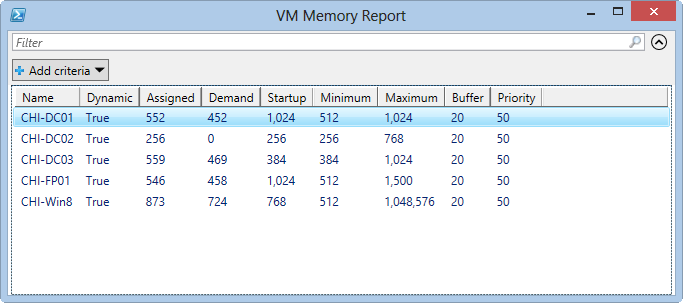
The function defaults to connecting to the localhost, but I am assuming that if you have an Hyper-V server you could use this from any system that has they Hyper-V module also installed. I don't have a dedicated Hyper-V server to test with so maybe someone will confirm this for me.
In the meantime, download Get-VMMemoryReport and let me know what you think.
When I try to run the very first command “get-vm TestComp” I get an error stating “get-vm: The Virtual Machine Management Service on host “TestComp” is not running”
So my Hyper-V Host is a Windows 8 64bit box and the guest/VM is Windows 7 SP1 32bit. VMM service is running on the Windows 8 64bit machine but no VMM service on the Windows 7 VM even after I ensured the Integration Services was installed.
I’m sure I’m missing a “your an idiot” option here.
Nevermind, I had to use the “-ComputerName” switch.
Get-VM assumes you are trying to get virtual machines running on the local machine. For any other server you need to use -Computername, as you figured out.
Suggestion to avoid the “The Virtual Machine Management Service on host..[..]”
Change:
$memorysettings = Get-VMMemory -VMName $Name.name -ComputerName $Computername
with:
$memorysettings = Get-VMMemory -VMName $Name.name -ComputerName $Name.Computername
The parameter $Computername is not relevant, since the [Microsoft.HyperV.PowerShell.VirtualMachine] object carries its host in the computername-proptery.
I said:
The parameter $Computername is not relevant
Thats is not correct if a string is passed, I would make the function require VM-objects – not strings.
Thanks for the inspiration btw 🙂
That would make it easier for me, true. But I prefer to have more flexibility for the user. I don’t want them to have to try and figure out what type of object can be piped into the command. I try to think of how my command might be used and try to accommodate all reasonable scenarios.