I love the new CIM cmdlets in PowerShell 3.0. Querying WMI is a little faster because the CIM cmdlets query WMI using the WSMAN protocol instead of DCOM. The catch is that remote computers must be running PowerShell 3 which includes the latest version of the WSMAN protocol and the WinRM service. But if your computers are running 3.0 then you can simply run a command like this:
get-content computers.txt | get-ciminstance win32_operatingsystem
However, if one of the computers is running PowerShell 2.0, you'll get an error.
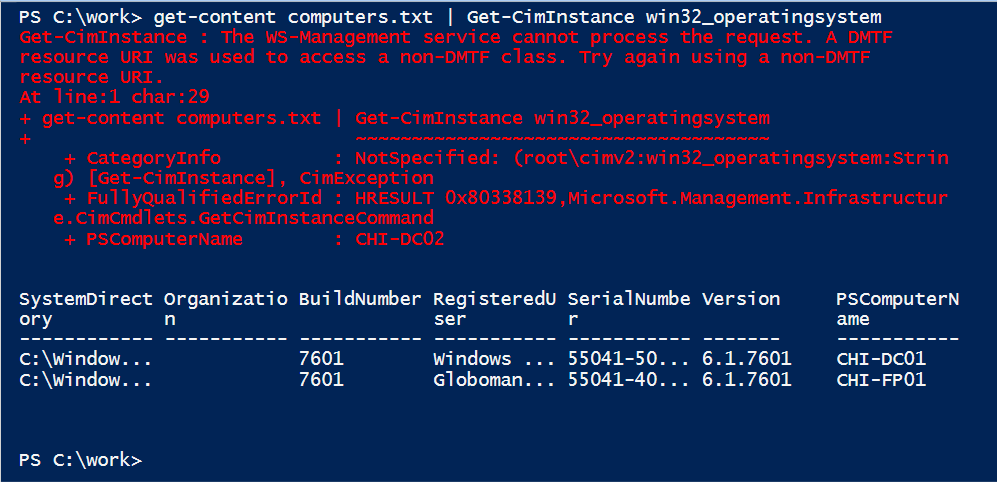
In this example, CHI-DC02 is not running PowerShell 3.0. The solution is to create a CIMSession using a CIMSessionOption for DCOM.
$opt = New-CimSessionOption -Protocol Dcom
$cs = New-CimSession -ComputerName CHI-DC02 -SessionOption $opt
$cs | get-ciminstance win32_operatingsystem
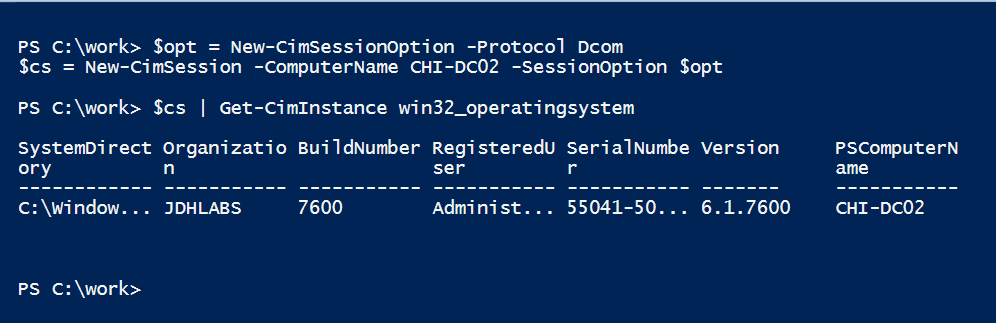
So there is a workaround, but you have to know ahead of time which computers are not running PowerShell 3.0. When you use Get-CimInstance and specify a computername, the cmdlet setups up a temporary CIMSession. So why not create the temporary CIMSession with the DCOM option if it is needed? So I wrote a "wrapper" function called Get-MyCimInstance to do just that.
The heart of the function is a nested function to test if a remote computer is running WSMAN 3.0.
Function Test-IsWsman3 {
[cmdletbinding()]
Param(
[Parameter(Position=0,ValueFromPipeline)]
[string]$Computername=$env:computername
)

Begin {
    #a regular expression pattern to match the ending
    [regex]$rx="\d\.\d$"
}
Process {
    Try {
        $result = Test-WSMan -ComputerName $Computername -ErrorAction Stop
    }
    Catch {
        Write-Error $_.exception.message
    }
    if ($result) {
        $m = $rx.match($result.productversion).value
        if ($m -eq '3.0') {
            $True
        }
        else {
            $False
        }
    }
} #process
End {
 #not used
}
} #end Test-IsWSMan
The function uses Test-WSMan and a regular expression to get the remoting version. If it is 3.0 the function returns True. In Get-MyCIMInstance I test each computer and if not running 3.0, create the CIMSession option and include it when creating the temporary CIMSession.
Try {
#test if computer is running WSMAN 2
$isWSMAN3 = Test-IsWsman3 -Computername $computer -ErrorAction Stop

if (-NOT $isWSMAN3) {
    #create a CIM session using the DCOM protocol
    Write-Verbose "Creating a DCOM option"
    $opt = New-CimSessionOption -Protocol Dcom
    $sessparam.Add("SessionOption",$opt)
}
Else {
        Write-Verbose "Confirmed WSMAN 3.0"
}

Try {
    $session = New-CimSession @sessParam
}
Catch {
    Write-Warning "Failed to create a CIM session to $computer"
    Write-Warning $_.Exception.Message
}
I'm using a Try/Catch block because if the computer is offline, my test function will throw an exception which I can catch.
Catch {
        Write-Warning "Unable to verify WSMAN on $Computer"
     }
Otherwise, all is good and I can pass the rest of the parameters to Get-CimInstance.
#create the parameters to pass to Get-CIMInstance
        $paramHash=@{
         CimSession= $session
         Class = $class
        }

        $cimParams = "Filter","KeyOnly","Shallow","OperationTimeOutSec","Namespace"
        foreach ($param in $cimParams) {
          if ($PSBoundParameters.ContainsKey($param)) {
            Write-Verbose "Adding $param"
            $paramhash.Add($param,$PSBoundParameters.Item($param))
          } #if
        } #foreach param

        #execute the query
        Write-Verbose "Querying $class"
        Get-CimInstance @paramhash
At the end of the process, I remove the temporary CIMSession. With this, now I can query both v2 and v3 computers.
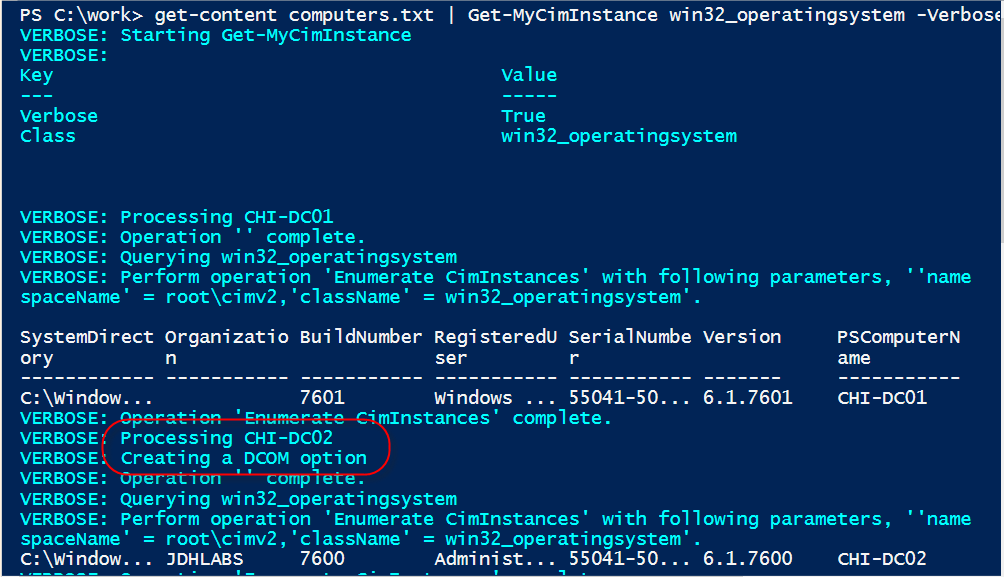
Notice for CHI-DC02 I'm creating the DCOM option. Here's the command without all the verboseness.
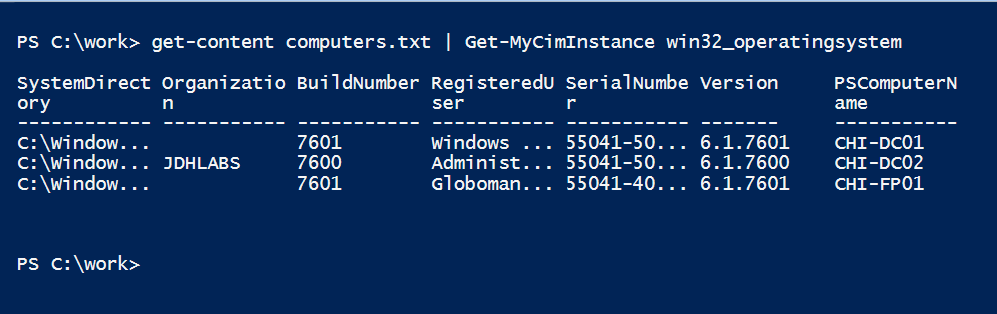
I could have created a proxy function for Get-CimInstance, but not only are they more complicated, I didn't want that much transparency. I wanted to know that I'm querying using my function and not Get-CimInstance. Here's the complete script.
#requires -version 3.0

<#
  ****************************************************************
  * DO NOT USE IN A PRODUCTION ENVIRONMENT UNTIL YOU HAVE TESTED *
  * THOROUGHLY IN A LAB ENVIRONMENT. USE AT YOUR OWN RISK.  IF   *
  * YOU DO NOT UNDERSTAND WHAT THIS SCRIPT DOES OR HOW IT WORKS, *
  * DO NOT USE IT OUTSIDE OF A SECURE, TEST SETTING.             *
  ****************************************************************
 #>

Function Get-MyCimInstance {

<#
.Synopsis
Create on-the-fly CIMSessions to retrieve WMI data
.Description
The Get-CimInstance cmdlet in PowerShell 3 can be used to retrieve WMI information
from a remote computer using the WSMAN protocol instead of the legacy WMI service
that uses DCOM and RPC. However, the remote computers must be running PowerShell
3 and the latest version of the WSMAN protocol. When querying a remote computer,
Get-CIMInstance setups a temporary CIMSession. However, if the remote computer is
running PowerShell 2.0 this will fail. You have to manually create a CIMSession
with a CIMSessionOption to use the DCOM protocol.

This command does that for you automatically. It is designed to use computernames.
The computer is tested and if it is running PowerShell 2.0 then a temporary session
is created using DCOM. Otherwise a standard CIMSession is created. The remaining
CIM parameters are then passed to Get-CIMInstance.

Get-MyCimInstance is essentially a wrapper around Get-CimInstance to make it easier
to query data from a mix of computers.
.Example
PS C:\> get-content computers.txt | get-myciminstance -class win32_logicaldisk -filter "drivetype=3"
.Notes
Last Updated: April 11, 2013
Version     : 1.0
Author      : Jeffery Hicks (@JeffHicks)

Read PowerShell:
Learn Windows PowerShell 3 in a Month of Lunches
Learn PowerShell Toolmaking in a Month of Lunches
PowerShell in Depth: An Administrator's Guide

.Link
https://jdhitsolutions.com/blog/2013/04/get-ciminstance-from-powershell-2-0

.Link
Get-CimInstance
New-CimSession
New-CimsessionOption

.Inputs
string

.Outputs
CIMInstance

#>

[cmdletbinding()]

Param(
[Parameter(Position=0,Mandatory,HelpMessage="Enter a class name",
ValueFromPipelineByPropertyName)]
[ValidateNotNullorEmpty()]
[string]$Class,
[Parameter(Position=1,ValueFromPipelineByPropertyName,ValueFromPipeline)]
[ValidateNotNullorEmpty()]
[string[]]$Computername=$env:computername,
[Parameter(ValueFromPipelineByPropertyName)]
[string]$Filter,
[Parameter(ValueFromPipelineByPropertyName)]
[string[]]$Property,
[Parameter(ValueFromPipelineByPropertyName)]
[ValidateNotNullorEmpty()]
[string]$Namespace="root\cimv2",
[switch]$KeyOnly,
[uint32]$OperationTimeoutSec,
[switch]$Shallow,
[System.Management.Automation.Credential()]$Credential = [System.Management.Automation.PSCredential]::Empty
)

Begin {
    Write-Verbose -Message "Starting $($MyInvocation.Mycommand)"
    Write-verbose -Message ($PSBoundParameters | out-string)

    Function Test-IsWsman3 {
        [cmdletbinding()]
        Param(
        [Parameter(Position=0,ValueFromPipeline)]
        [string]$Computername=$env:computername
        )

        Begin {
            #a regular expression pattern to match the ending
            [regex]$rx="\d\.\d$"
        }
        Process {
            Try {
                $result = Test-WSMan -ComputerName $Computername -ErrorAction Stop
            }
            Catch {
                #Write the error to the pipeline if the computer is offline
                #or there is some other issue
                write-Error $_.exception.message
            }
            if ($result) {
                $m = $rx.match($result.productversion).value
                if ($m -eq '3.0') {
                    $True
                }
                else {
                    $False
                }
            }
        } #process
        End {
         #not used
        }
        } #end Test-IsWSMan

} #begin

Process {
    foreach ($computer in $computername) {
        Write-Verbose "Processing $computer"

        #hashtable of parameters for New-CimSession
        $sessParam=@{Computername=$computer;ErrorAction='Stop'}
        if ($credential) {
            Write-Verbose "Adding alternate credential for CIMSession"
            $sessParam.Add("Credential",$Credential)
        }
        Try {
        #test if computer is running WSMAN 2
        $isWSMAN3 = Test-IsWsman3 -Computername $computer -ErrorAction Stop

        if (-NOT $isWSMAN3) {
            #create a CIM session using the DCOM protocol
            Write-Verbose "Creating a DCOM option"
            $opt = New-CimSessionOption -Protocol Dcom
            $sessparam.Add("SessionOption",$opt)
        }
        Else {
                Write-Verbose "Confirmed WSMAN 3.0"
        }

        Try {
            $session = New-CimSession @sessParam
        }
        Catch {
            Write-Warning "Failed to create a CIM session to $computer"
            Write-Warning $_.Exception.Message
        }

        #create the parameters to pass to Get-CIMInstance
        $paramHash=@{
         CimSession= $session
         Class = $class
        }

        $cimParams = "Filter","KeyOnly","Shallow","OperationTimeOutSec","Namespace"
        foreach ($param in $cimParams) {
          if ($PSBoundParameters.ContainsKey($param)) {
            Write-Verbose "Adding $param"
            $paramhash.Add($param,$PSBoundParameters.Item($param))
          } #if
        } #foreach param

        #execute the query
        Write-Verbose "Querying $class"
        Get-CimInstance @paramhash

        #remove the temporary cimsession
        Remove-CimSession $session
     } #Try
     Catch {
        Write-Warning "Unable to verify WSMAN on $Computer"
     }
    } #foreach computer

} #process

End {
    Write-Verbose -Message "Ending $($MyInvocation.Mycommand)"
} #end

} #end Get-MyCimInstance
I hope you'll let me know what you think and if you find this useful.
UPDATE: I've revised this script and article since it's original posting to better handle errors if you can't test WSMAN. I also added support for alternate credentials, which is something you can't do with Get-CimInstance.
NOTE: I should also point out that there is an apparent bug with Get-CimInstance. If you run the command for all instances of a given class, like win32_share and the remote computer is running PowerShell v2 you will get the error I've written about. But, if you use a query or a filter, it will work. So while this will fail if the computer is running v2, get-ciminstance win32_share -computername $c, these will work:
Get-CimInstance -query "Select * from win32_share" -computername $c
Get-CimInstance -win32_share -filter "Name='C$'" -computername $c
It is an odd behavior, but it can work in your favor depending on how your structure your command. What I haven't verified yet is what protocol PowerShell is using in these situations when the remote computer is running v2. Of course, the best, long term solution is to get all of your managed systems to at least PowerShell 3.0.
This is a good solution. I like the idea of using WSMAN where it’s available, but as you say, it’s not going to be everywhere for a while.
it´s a nice script and I am going to use it in my tools. I made one change in the function Test-IsWsman3 and want to share this: I noticed that when the WinRM Service is not configured or not responding the functions return not $true and not $false only the Error description from the Catch-block. Here is my suggestion of change:
Try {
$result = Test-WSMan -ComputerName $Computername -ErrorAction Stop
}
Catch {
Write-Error $_
$False
}
now if the WSMan is not responding at all, we get $false to the output stream and the Error message goes to the Error-Stream and not to the output stream
You bring up a good point that I missed. I modified Test-IsWSMAN3 to write the exception to the pipeline. Then in my Get-MyCimInstance function I can use Try/Catch to better handle the exception. If a computer is offline, I don’t want to get False because the function will keep going and eventually fail. So now, my test function is called. If it is True I go ahead and create the CIMSession. If it is False I create the CIMSessionOption and then the session. Or if there is an error I display a warning and move on to the next computer.